Students change classrooms through Re-enrollment Management. A move within the same grade is called a Transfer. Promoting or holding back students between grades works the same way. See How re-enrollment works.
Good to know: a student who has no classroom yet isn’t moved. They are enrolled from the Unassigned Students tab. See Add a student.
Move a student
-
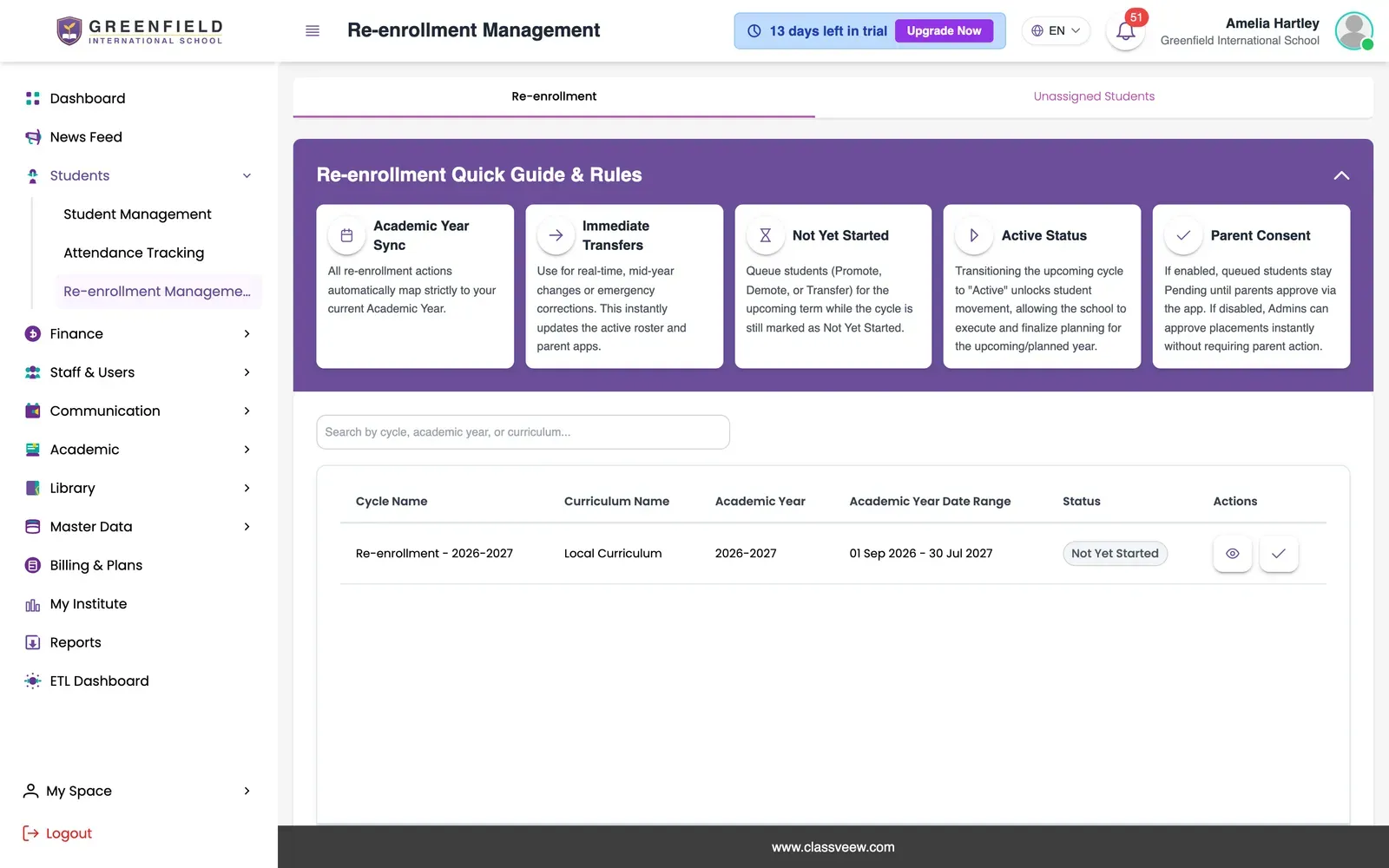
Open Students → Re-enrollment Management.
-
On the Re-enrollment tab, find the cycle for your current academic year and select the eye icon (View Details). Moves are possible while the cycle is Not Yet Started or Active.
-
Find the student and select the Transition Student icon on their row. To move several students at once, tick them and select Transition Students.
-
For Transition Type, choose Transfer.
-
Choose the Target Classroom. A transfer keeps the student in their grade.
-
Check Apply Immediately:
- Ticked, the move happens straight away.
- Not ticked, it is scheduled and happens when the cycle is finalized.
- In a cycle that is Not Yet Started, it is always ticked.
-
Add a Reason or Notes if you like, then select Proceed and Yes, Transition.
A summary shows which students were moved. If a move is refused, the summary says why.
See a student’s history
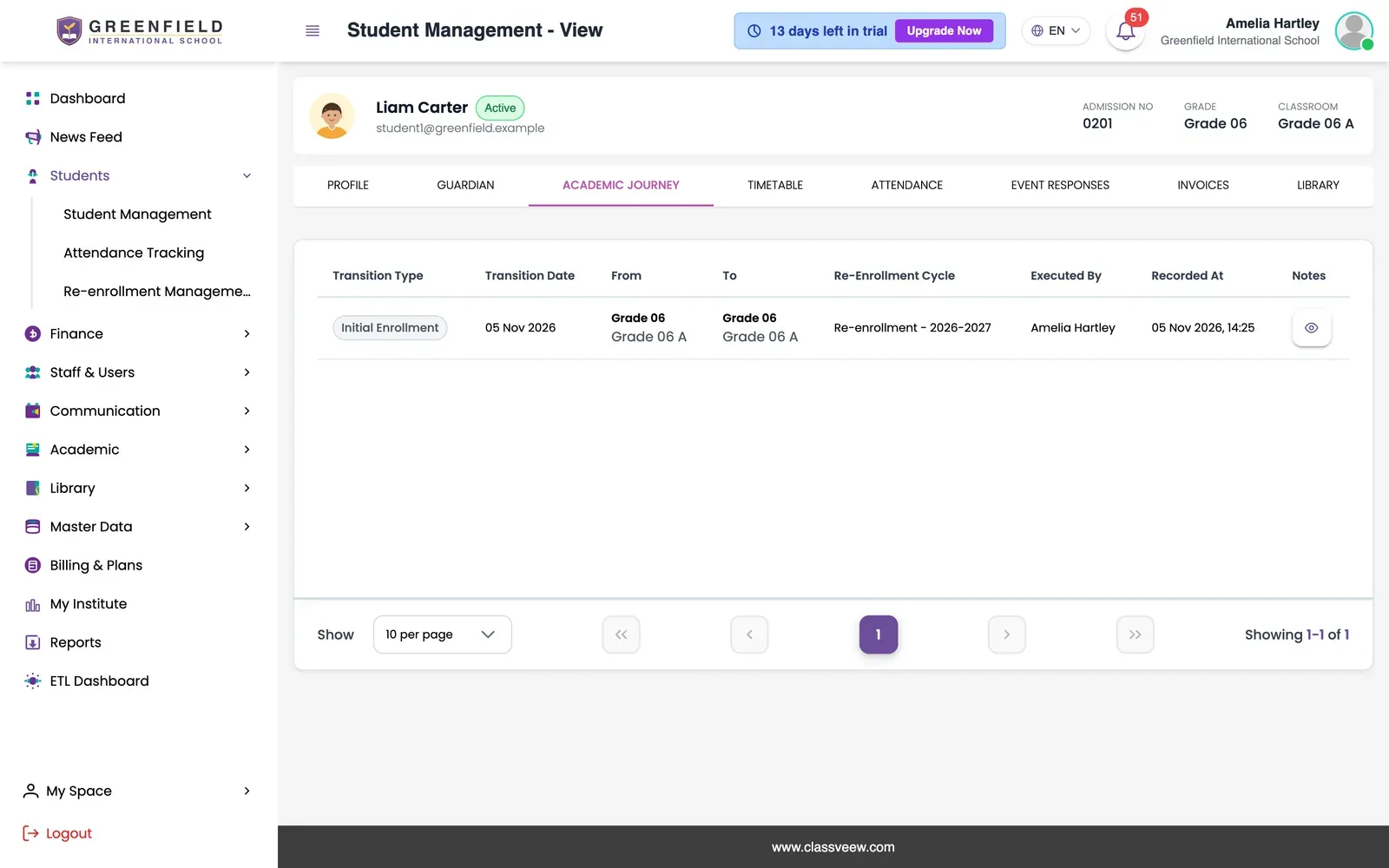
Open the student from Students → Student Management (eye icon) and select the Academic Journey tab. Each row shows the Transition Type, the date, where the student moved From and To, the Re-Enrollment Cycle, who made the change and when. Select the eye icon on a row to read its notes.