Students can sign in to the web portal to see their homework and exams. You send them their sign-in details from Student Management.
How students sign in
Each student signs in with one of these:
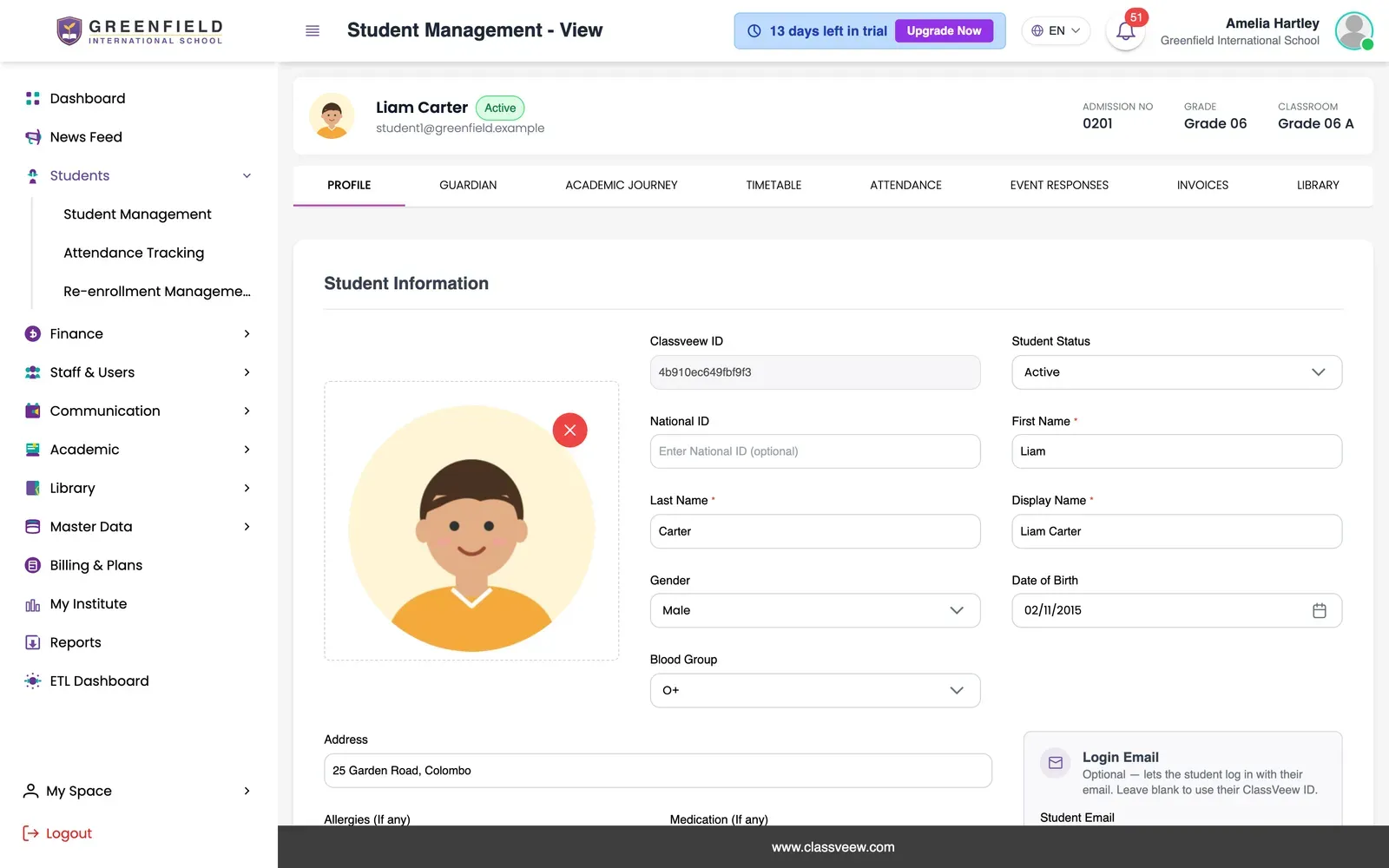
- Their email, if you added a Student Email to their profile.
- Their ClassVeew ID, if they have no email. You find it in the Classveew ID box on the Profile tab of the student’s profile.
To add or change a student’s email, open their profile, fill in Student Email under Login Email, and select Save Student.
Send the sign-in details
- Make sure the student is Active. Inactive students can’t sign in.
- Open Students → Student Management and tick the students.
- Select Send Invitation, then Yes, Send.
Each invitation email holds the student’s username and a temporary password:
- A student with an email gets it at their own email.
- A student without an email: it goes to their guardian, the primary guardian first.
- If there is no email and no guardian with an email, the student is skipped. The Invitation column shows No Email for them.
The Invitation column changes to Invited. To send the details again, for example after a lost email, select the student and send the invitation again. This issues a new temporary password.
Good to know: only staff whose role includes student management see Send Invitation.
The student’s first sign-in
- The student goes to app.classveew.com.
- They enter their Email or ClassVeew ID and the temporary password, then select Sign In.
- Classveew asks them to set a new password before they continue.
To see what students can do after they sign in, see How students use the student portal.