Some students end up without a classroom: for example, a new student added without one, or students whose classroom, grade or curriculum was inactivated or deleted. They’re listed on the Unassigned Students tab, where you can place them in a classroom at any time.
Steps
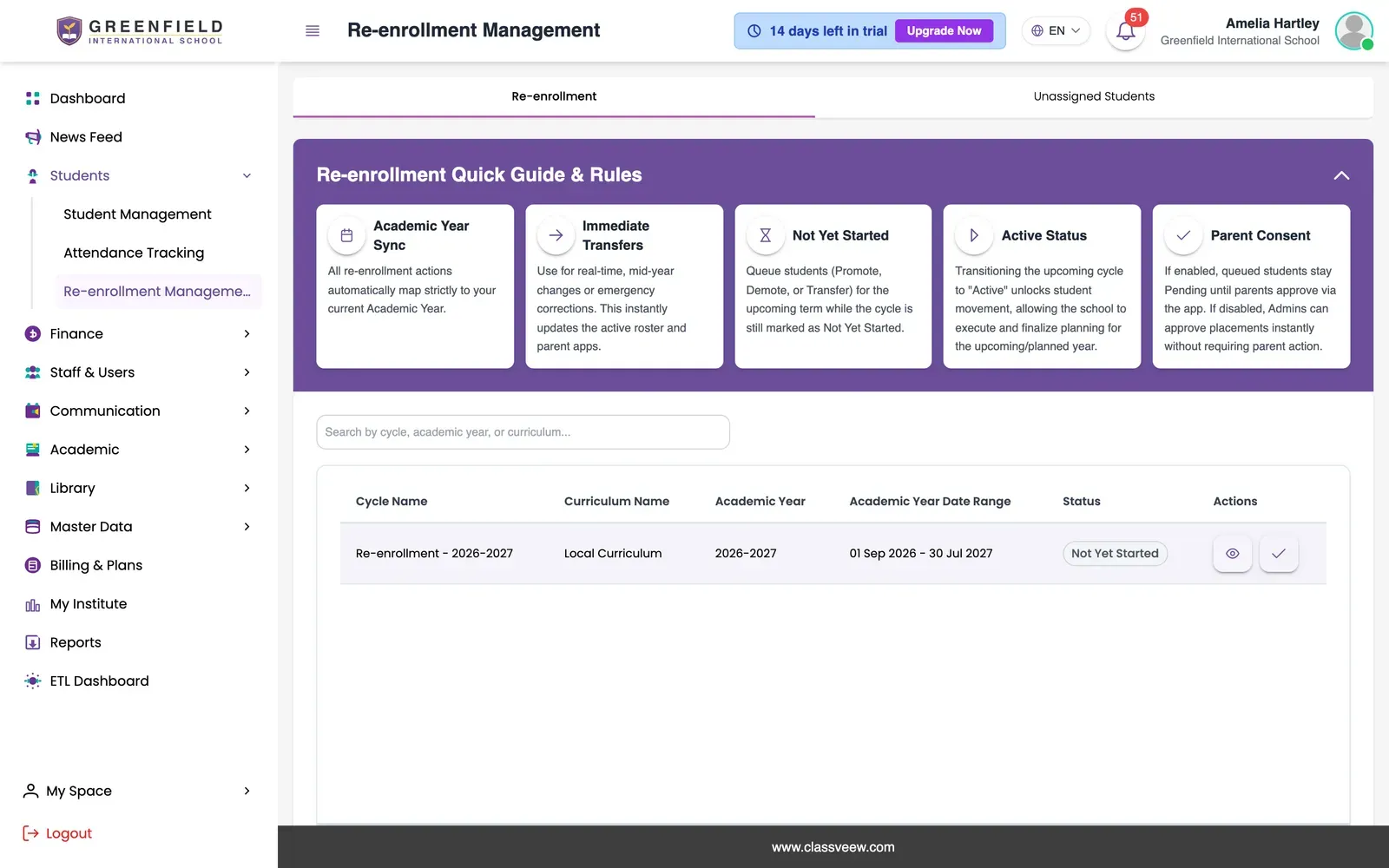
- Open Students → Re-enrollment Management and select the Unassigned Students tab.
- Find the students. Use Search by name or admission number.
- Tick the students you want to place.
- If any of them are inactive, select Activate first, then Yes, Activate. Only active students can be enrolled.
- Select Enrollment.
- Choose the Curriculum, Grade and Classroom. Add Notes if you like.
- Select Enroll, then Yes, Enroll.
The students move into the classroom straight away and leave the Unassigned Students list.
Re-enrollment cycles
- If the curriculum has an Active or Not Yet Started re-enrollment cycle, the students are added to it, so they’re included when you move students on at the end of the year.
- If there’s no cycle, the students are still enrolled. You’re told that they’re not in a cycle.
Good to know: the classroom’s curriculum needs an active academic year. See Set up academic years and terms. Select View Academic Journey Log on a student to see their past classrooms. To add a brand-new student, see Add a student.