Each curriculum has its own academic years, and each academic year is split into terms. The year runs from the first day of its first term to the last day of its last term.
Before you start
Create the curriculum first. See Set up a curriculum.
Add an academic year
-
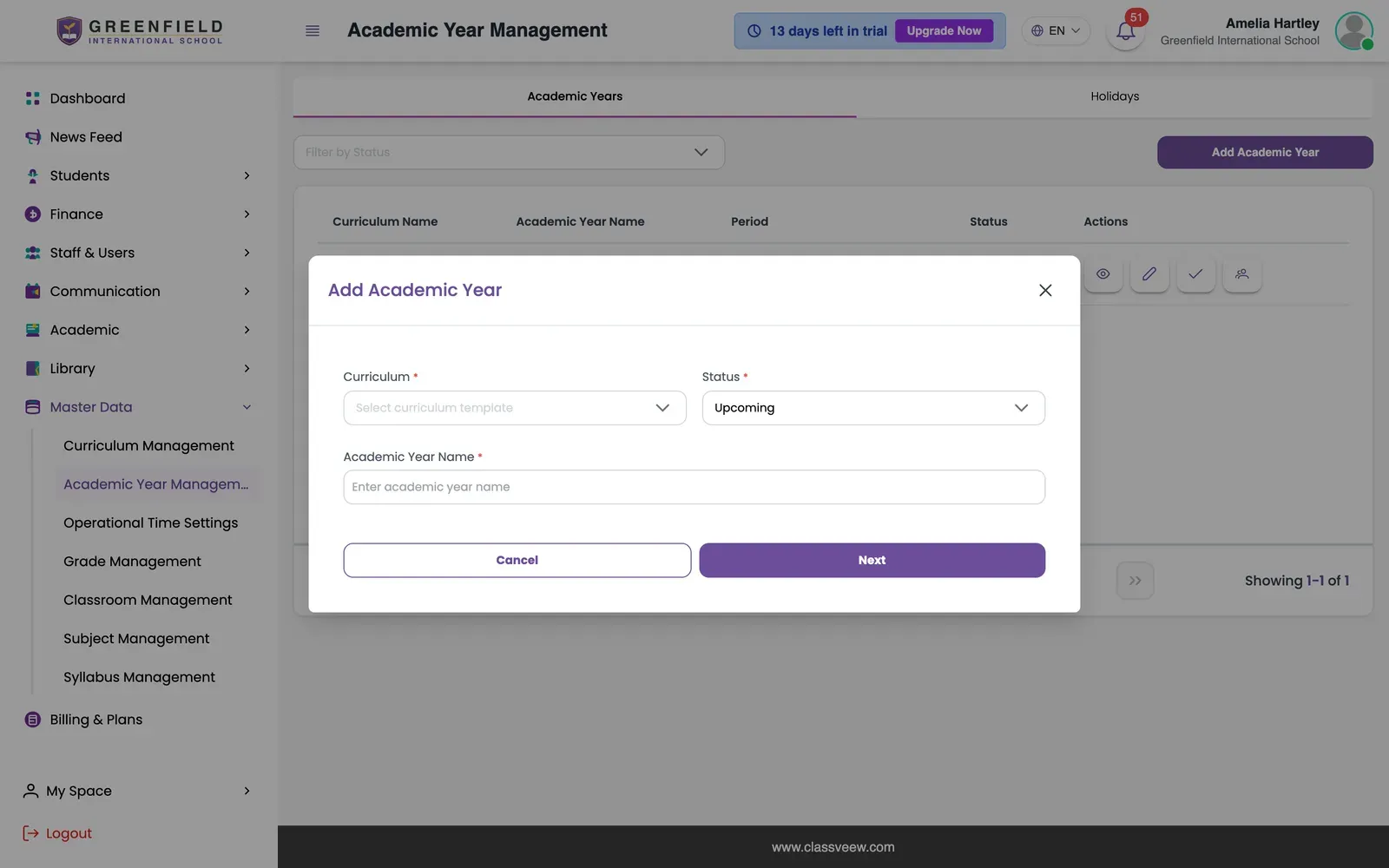
Open Master Data → Academic Year Management and select Add Academic Year.
-
Choose the Curriculum and the Status, and enter the Academic Year Name, such as 2026-2027. Select Next.
-
Add each term: enter the Term Name, Start Date and End Date, then select Add Term. Repeat for every term.
-
Select Next, check the terms, then select Save.
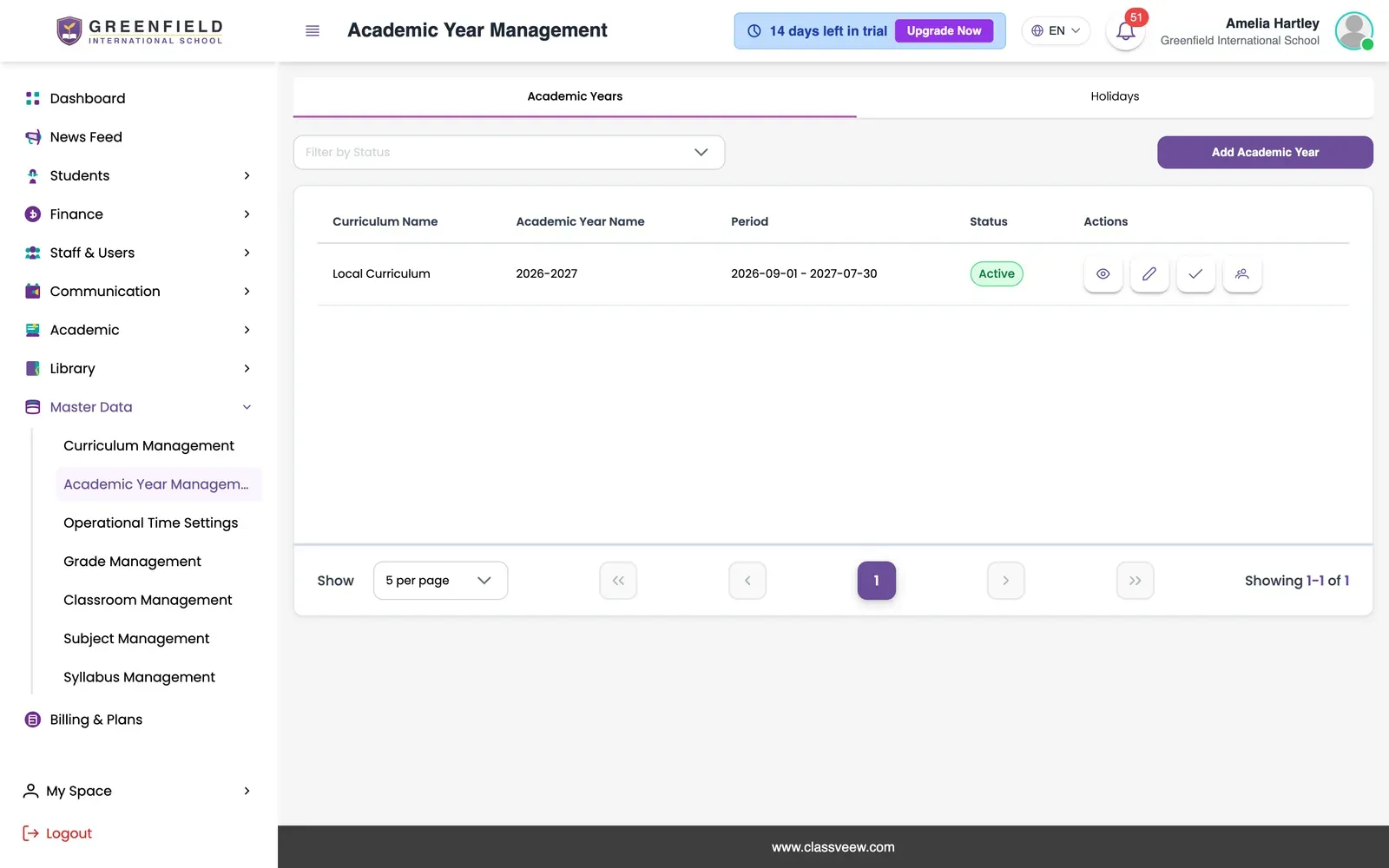
The year appears in the list with its curriculum, name, period and status.
Rules to know
- Each term must end after it starts, and terms can’t overlap.
- An academic year can’t overlap another year of the same curriculum.
- Each curriculum can have only one Active academic year at a time.
- Each year’s name must be unique within its curriculum.
Statuses
- Upcoming: a year you are preparing. You can change all its terms and dates.
- Active: the current year.
- Inactive: a year that is switched off.
- Completed: a finished year. To finish a year, select the tick icon in Actions, then Yes, Complete. A completed year is locked and can’t be edited.
Change dates later
Select the pencil icon to edit a year. For an Upcoming or Inactive year, you can change any term.
For an Active year, some dates are locked:
- You can’t add or remove terms.
- The first term’s start date and the last term’s end date can’t change. They set the start and end of the year.
- Dates that are today or in the past can’t change.
- You can move other term dates, as long as the new date is in the future.
Good to know: school holidays are on the Holidays tab of the same page. See School calendar and holidays.