Teachers can give students award badges from the Classveew app, to praise good work or to flag something the student finds hard. Parents see every award in their app.
Give an award
-
Open the menu and tap Awards.
-
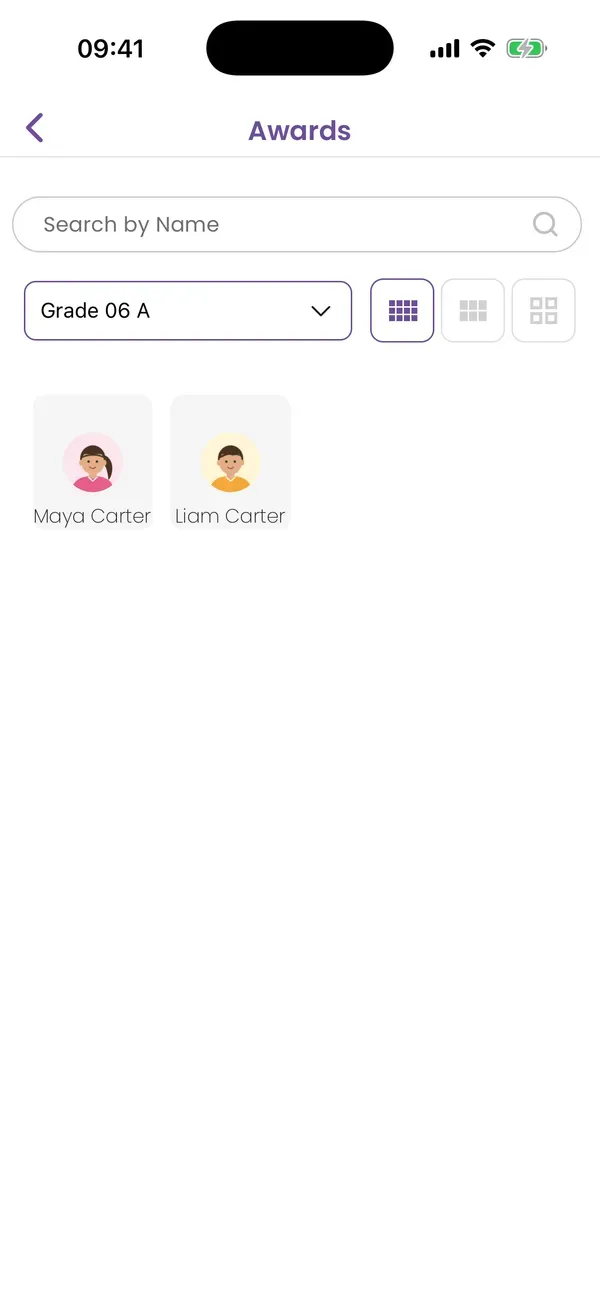
Tap Select Classroom and choose the class. You can also use Search by Name.
-
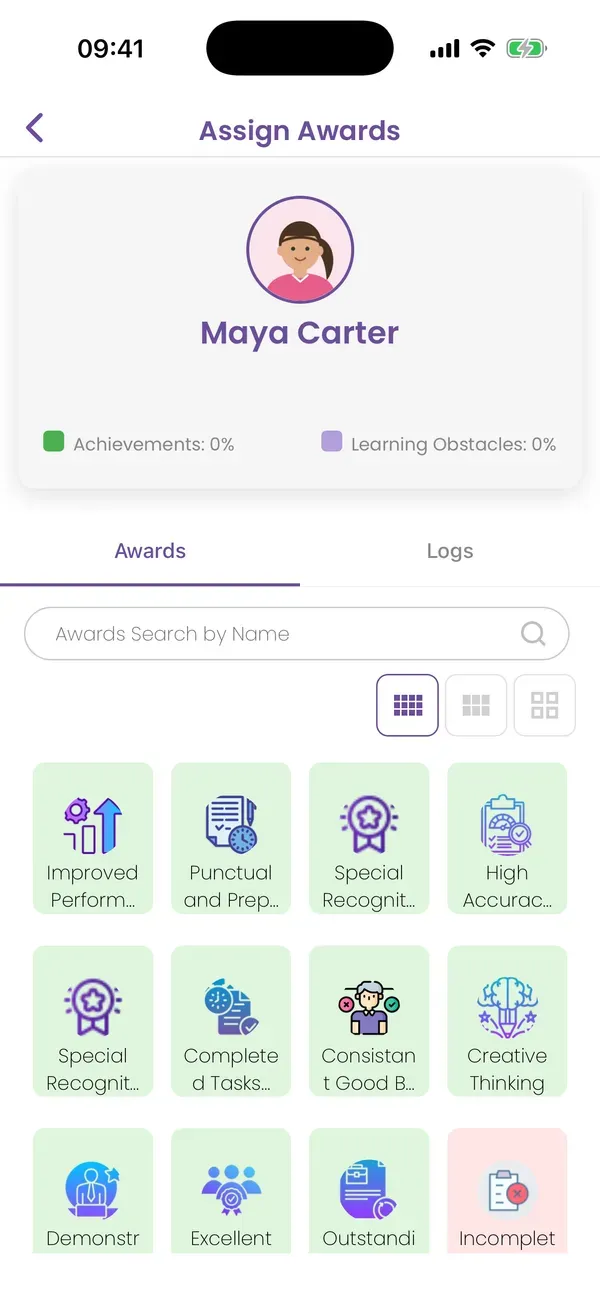
Tap the student. The Assign Awards screen shows the badges you can give.
-
Tap a badge. Green badges are Achievements. Red badges are Obstacles, such as incomplete work.
-
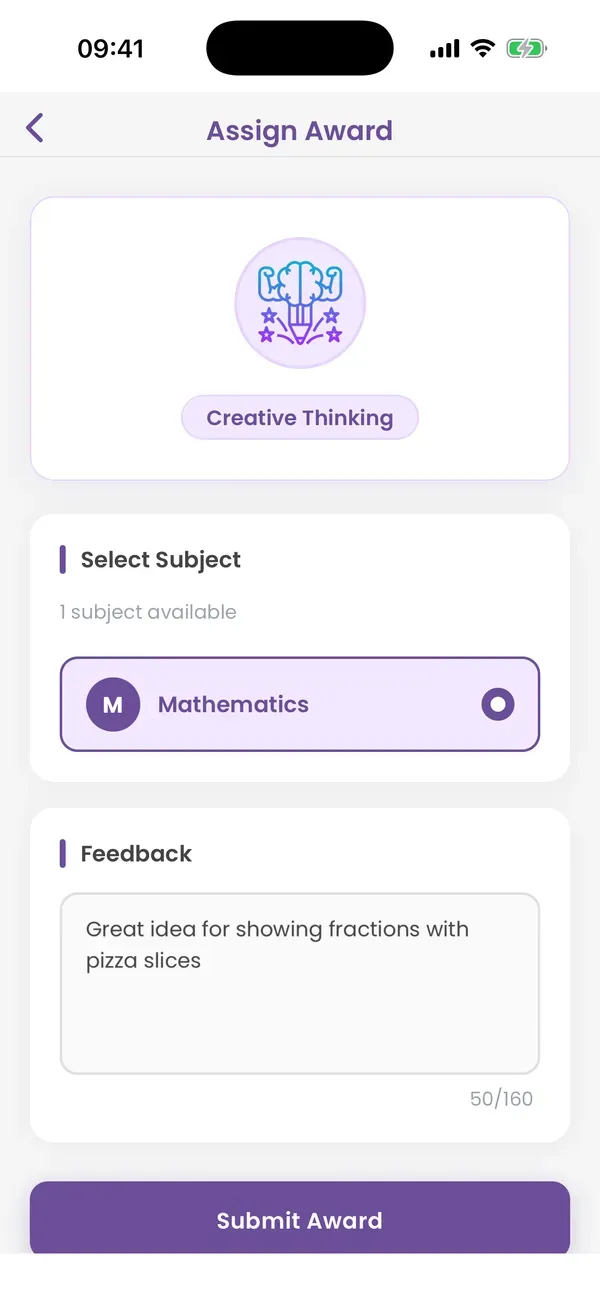
Under Select Subject, choose the subject. You see the subjects you teach in that classroom.
-
Add Feedback if you like, up to 160 characters.
-
Tap Submit Award.
See the student’s awards
On the student’s Assign Awards screen:
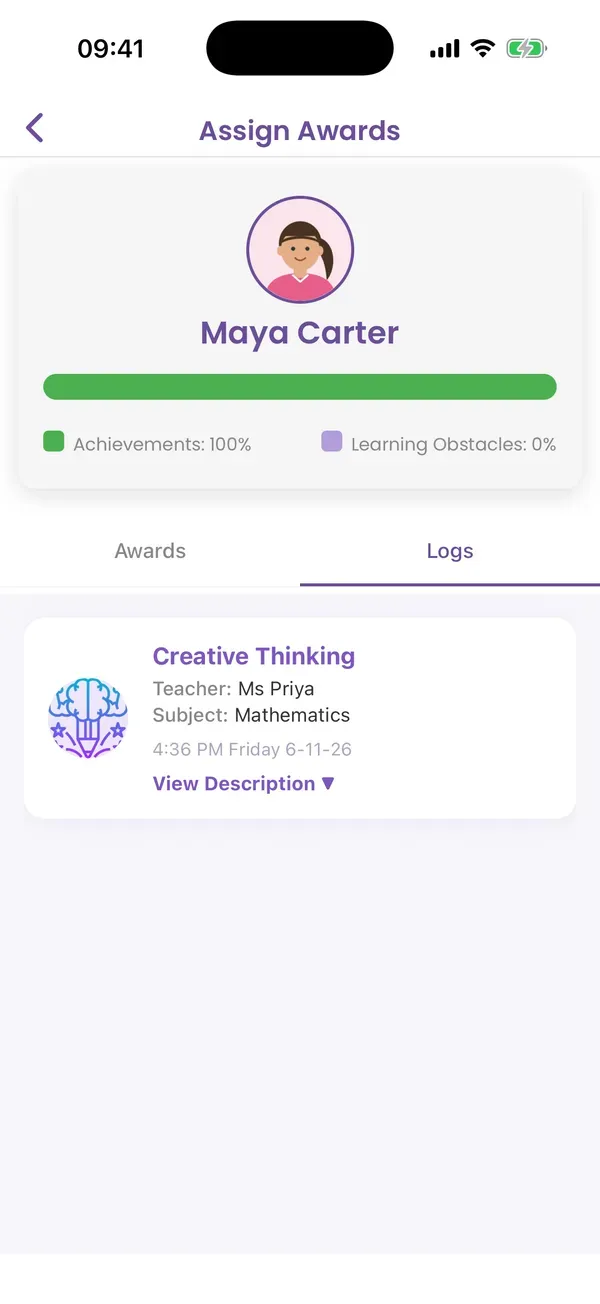
- The bar at the top shows the share of Achievements and Learning Obstacles.
- The Logs tab lists every award, with the teacher, subject, date and time. Tap View Description to read the feedback.
What parents see
Parents get a notification when their child receives an award. In the Classveew app, they open Awards from the menu to see the same summary, the badges on the Awards tab and the history on the Logs tab. Parents with more than one child can switch child at the top right.
Good to know: you can’t give an award until you choose a subject. If no subjects show, ask your school admin to assign you a subject for that classroom.