The Reports Dashboard lets you download your school’s data as CSV files, which open in Excel or Google Sheets. Each export has a date range and optional filters.
Open the Reports Dashboard
Select Reports in the menu. You see a card for each export you’re allowed to use. Select View Report on a card.
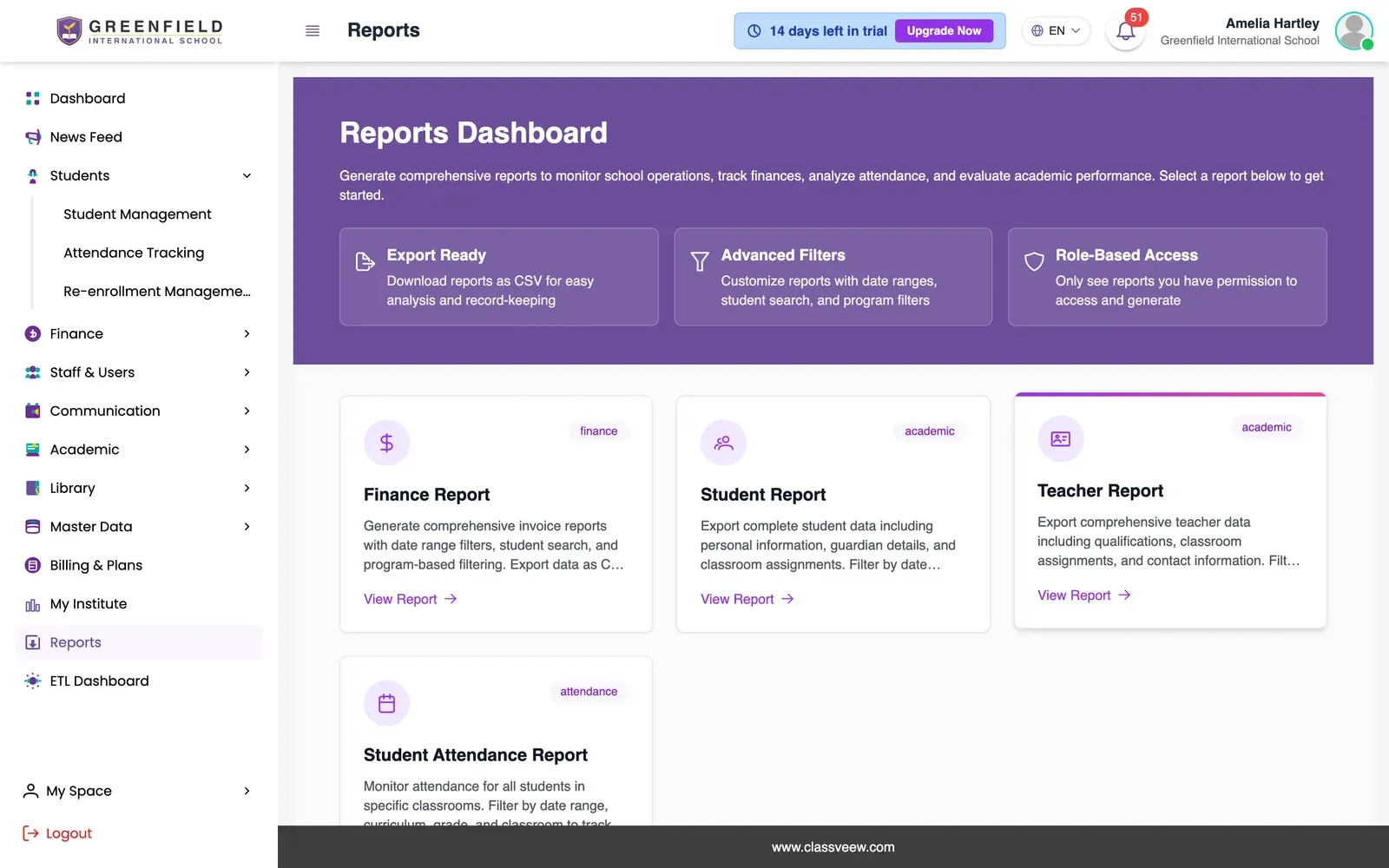
Finance Report
Invoices with student details and payment status.
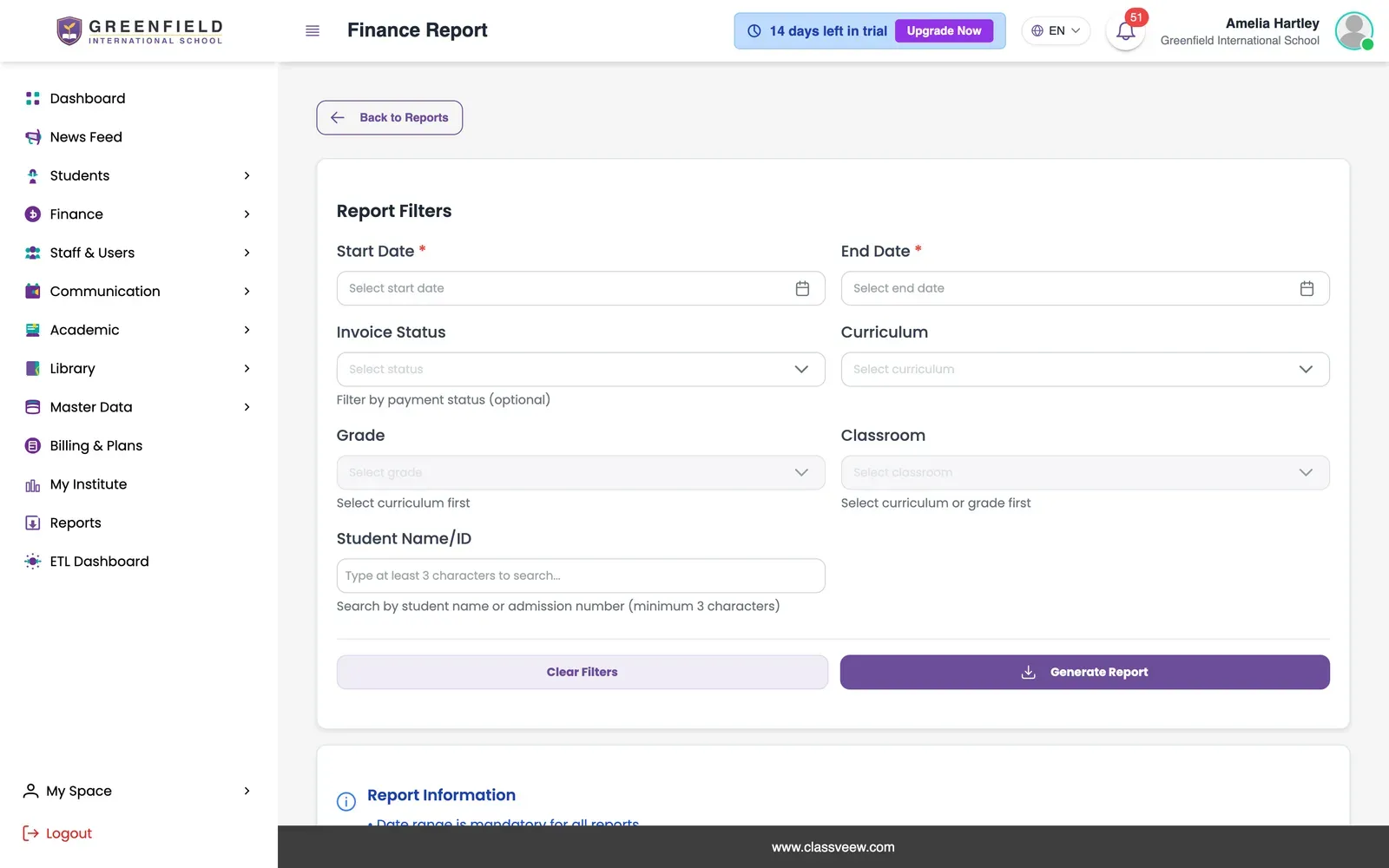
- Choose the Start Date and End Date.
- If you like, narrow it down by Invoice Status (for example Paid, Unpaid or Overdue), Curriculum, Grade, Classroom or Student Name/ID (type at least 3 characters).
- Select Generate Report. The CSV file downloads.
Student Report
Student details, classroom and guardian information. The date range is based on when each student was added. You can filter by Student Status (Active, Inactive, Graduated or Drop Off), curriculum, grade, classroom or a student’s name or admission number.
Teacher Report
Teacher details, qualifications and classroom assignments. The date range is based on when each teacher was added. You can filter by Teacher Status (Active or Inactive) and by name or staff ID.
Student Attendance Report
One classroom’s attendance for a date range. The curriculum, grade and classroom are required. See Download a student attendance report.
Good to know: a date range can be up to 1 year. Select Clear Filters to start again. You only see the exports your role allows. See Roles and permissions.