A syllabus tells parents and teachers what each subject covers, section by section. Admins create it on the web portal. Parents and teachers read it in the Classveew app.
Create a syllabus
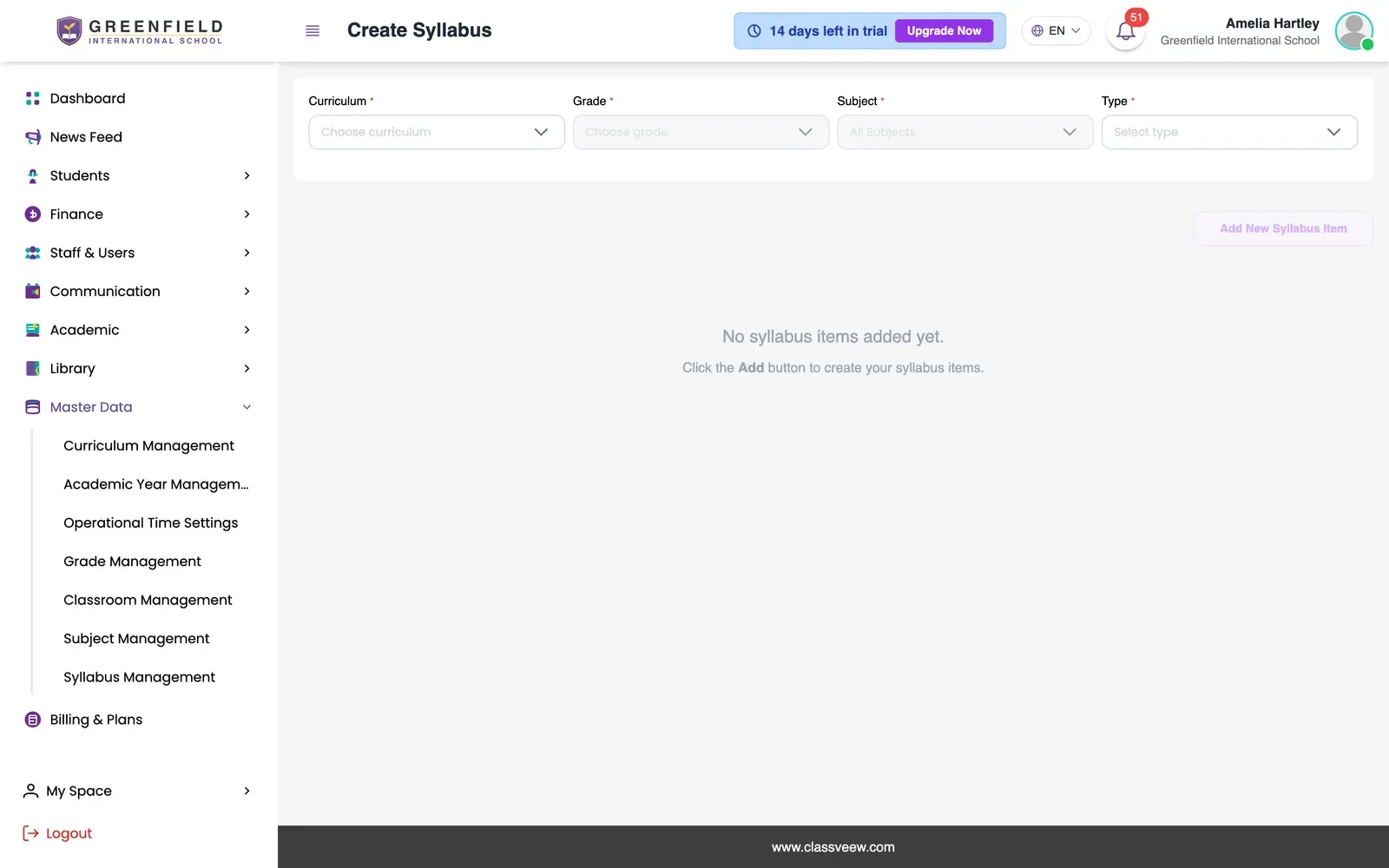
- Open Master Data → Syllabus Management and select New Syllabus.
- Choose the Curriculum, the Grade and the Subject.
- Choose the Type: Daily, Weekly, Monthly, Quarterly, Semi or Annual. This decides how the sections are named, for example “Weekly 1”, “Weekly 2”.
- Select Add New Syllabus Item, write what’s covered in that section, then select Create. Repeat for each section.
- Check the sections under Preview. You can Edit or Delete a section.
- Select Save.
Manage your syllabuses
Syllabus Management lists every syllabus with its curriculum, grade, subject and Status. Filter by curriculum, grade or subject and select Search.
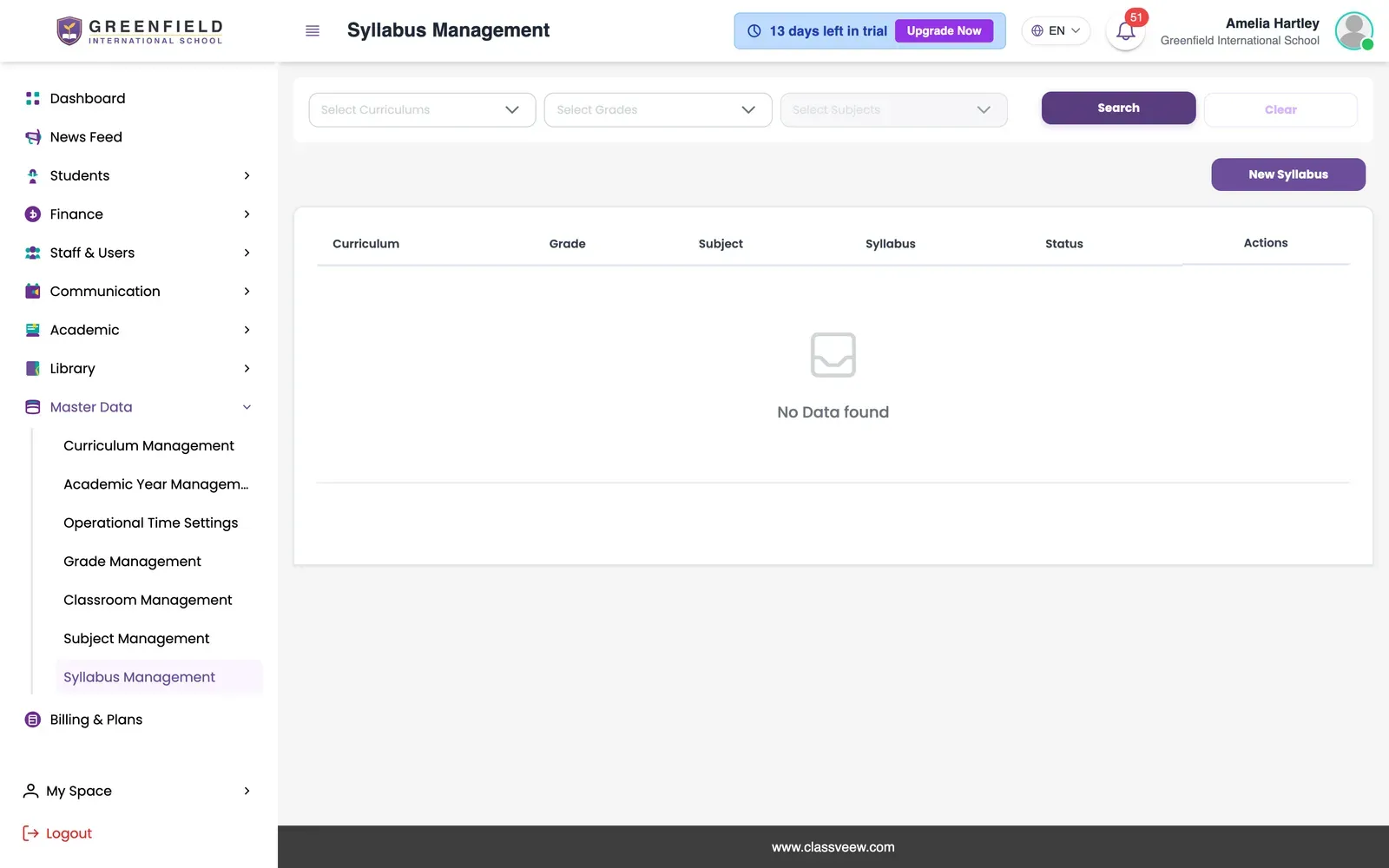
On each syllabus you can:
- View Syllabus to read it.
- Edit Syllabus to change it.
- Deactivate Syllabus to hide it from parents, students and teachers until you activate it again.
- Delete Syllabus to remove it for good.
A new syllabus is active, so parents and teachers can see it straight away.
Read the syllabus
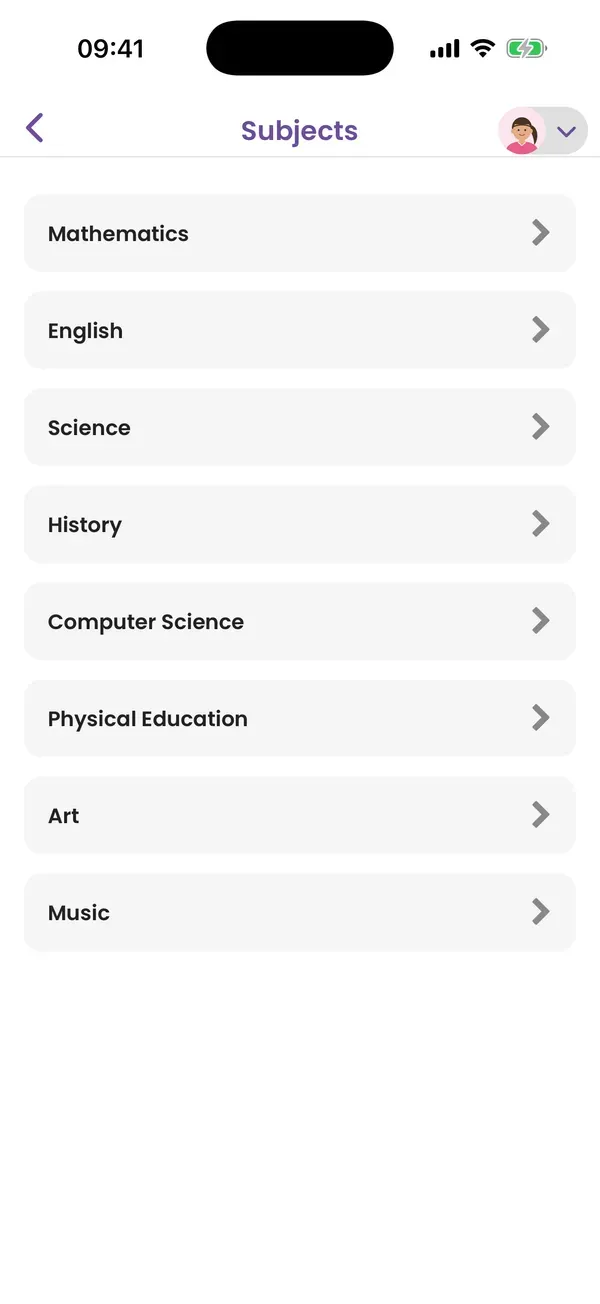
- Parents open Syllabus from the menu of the Classveew app, then tap a subject. On the web portal, they find it under Academic → Subjects.
- Teachers open Syllabus from the menu of the teacher app and tap one of their subjects.
Good to know: each person sees the syllabus for the subjects and classrooms they or their child are in. To set up subjects first, see Add and assign subjects.