Your school’s admin team keeps the timetable up to date on the web portal. Teachers and parents see it in the Classveew app, and parents can also see it on the web portal.
Teachers, in the app
- Open the menu and tap Timetable.
- You see this week’s dates at the top. Tap a day, for example Mon or Tue, to see its lessons.
- Each lesson shows the time, the subject and the classroom.
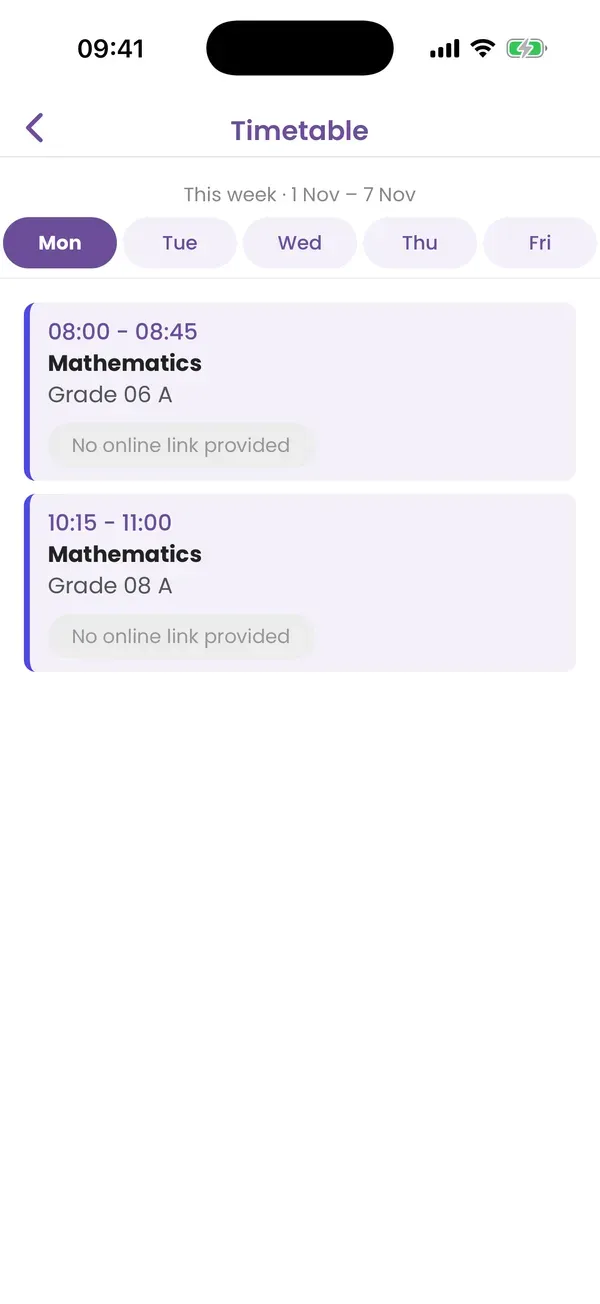
The timetable shows your lessons in every classroom you teach, and only the days that have lessons.
Parents, in the app
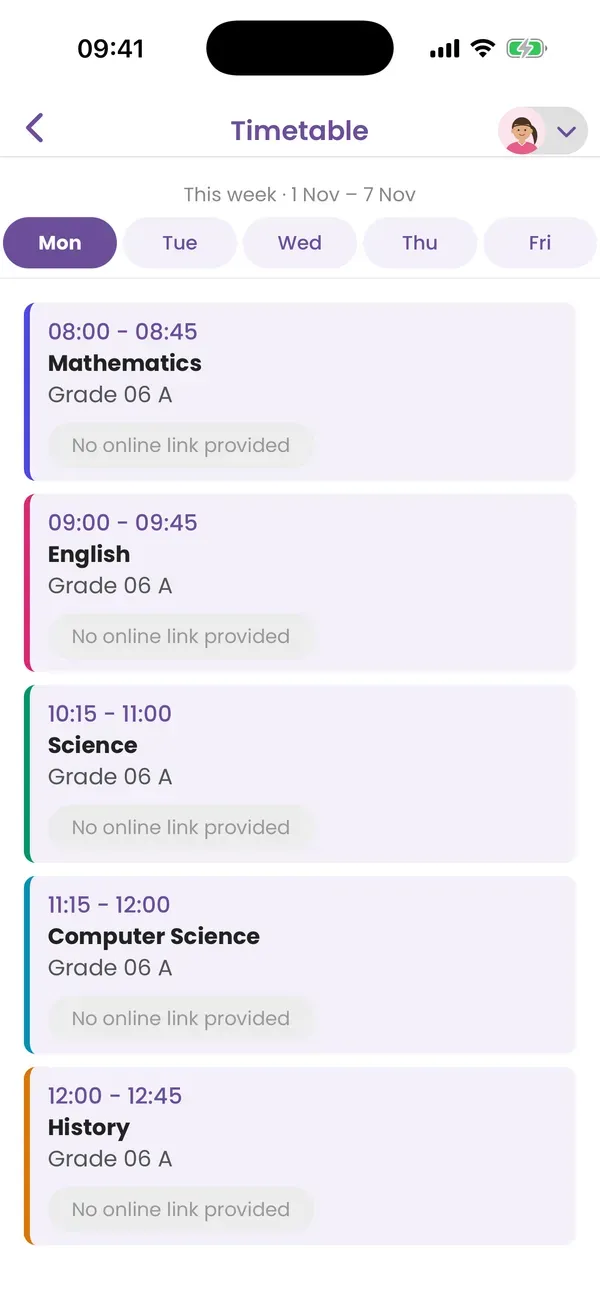
- If you have more than one child, choose the child at the top right of the app.
- Open the menu and tap Timetable.
- Tap a day to see that day’s lessons: time, subject and classroom.
Online lessons
If a lesson has an online class link, it shows a Join Live Session button in the app. Tap it to open the meeting. Lessons without a link show No online link provided.
Parents, on the web portal
- Under Viewing student at the bottom of the menu, choose your child.
- Open Academic → Timetable.
- You see the week as a grid, with each lesson’s time, subject and teacher. Use Day and Week, and the arrows, to move between days and weeks. Days the school is closed show as Non-operational.
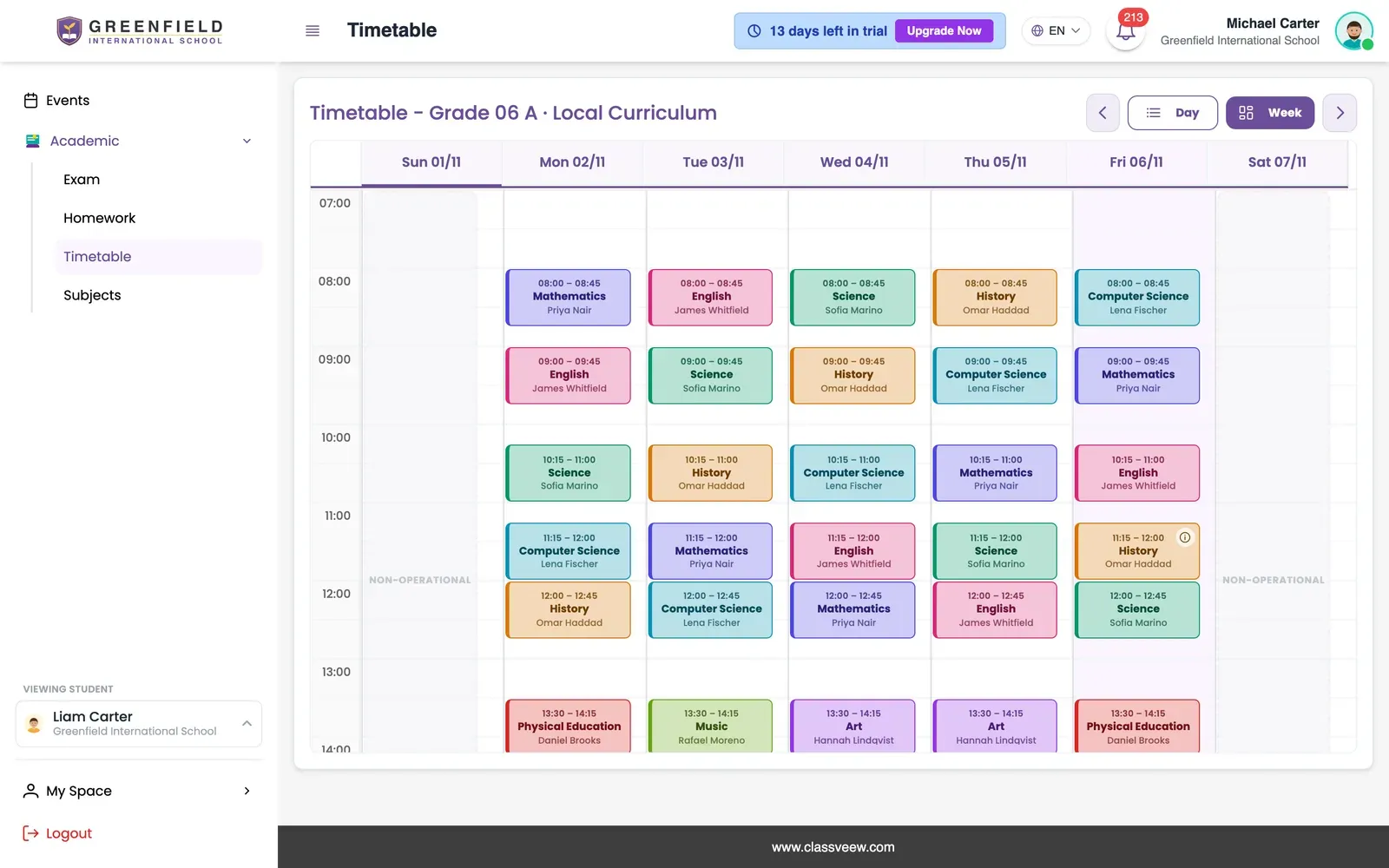
Point at a lesson and select the small i button that appears to see its details. Online lessons show a small camera mark; to join one, use the app.
Good to know: the app shows the current week. If the timetable changes, it updates when you open the screen again. If you can’t see Timetable, your school may not use it yet. See Parents on the web portal.