Besides the app, you can follow your child on a computer, in any modern web browser. You use the same email and password as in the app.
Sign in
- Go to app.classveew.com.
- Enter your email and password, then select Sign In.
- If your children are at more than one Classveew school, choose the school under Select Organization.
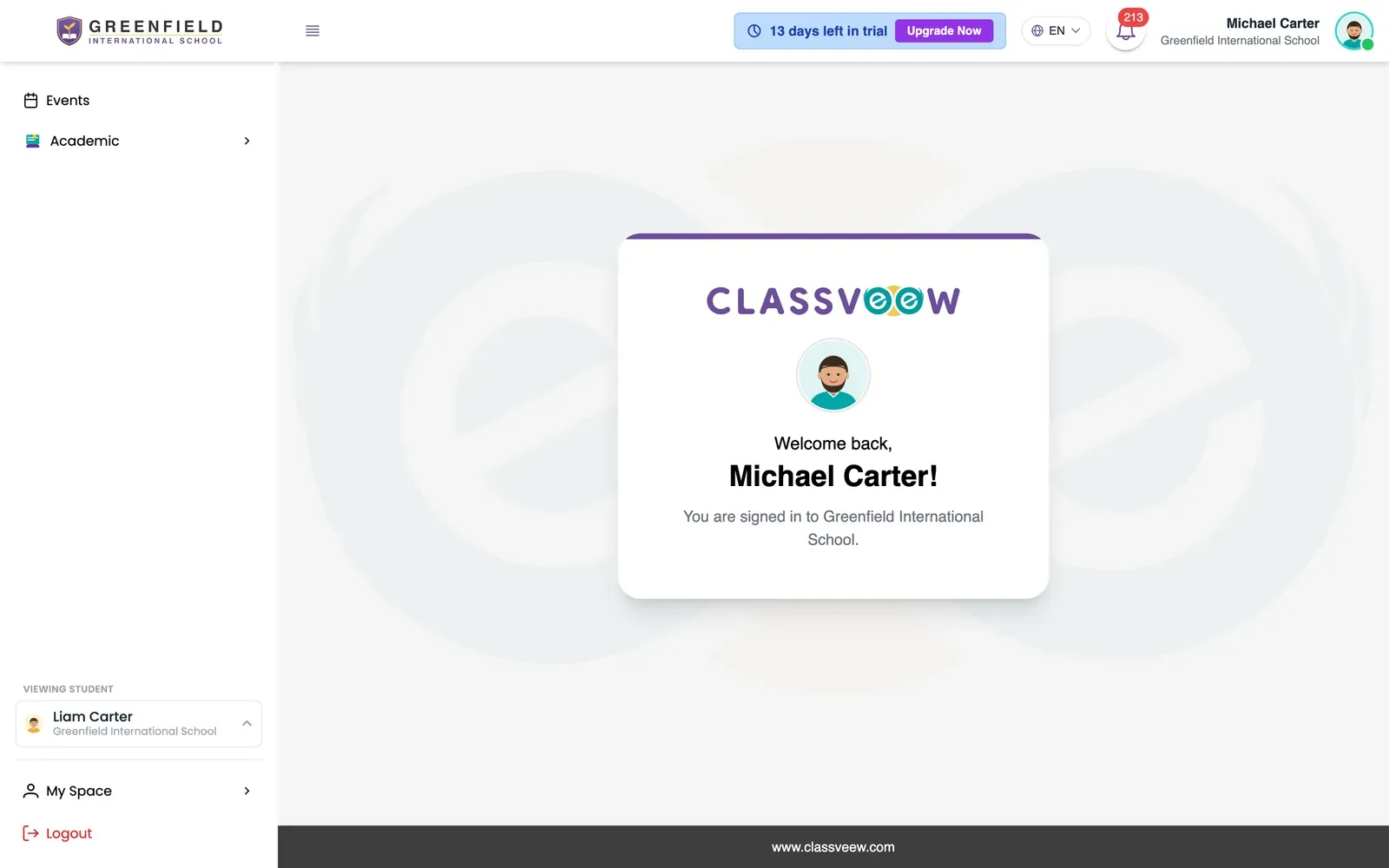
You see a welcome page with the school you’re signed in to.
Choose which child you’re viewing
At the bottom left, Viewing student shows the child whose information you see, with their school.
- Select the child’s name. The Switch Student list opens, grouped by school.
- Select another child.
Children who are inactive or still waiting for the school’s approval are shown but can’t be picked.
What you can see
- Events: the school’s announcements, meetings, surveys and paid events, as a List or a Calendar. Select View on an event to read it and see your reply, such as You accepted.
- Academic → Exam: your child’s exams and results.
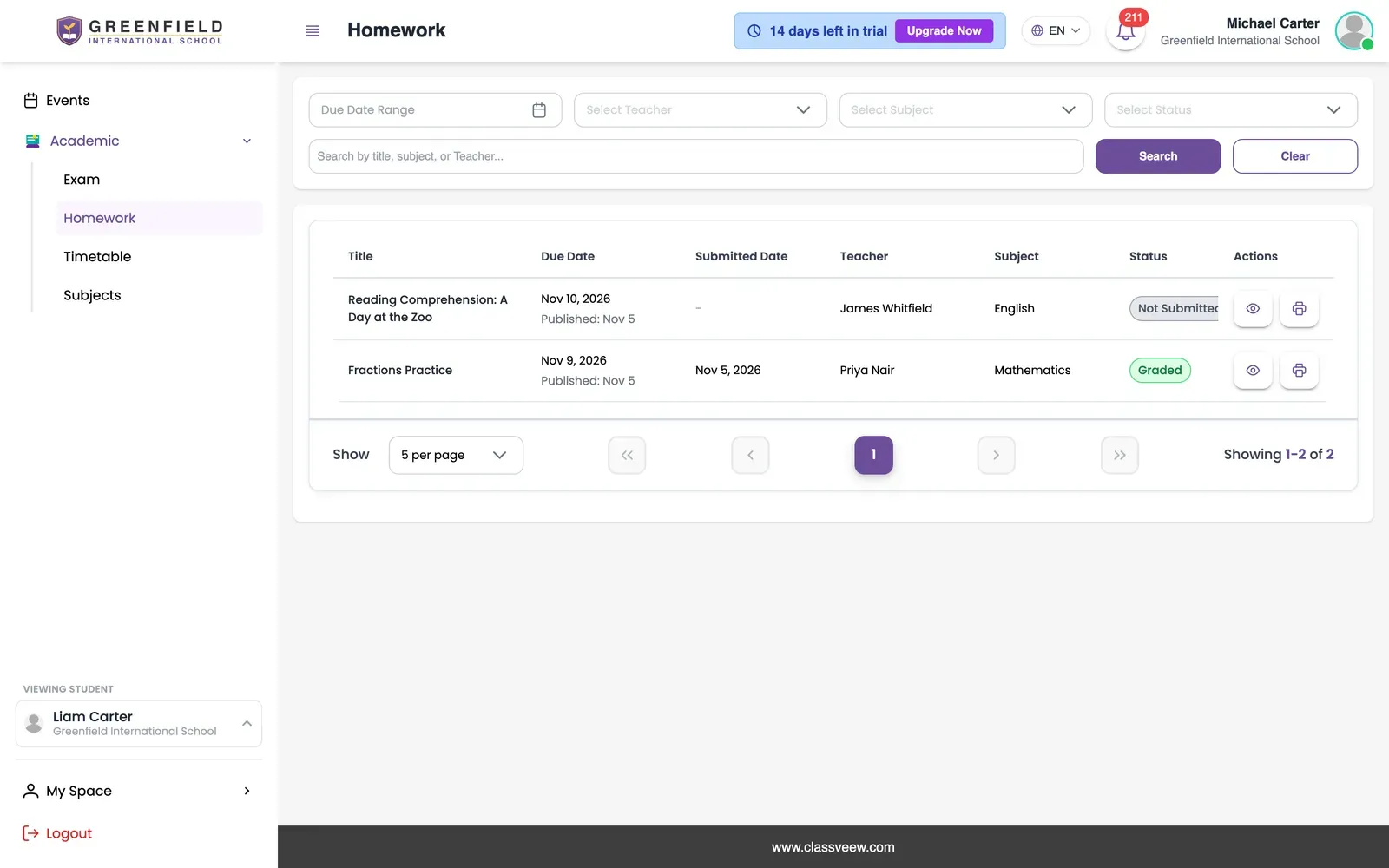
- Academic → Homework: each homework with its due date, teacher, subject and status, such as Not Submitted or Graded. Select the eye icon to open it.
- Academic → Timetable: your child’s weekly lessons.
- Academic → Subjects: your child’s subjects and their syllabus.
Good to know: to accept or decline an event, or to pay fees, use the Classveew app. See Reply to a school event and View and pay school fees in the app. Your school decides which menus parents see.