Each classroom has its own timetable. You build it lesson by lesson in Timetable Management, and teachers, parents and students then see it in the app and on the web portal.
Before you start
The classroom needs an active academic year, its subjects assigned and your school’s operational hours set. See Set up academic years and terms, Add and assign subjects and Set operational hours and cut-off times.
Open a classroom’s timetable
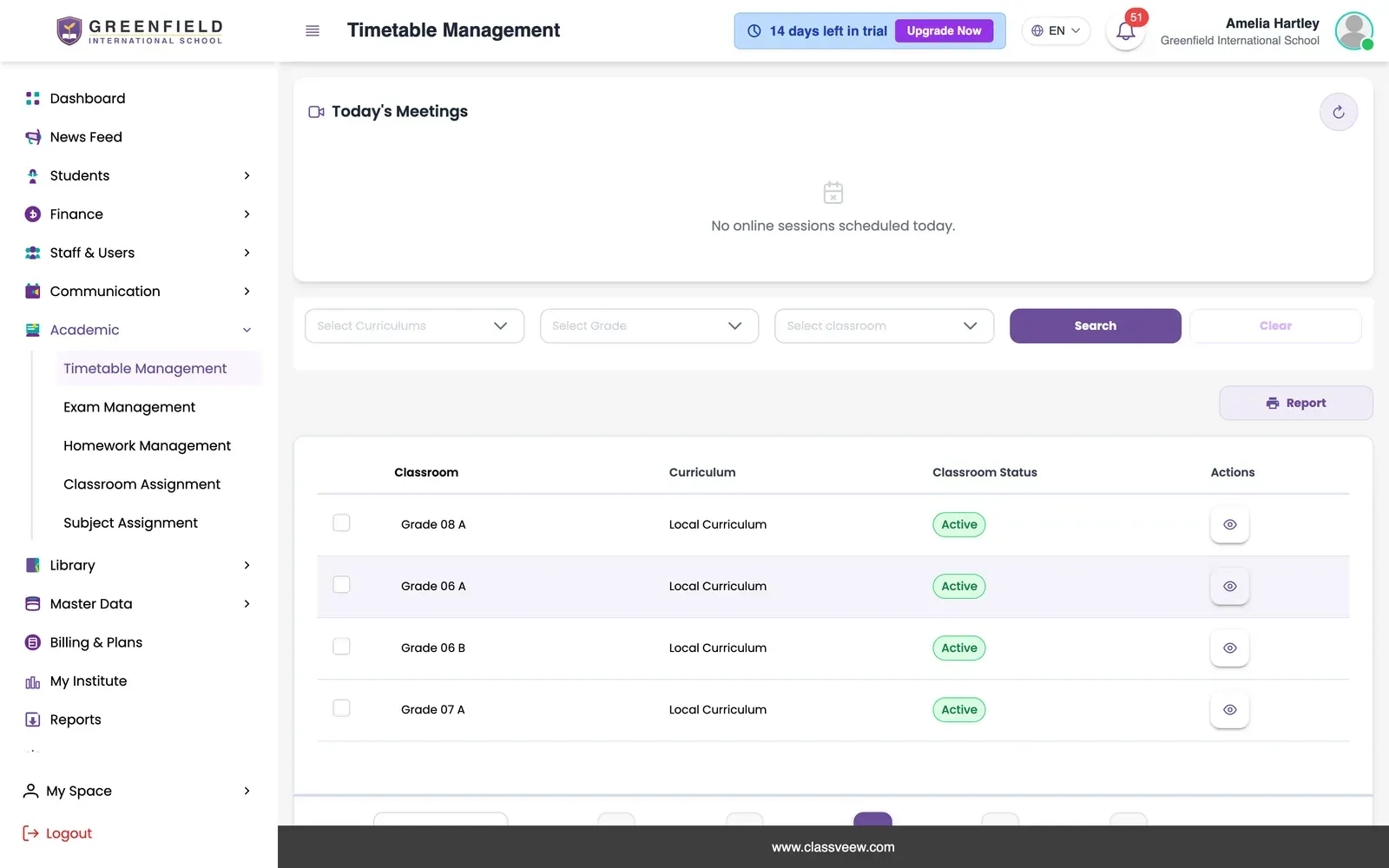
- Open Academic → Timetable Management.
- To find a classroom, choose a curriculum, grade or classroom and select Search.
- Select the eye button next to the classroom.
The timetable opens as a week grid. Use Day and Week, and the arrows, to move around. Days your school is closed show as Non-operational.
Add a lesson
- Select Create Slot.
- Choose the Subject, then, if you want, the Teacher (optional).
- Choose how often the lesson happens under Frequency, and its dates. For a normal weekly lesson, choose Weekly, the Day, and a Start date and End date. See Repeating lessons for the other options.
- Set the Start and End time. A lesson must be at least 15 minutes long and fit inside the operational hours shown under the times.
- For an online class, paste the Meeting Link (optional), for example a Google Meet or Zoom link.
- Pick a Color, then select Add.
Lessons with a link show an online-session mark on the grid, and the link appears for teachers and parents. Today’s online lessons are also listed under Today’s Meetings at the top of Timetable Management.
Clashes
If the classroom already has a lesson at that time, you see Scheduling Conflict Detected with the dates that clash. Select Yes, Continue to add the lesson anyway, or Cancel to change the time.
Good to know: the clash check only looks at the same classroom. It does not warn you if a teacher is booked in two classrooms at once, so check teachers’ timetables yourself.
Print the timetable
On Timetable Management, select Report to download a PDF of the timetables. Tick one classroom first to download only that one.
To change or delete a lesson, select it on the grid. See Repeating lessons.