In short: fix the day and the periods, work out how many periods each subject needs, place the hardest lessons first (shared teachers, labs, double periods), build a teacher grid alongside the class grid so no teacher is in two places at once, then check, publish and keep it up to date.
Making a school timetable is one of the most stressful jobs of the school year. It’s a puzzle with hundreds of pieces: every class needs the right number of lessons in every subject, every teacher can be in only one place at a time, labs and halls are shared, and part-time teachers are only in on certain days.
This guide breaks it into steps you can follow, with a worked example and a template. It works whether you use paper, a spreadsheet or a school management system.
Before you start: gather the facts
You can’t build a good timetable from memory. Collect these first:
- The school week: which days are school days (Monday to Friday, or Sunday to Thursday), and the start and end time of each day.
- The periods: how long each period is, and when the breaks and lunch are.
- The subjects for each class: and how many periods a week each one needs.
- Who teaches what: which teacher takes each subject in each class.
- Teacher availability: part-time days, other duties, and any teacher who can’t teach first period.
- Shared rooms: science labs, computer rooms, the hall and sports grounds, and which lessons need them.
- Fixed events: assembly, religious activities, clubs, and anything that happens at the same time every week.
Step 1: Fix the shape of the day
Decide how many teaching periods fit in a day. Here’s an example for a school that runs 7:30 to 1:30:
| Time | Period |
|---|---|
| 7:30 – 7:50 | Assembly |
| 7:50 – 8:30 | Period 1 |
| 8:30 – 9:10 | Period 2 |
| 9:10 – 9:50 | Period 3 |
| 9:50 – 10:30 | Period 4 |
| 10:30 – 10:50 | Interval |
| 10:50 – 11:30 | Period 5 |
| 11:30 – 12:10 | Period 6 |
| 12:10 – 12:50 | Period 7 |
| 12:50 – 1:30 | Period 8 |
Eight periods a day for five days gives 40 periods a week for each class. That number is your budget.
Step 2: Share out the periods
For each class, decide how many periods each subject gets, and check the total matches your budget. An example for one middle-school class:
| Subject | Periods a week |
|---|---|
| Mathematics | 7 |
| First language | 6 |
| English | 6 |
| Science | 5 |
| History | 3 |
| Religion | 3 |
| Geography | 2 |
| ICT | 2 |
| Art or music | 2 |
| Health and PE | 2 |
| Second national language | 2 |
| Total | 40 |
Start from what your curriculum requires, then adjust. If the total is over 40, something has to give. If it’s under, you have free periods to fill.
Step 3: Make the teacher list
For every class and subject, write the teacher’s name. Then add up each teacher’s periods across all classes.
| Teacher | Classes and subjects | Periods a week |
|---|---|---|
| Teacher A | Maths in 6A, 6B, 7A, 7B | 28 |
| Teacher B | Science in 6A, 6B, 7A, 7B, 8A | 25 |
| Teacher C (part-time, Mon–Wed) | ICT in all classes | 14 |
If a teacher has more periods than there are in the week (40 here), the timetable is impossible before you start. Fix the teacher list first.
Step 4: Place the hardest lessons first
The order you place lessons in matters more than anything else. Start with the ones with the fewest options:
- Fixed events: assembly, religious activities, whole-school sport.
- Part-time teachers: they can only go on their days.
- Shared rooms: labs, computer rooms, the hall. One class per period.
- Teachers who teach many classes: they fill up fast.
- Double periods: practicals and art often need two periods together.
- Everything else.
Leave the “easy” subjects, taught by full-time teachers in the class’s own room, until last. They fit in wherever there’s space.
Step 5: Keep a teacher grid alongside the class grid
This is the single most important habit for avoiding clashes.
- The class grid shows each class’s week: what they study each period.
- The teacher grid shows each teacher’s week: where they are each period.
Every time you place a lesson in a class grid, write it in the teacher’s grid too. Before placing a lesson, check the teacher’s grid for that period. If it’s taken, the lesson can’t go there. Do the same for shared rooms.
Step 6: Spread subjects through the week
A timetable can have no clashes and still be bad. Check:
- No subject twice in one day unless it’s a planned double.
- Heavy subjects early in the day, when students are most alert, if you can.
- Teachers’ free periods spread out, not all on one day.
- PE not straight after lunch, if your school prefers.
- Each class gets a fair mix of morning and afternoon lessons in the main subjects.
Step 7: Check before you publish
Go through this list:
- Every class has the right number of periods in each subject.
- No teacher is in two places in the same period.
- No shared room has two classes in the same period.
- Part-time teachers only teach on their days.
- Every teacher’s total is within their workload.
- Fixed events are in place.
Then give each teacher their own timetable and ask them to check it. They’ll spot problems you missed.
Step 8: Publish, and plan for changes
The timetable will change: a teacher leaves, a class splits, an exam week needs a special schedule. Decide now:
- Who can change the timetable, so there is one version of the truth.
- How teachers and parents are told about a change.
- How one-off changes are handled, such as a lesson moved for one week only, without rewriting the whole term.
A template you can copy
Copy this grid into a spreadsheet: one sheet per class, and one sheet per teacher.
| Period | Monday | Tuesday | Wednesday | Thursday | Friday |
|---|---|---|---|---|---|
| 1 | |||||
| 2 | |||||
| 3 | |||||
| 4 | |||||
| Interval | |||||
| 5 | |||||
| 6 | |||||
| 7 | |||||
| 8 |
In each cell of a class sheet, write the subject and teacher. In each cell of a teacher sheet, write the class and room.
Common timetable mistakes
- Starting with the easy subjects. You run out of space for the hard ones.
- Forgetting part-time days. A lesson placed on a day the teacher isn’t in.
- No teacher grid. Clashes only found on the first day of term.
- No plan for changes. Several versions of the timetable on different noticeboards.
- Not telling parents. Children forget PE kit because parents never saw the timetable.
Building and sharing a timetable in Classveew
Classveew doesn’t generate the timetable for you. You decide where each lesson goes. What it does is take the repetitive work, the checking and the sharing off your hands.
Enter each lesson once. On a classroom’s timetable, select Create Slot, choose the subject and teacher, and how often it happens: Daily, Weekly, Monthly or One-time, between a start and end date. Classveew creates every session for the term. A lesson must be at least 15 minutes long and fit within your school hours.
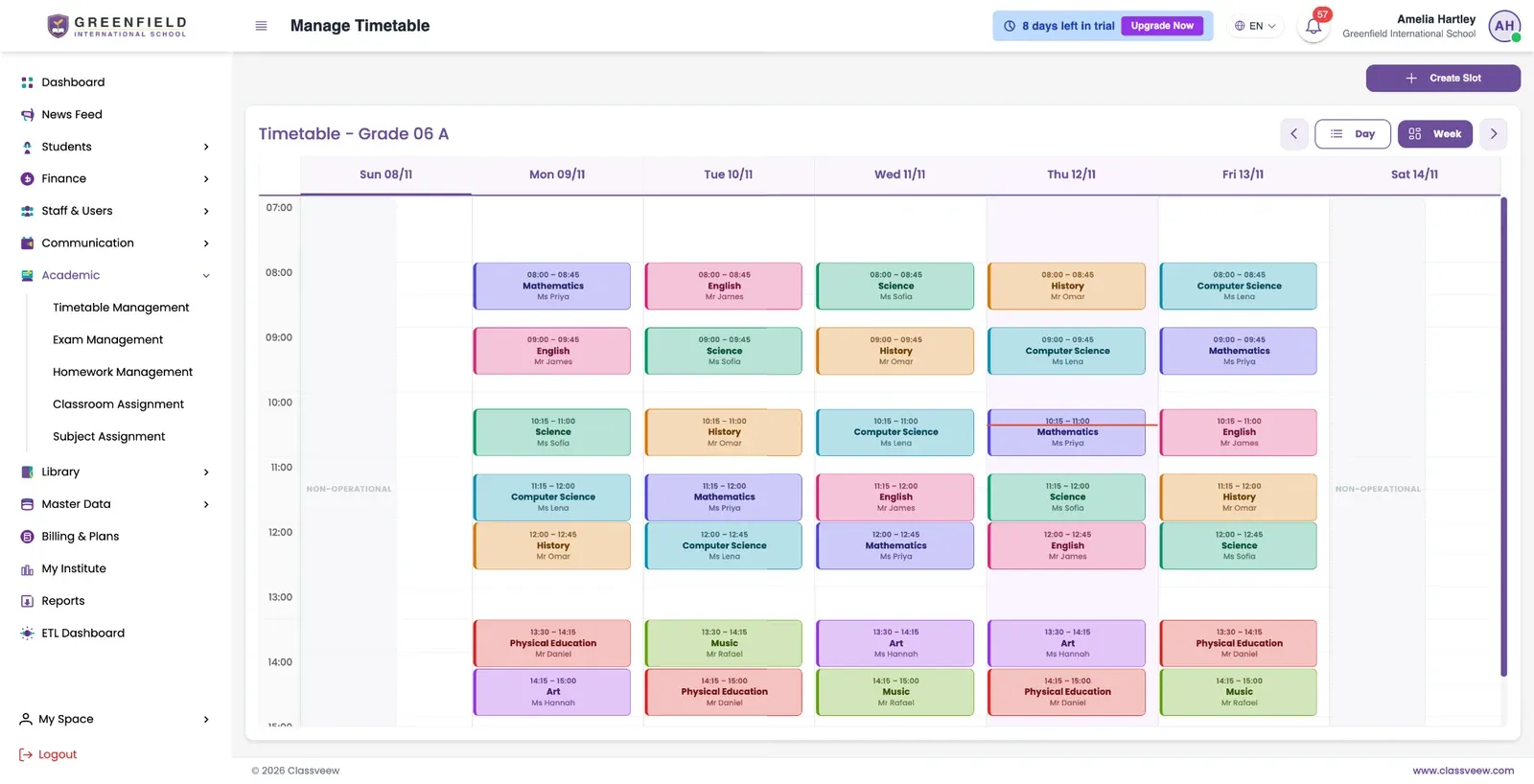
Only school days count. The timetable follows your school’s working days and hours, so it fits Monday to Friday and Sunday to Thursday weeks. Days the school is closed show as Non-operational.
Clash warnings. If a new lesson overlaps another lesson in the same classroom, you see Scheduling Conflict Detected with the dates that clash, and you decide whether to keep it. Be aware that this check looks at the classroom only: it doesn’t warn you if a teacher is booked in two classrooms at the same time, so keep your teacher grid (step 5) while you build.
Change one week without rewriting the term. Select a lesson and choose Only this session or All repeating sessions. When you update a whole series, you choose whether to overwrite sessions you changed by hand or keep them.
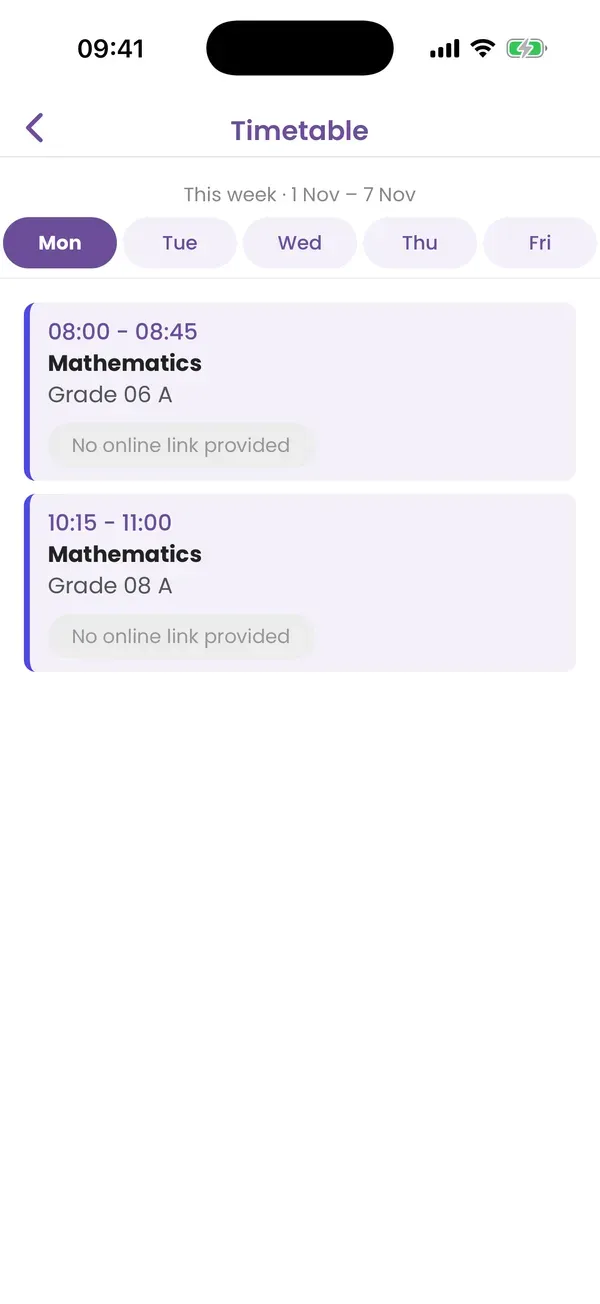
Online lessons. Add a Google Meet or Zoom link to any lesson. Parents and teachers see a Join Live Session button in the app.
Everyone sees the same timetable. Teachers see their week across all their classes in the app. Parents see their child’s timetable in the app and on the web. Teachers get a notification when they are added to or removed from a lesson. You can also download a PDF of one classroom’s timetable or all of them.
See Timetable, or the Help Center guides Create a class timetable and Repeating lessons.