Operational hours tell Classveew which days your school is open, when the day starts and ends, and the attendance cut-off: the time after which a student’s arrival counts as late. Each curriculum has its own hours, so a school with two curricula can keep two sets of hours.
Before you start
Add your curriculum first. See Set up a curriculum.
Set the hours for students
-
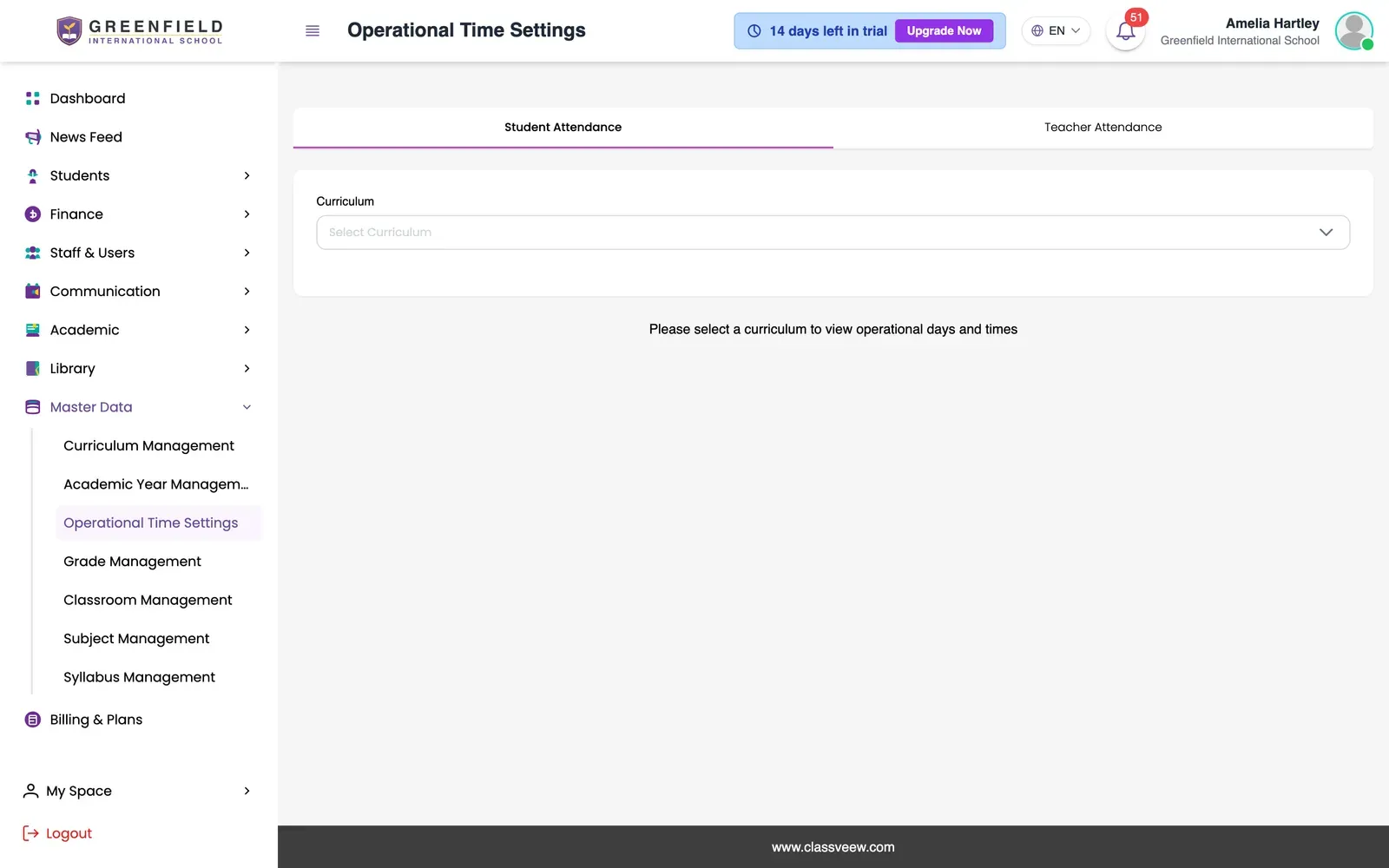
Open Master Data → Operational Time Settings. Stay on the Student Attendance tab.
-
Choose the Curriculum. You see its Working Days & Times.
-
Select Edit.
-
Tick each day your school is open, and clear the days it is closed.
-
Enter the Start Time, End Time and Attendance Cut-off for each working day. To give several days the same times, enter them under Quick Set Common Times, then select Apply to Selected Days.
-
Select Update.
Your changes apply from the next day. The note under the table shows the date.
Rules to know
- The end time must be after the start time.
- The attendance cut-off must be between the start time and the end time.
- At least one day must be ticked.
- A late check-in must be after the cut-off time.
Good to know: the daily attendance register follows these working days and times, so set them before teachers start taking the register. See Mark attendance in the teacher app.
Set the cut-off for teachers
- On the same page, open the Teacher Attendance tab.
- Under Teacher Cutoff, enter the Cutoff Time.
- Select Save.
See Teacher attendance for how teachers check in.
Good to know: you can also fill in operational hours from Excel with Bulk Upload on the ETL Dashboard (Operational Hours Configuration card). See Bulk upload from Excel.