The Classveew app is for teachers and parents. It works on iPhone and Android phones.
Get the app
- On an iPhone, open the App Store. On an Android phone, open Google Play.
- Search for Classveew.
- Install the app and open it.
Who signs in to the app
| You are a… | Use | Sign in with |
|---|---|---|
| Parent | The app (and the web portal if you like) | The email and password from your school’s invitation |
| Teacher | The app and the web portal | The email and password your school gave you |
| School admin | The web portal only, at app.classveew.com | Your email and password |
| Student | The web portal only | The login your school gave you |
Admin and student accounts can’t sign in to the app. See Web portal or app?
Sign in for the first time
- Enter your Email and Password and tap Sign In.
- If you’re using a temporary password from your school, the app asks you to choose a new one.
- Allow notifications when your phone asks, so you don’t miss check-ins, messages and events.
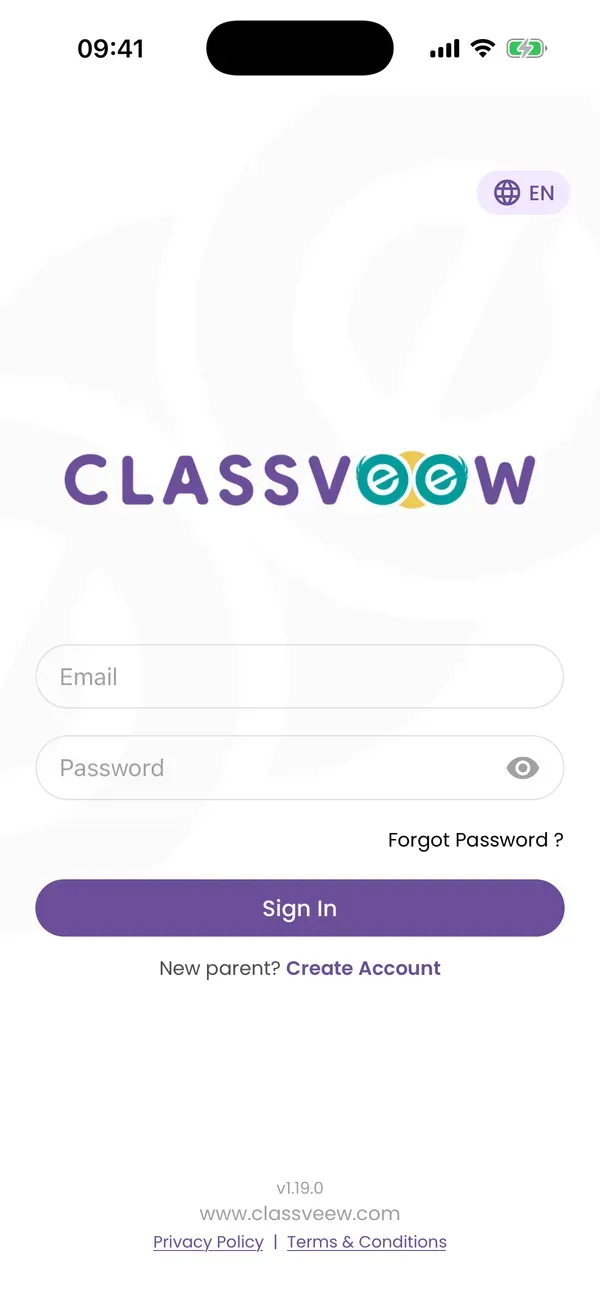
To use the app in Arabic, tap the language button at the top right before you sign in. See Change the language.
New parent without an invitation?
Tap Create Account under Sign In to set up your own account. You can then link your child with the Classveew ID your school gives you and your child’s date of birth. If the details don’t match, you can ask the school to check and approve the link.
Good to know: if your school hasn’t invited you yet and you don’t know your child’s Classveew ID, ask the school office. Didn’t get the invitation email? See Didn’t get the invitation email?