Most problems with the Classveew app have a quick fix. Find yours below.
I can’t sign in
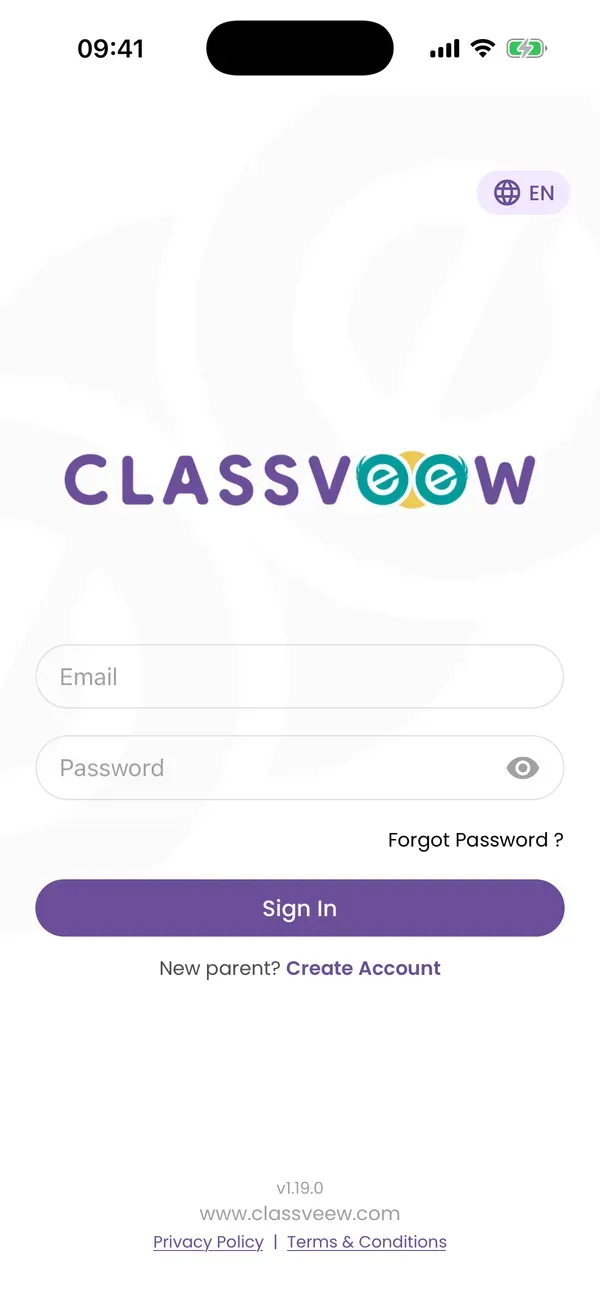
- Check your email and password. Tap the eye in the password box to see what you typed. Forgot it? Tap Forgot Password ?. See Reset your password.
- “Admin accounts cannot access the mobile app.” Admins use the web portal at app.classveew.com. Students also use the web portal.
- Locked after wrong passwords. After several wrong tries the app makes you wait before trying again. See Sign-in problems.
- Asked for a code. Two-step verification is on for your account. See Didn’t get the sign-in code?
“Update Required”
If the app shows Update Required, your version is too old to keep working. Tap Update Now to open the App Store or Google Play, install the update, then open Classveew again. The screen shows your Current Version and the Required Version.
I’m seeing the wrong child
Parents with more than one child at the school see one child at a time. Tap your child’s picture at the top right and choose the other child. See Switch between your children. If your children are at different schools, see Switch between schools.
A feature is missing or locked
What you can use depends on your school’s plan and what your school has turned on. If you see Subscription Inactive, your school’s Classveew subscription has lapsed: tap Try again later, or contact the school.
Log out and back in
Signing out and in again fixes many small problems, such as old data or missing notifications:
- Open the menu at the top left and tap Settings.
- Under Account, tap Logout.
- Sign in again.
Still stuck?
For problems with your account, children or fees, contact your school first: they manage your details in Classveew. For anything else, see Contact support.