Classveew is available in English and Arabic (العربية). When you choose Arabic, the screens switch to right-to-left, so menus and buttons sit on the other side.
On the web portal
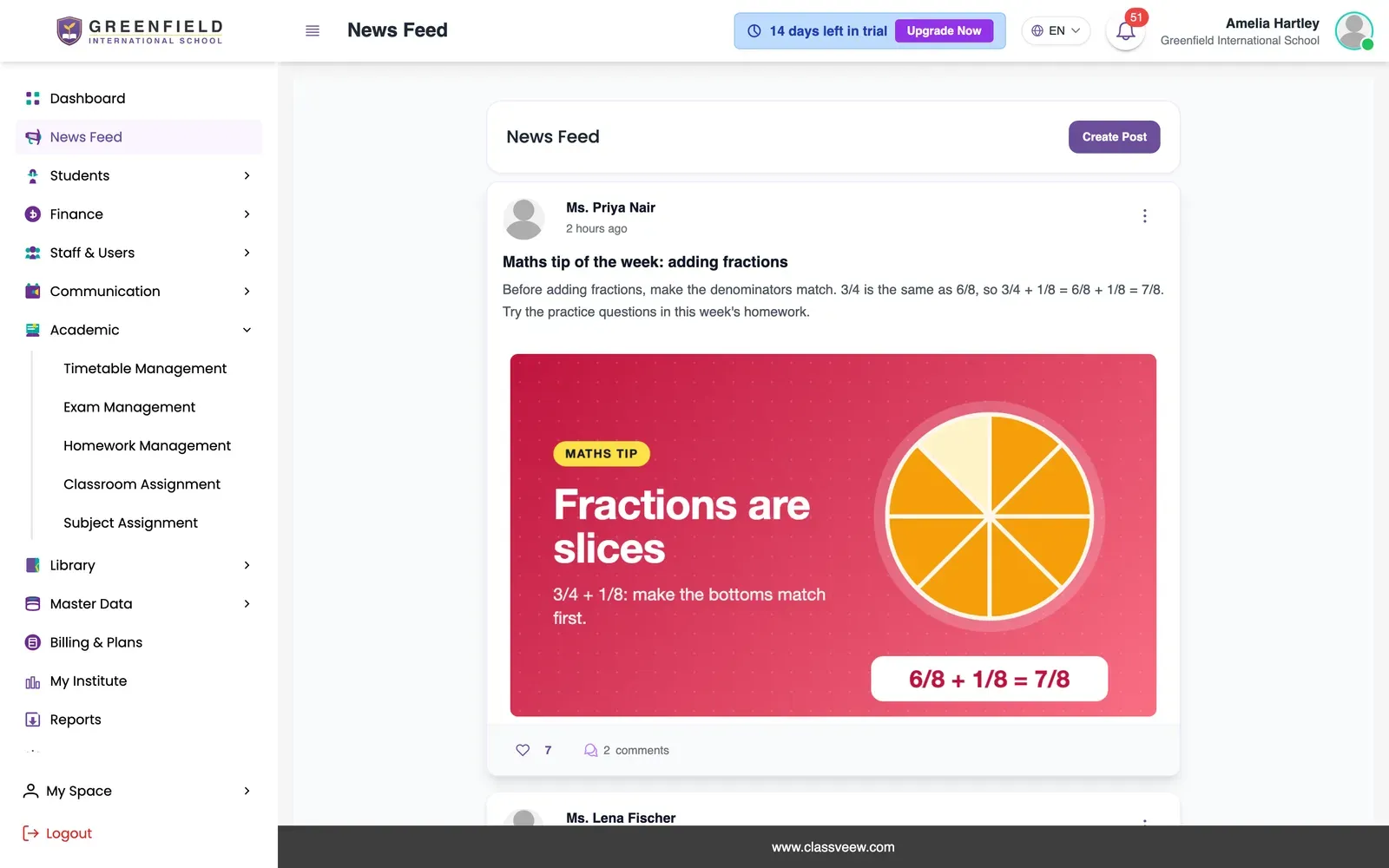
- Select the language button at the top of the page. It shows a globe and the current language, for example EN.
- Choose the language you want.
The page changes straight away. You can also change the language on the sign-in page, before you sign in.
Your choice is remembered in your browser and saved to your account, so emails and documents from Classveew use the same language.
In the app
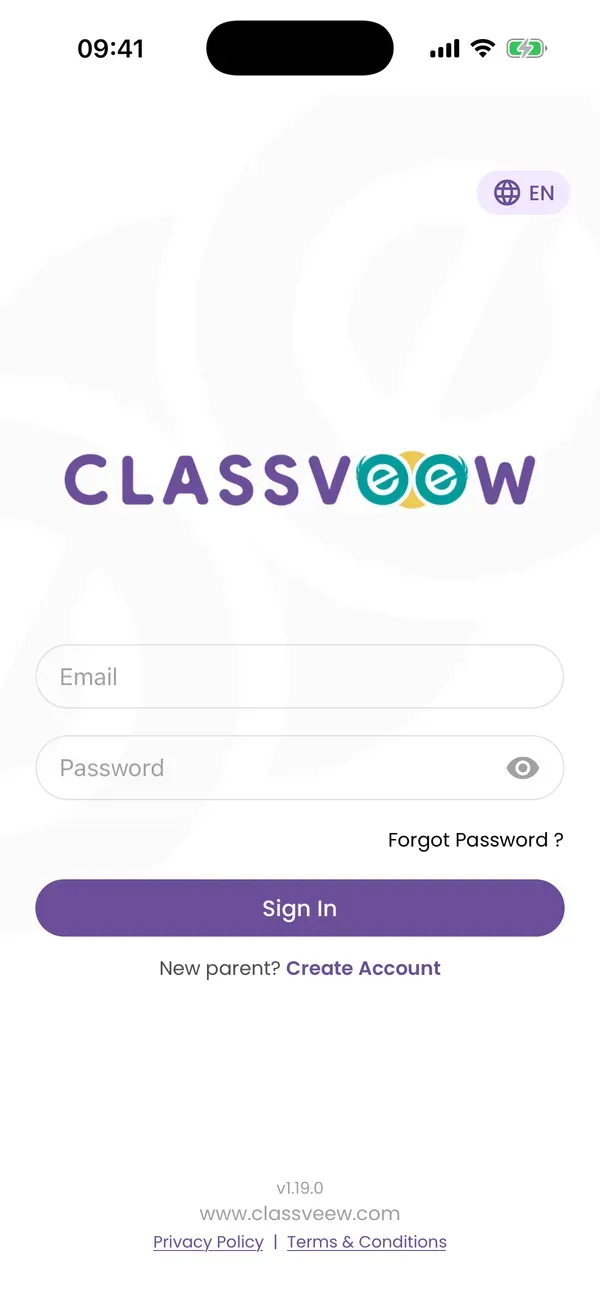
Before you sign in: tap the language button at the top right of the sign-in screen (for example EN) and choose a language.
After you sign in:
- Open the menu at the top left and tap Settings.
- Tap Language and choose the language you want.
Switching between English and Arabic in the app
Because Arabic reads right to left, the app needs to restart to change the layout. When it asks, tap Restart Now, or Later to restart yourself when it suits you.
Good to know: the language only changes what Classveew shows you. Posts, messages and other things your school writes stay in the language they were written in.