Push notifications are the alerts that pop up on your phone, for example when your child is checked in or a teacher sends a message. If they stop arriving, work through these steps.
1. Allow notifications for Classveew
The first time you open the app, your phone asks whether Classveew may send you notifications. If you tapped Don’t Allow, the app can’t alert you until you turn them on in your phone’s settings.
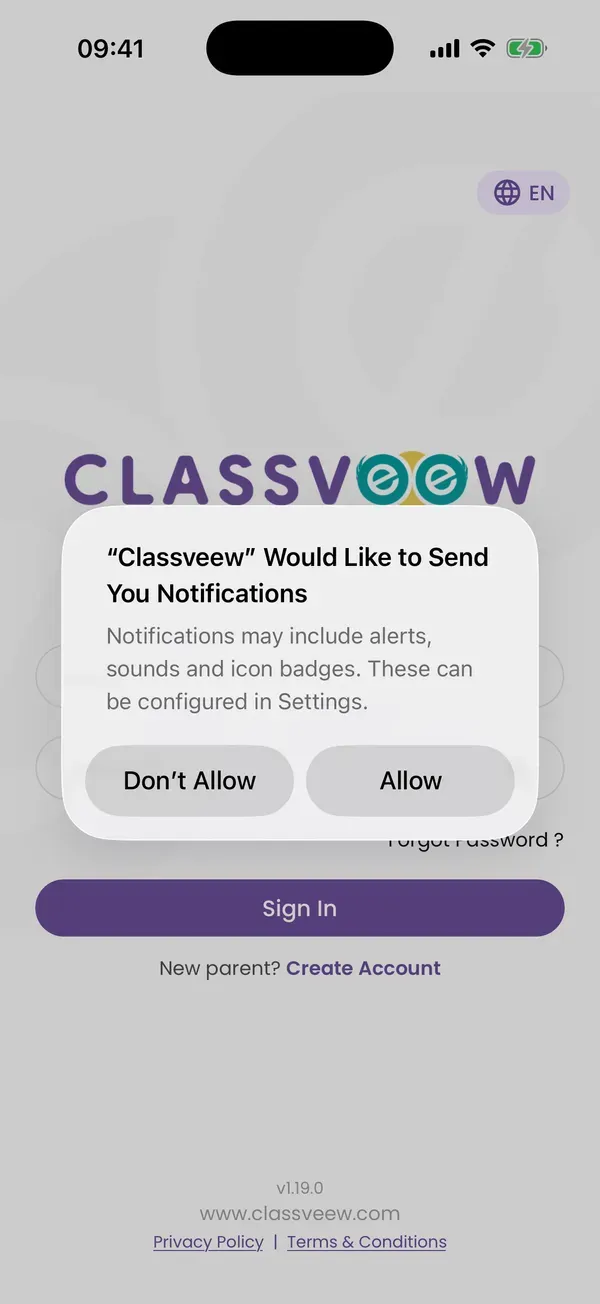
- iPhone: open Settings → Notifications → Classveew and turn on Allow Notifications.
- Android: open Settings → Apps → Classveew → Notifications and turn them on. The names can differ a little between phone makers.
2. Check your phone isn’t silencing them
Check that Focus, Do Not Disturb or a battery saver isn’t holding notifications back. Some Android phones stop apps working in the background to save battery; allow Classveew to run in the background if your phone offers this.
3. Sign out and sign in again
Your phone is registered for notifications when you sign in. Signing out and back in registers it again:
- Open the menu at the top left and tap Settings.
- Under Account, tap Logout.
- Sign in again with your email and password.
4. Update the app
Make sure you have the latest version of Classveew from the App Store or Google Play.
Your notifications are still saved
Even if an alert doesn’t pop up on your phone, it’s kept in the app. Tap the bell at the top right to see everything you’ve missed. See Your notifications.
Good to know: if you start using a new phone, install Classveew, sign in and allow notifications there.