The Student Attendance Report gives you one classroom’s attendance for a date range, as a CSV file you can open in Excel or Google Sheets.
Steps
-
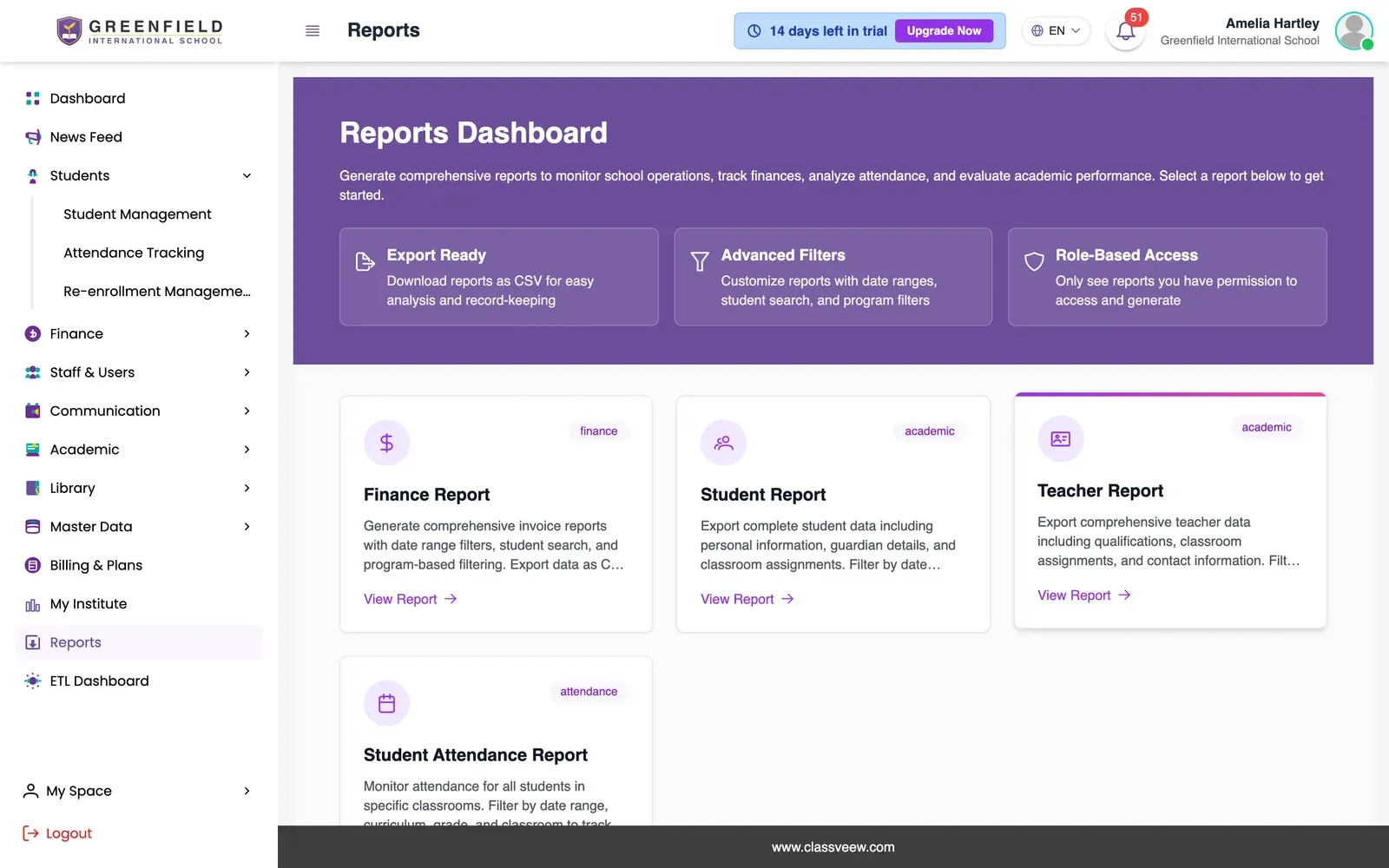
Select Reports in the menu. The Reports Dashboard opens.
-
On the Student Attendance Report card, select View Report.
-
Choose the Start Date and End Date. Both must be today or earlier.
-
Choose the Curriculum, then the Grade, then the Classroom. Each list fills in once you have chosen the one before it.
-
Select Generate Report. The CSV file downloads to your computer.
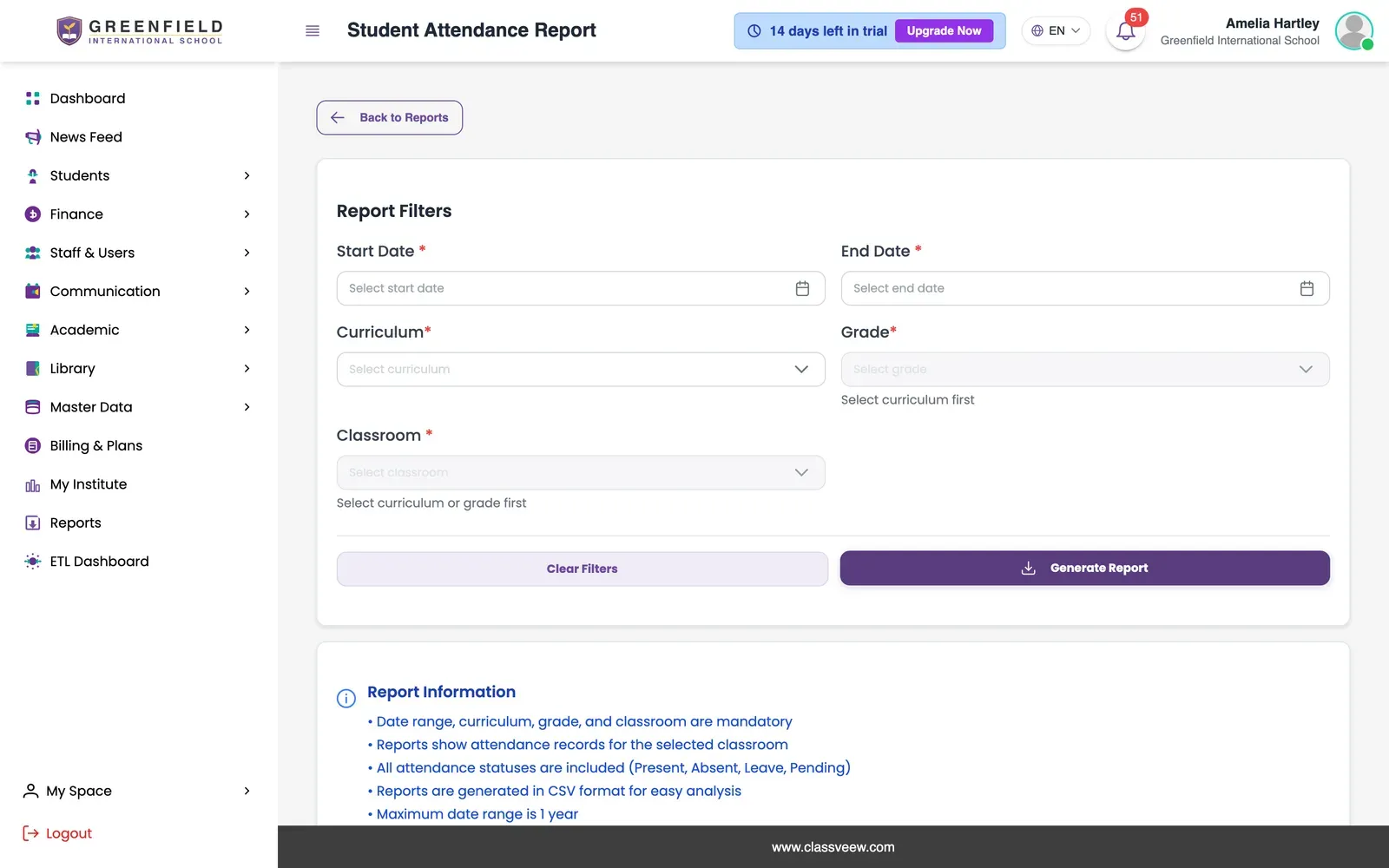
Select Clear Filters to start again, or Back to Reports to choose another report.
What the report contains
There is one row for each student on each day, with:
- the date, the student’s admission number and name
- the curriculum, grade and classroom
- the status: Present, Absent, Leave or Pending
- check-in and check-out times, late check-ins and early check-outs
- leave and the leave reason
Good to know: all fields are required, and the date range can be at most one year. If nobody has attendance in that range, you still get a file, with only the column headings. If you don’t see Reports in your menu, your role may not include it. See Roles and permissions.
To see the register on screen instead, see Track attendance on the web portal.