The news feed is where your school shares what’s happening. Parents see posts in the Feed tab of their app, and they get a notification when you publish a post for their child’s classroom.
On the web portal
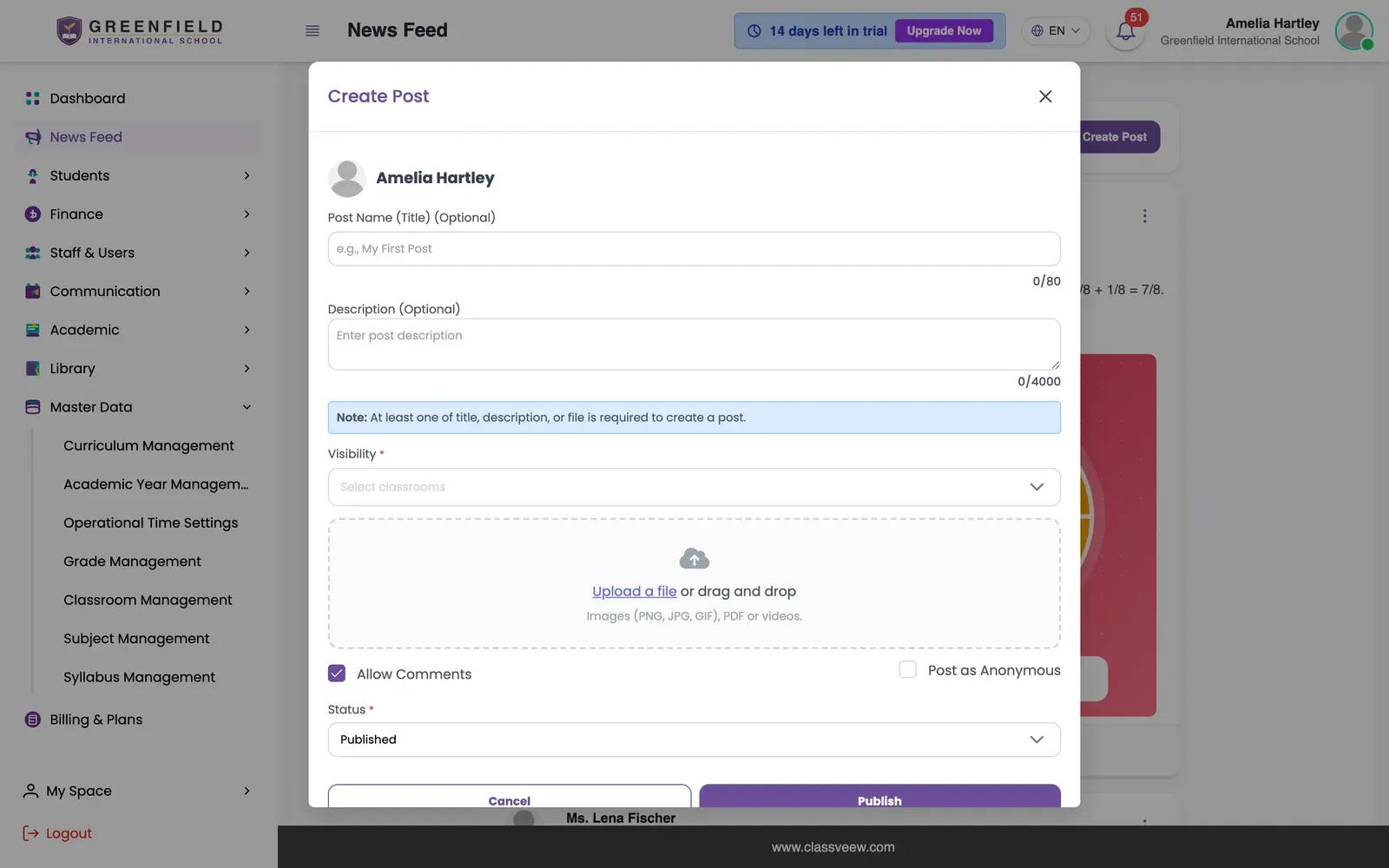
- Open News Feed in the menu and select Create Post. You can also use Create Post on the dashboard.
- Add a Post Name (Title) and a Description. Both are optional, but a post needs at least a title, a description or a file.
- Under Visibility, choose ALL for the whole school, or pick one or more classrooms. Teachers see the classrooms they teach.
- Select Upload a file or drag files into the box. You can add several photos (PNG, JPG, GIF), or one PDF, or one video (MP4, MOV or WebM).
- Leave Allow Comments ticked if parents may comment, or untick it.
- Choose the Status: Published to share it now, or Draft to finish it later.
- Select Publish.
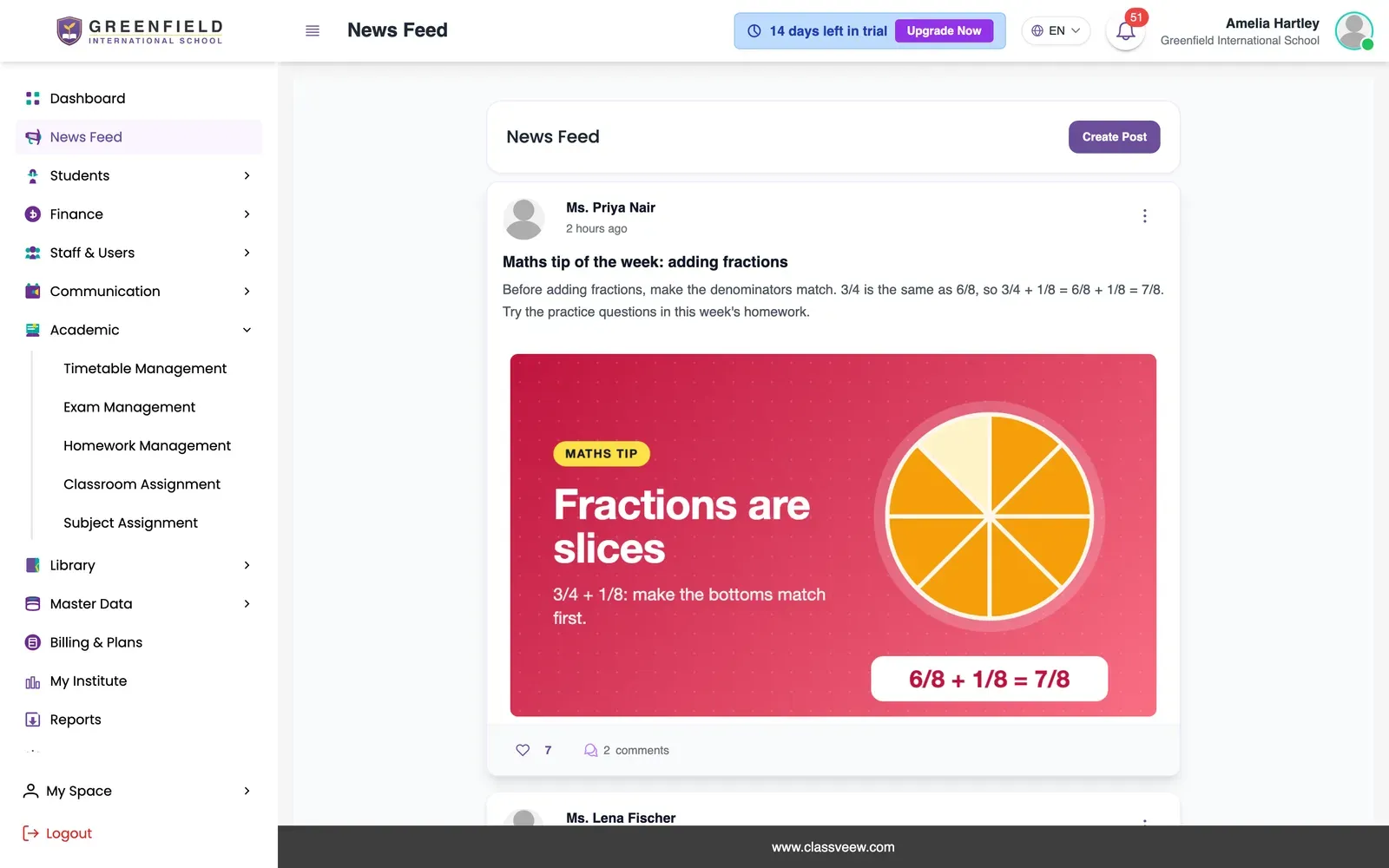
Your post appears at the top of the feed, with its likes and comments.
In the teacher app
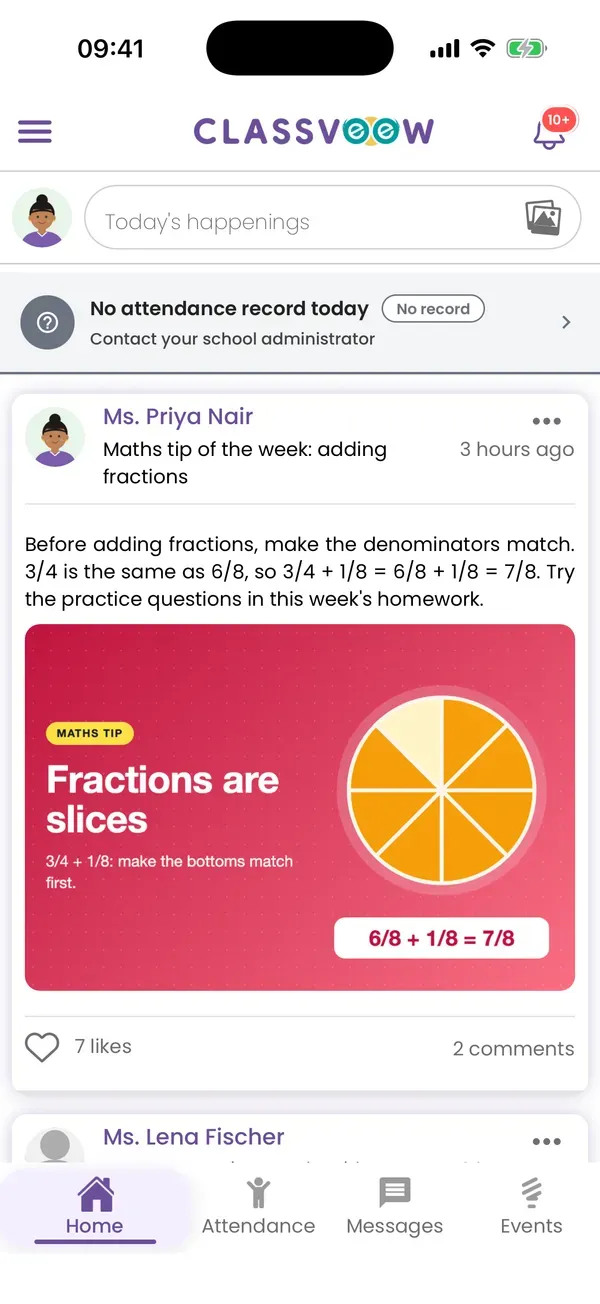
- On the Home tab, tap Today’s happenings.
- Add a title or a description, choose the Visibility and the Status.
- Add photos from your gallery or camera, or one PDF, or one video.
- Tick Allow parents to comment on this post if you want comments.
- Tap Publish.
Drafts, editing and deleting
A Draft post is marked Draft and only you can see it. To change a post, select the ⋮ menu on it and choose Edit or Delete. Deleting a post can’t be undone.
Good to know: you can’t mix file types in one post: choose photos, one PDF or one video. School admins can also tick Post as Anonymous to post in the school’s name. When someone comments on your post, you get a notification.