The Classveew app tells you when something needs your attention, such as a check-in, a new event or a message. Each notification is also kept in your notification list.
Open your notifications
- Tap the bell at the top right of the app. The number on it shows how many you haven’t read.
- Your notifications are listed newest first, with the time they arrived.
- Tap a notification to open the screen it’s about, such as the event, the post, the invoice or your child’s attendance. It’s marked as read.
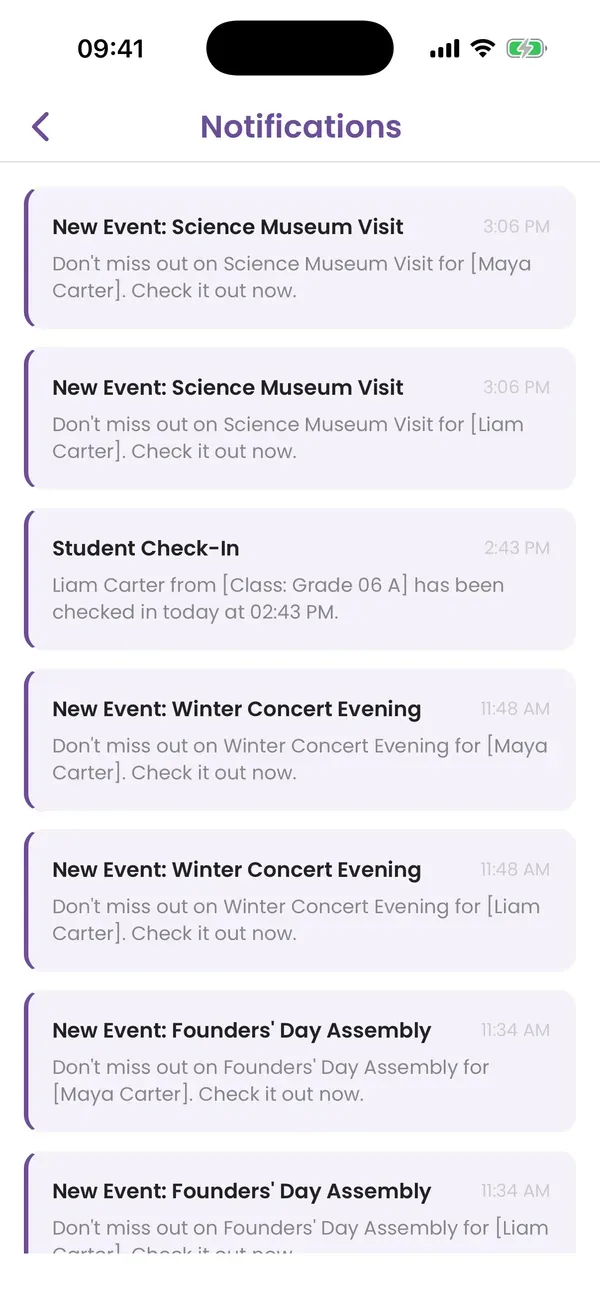
Pull the list down to refresh it. Older notifications load as you scroll.
Mark several as read
- Press and hold a notification to start selecting.
- Tap more notifications, or tap Select All.
- Tap Mark as Read. Tap Cancel to stop selecting.
What sends a notification
For parents, notifications include:
- your child being checked in or out, arriving late, leaving early or marked absent
- new school events, and reminders before them
- new posts for your child’s classroom
- messages from teachers
- fee reminders, including overdue fees
- awards, homework, new exams and exam results
For teachers, notifications include comments and likes on your posts, new exams for your classrooms, classroom assignments and answers to your leave requests.
Good to know: if you have more than one child at the school, each notification names the child. Tapping it opens the app for that child. Not getting alerts on your phone? See Push notifications not working.