In short: good fee management is a clear fee structure, invoices that go out on time, reminders before and after the due date, easy ways to pay (including in parts), a fair late fee after a grace period, and a daily cash count. Do those well and most of the chasing stops.
Fees keep a private school running. They are also where much of the office’s time goes: writing invoices, taking cash at the counter, working out balances, calling families who haven’t paid, and answering “Did you get my payment?”
This guide walks through fee management from start to finish: how to set up fees, bill them, collect them, follow up, and report on them. It works for any school, whether you use a fee book, Excel or a school management system. Each step ends with how Classveew handles it.
1. Set up a clear fee structure
Before you can collect fees, everyone needs to know what they are. Write down every fee your school charges:
| Fee type | Example | How often |
|---|---|---|
| Admission fee | Charged when a student joins | Once |
| Term fee | The main tuition fee | Each term |
| Monthly fee | Tuition billed monthly instead | Monthly |
| Facility or development fee | Building, sports, library | Yearly |
| Exam fee | External or internal exams | Once or yearly |
| Activity and trip fees | Sports meet, field trip, concert | Per event |
| Transport | If the school runs buses | Monthly |
For each fee, decide:
- The amount, and whether it differs by grade.
- Discounts, such as for brothers and sisters, staff children or scholarships.
- The due date, and how long parents have to pay.
- The late fee, if any, and after how many days it applies.
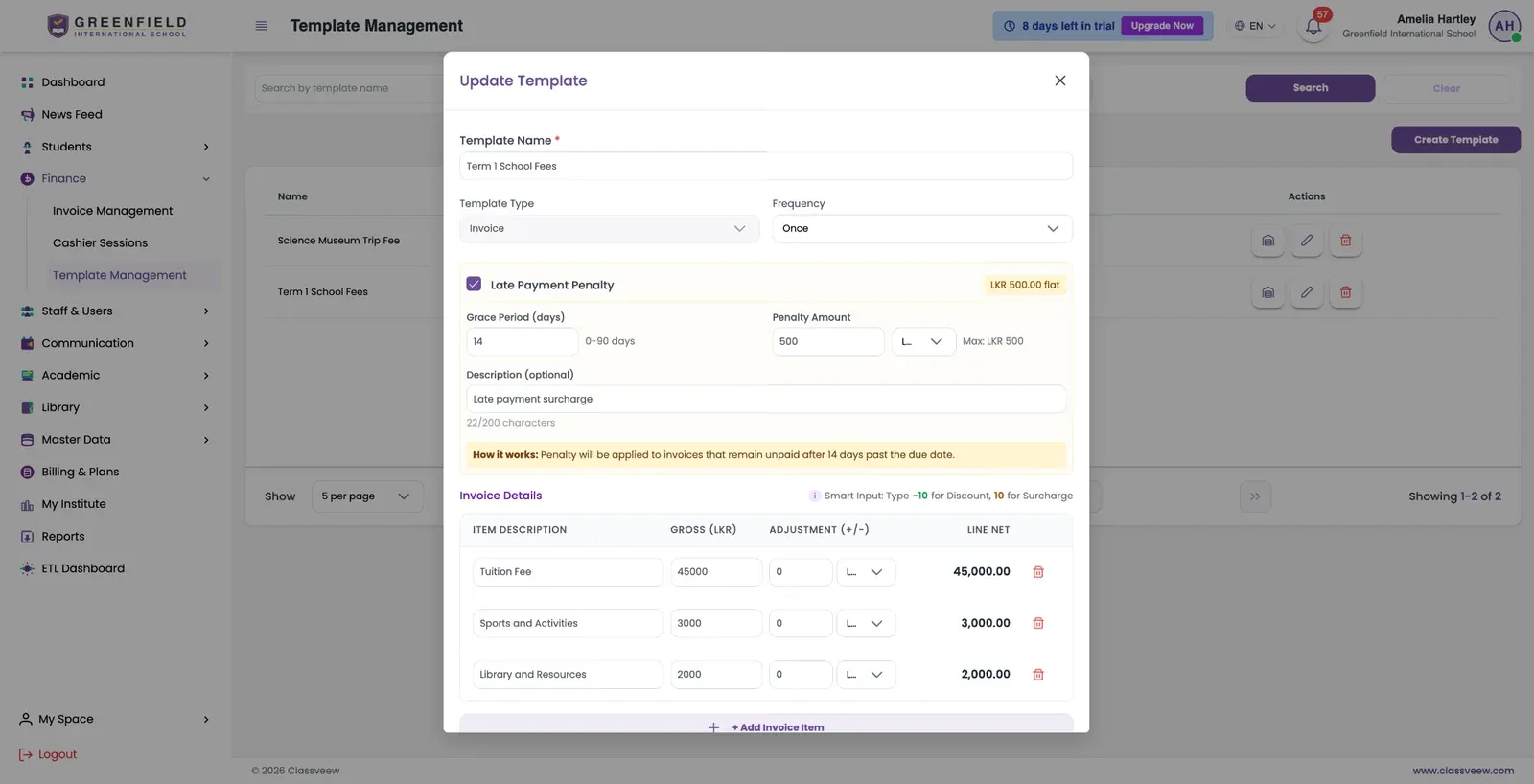
In Classveew: each fee is a fee template: a name, a frequency (once, weekly, monthly or yearly) and one or more items with amounts. Each item can have an adjustment, as a percentage or a fixed amount, negative for a discount and positive for a surcharge. A global adjustment applies to the whole fee, and you can add tax and a late payment penalty. Then you choose the classrooms the template applies to.
2. Send invoices on time, every time
An invoice that goes out late gets paid late. The fix is to make invoicing automatic.
- Bill whole classes at once, not student by student.
- Repeat automatically: monthly fees on the same day each month, term fees on the first day of term.
- Send the invoice to the parent directly, with the amount, the items, the due date and how to pay.
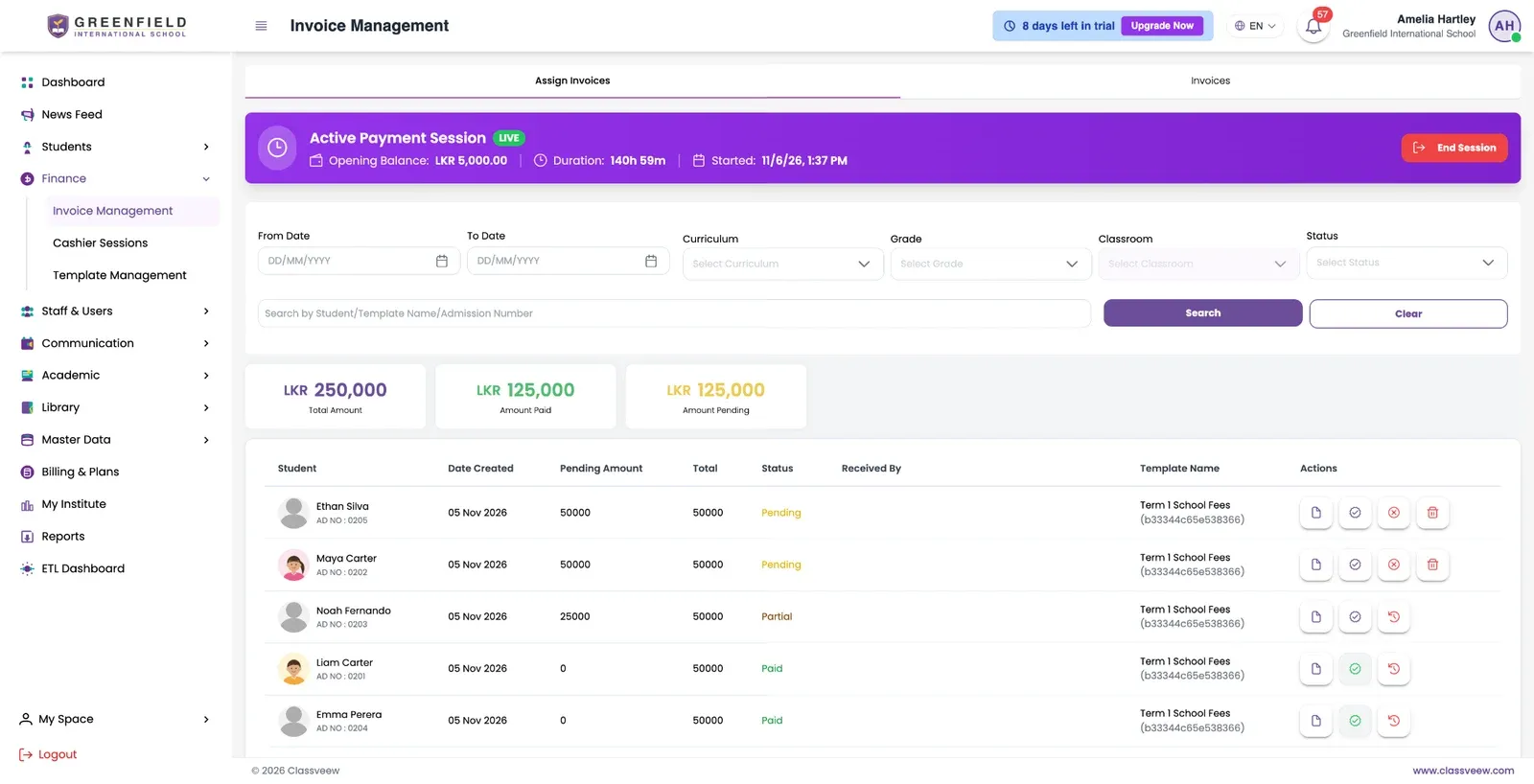
In Classveew: create an invoice from a template and choose the students, or every student in the template’s classrooms. Choose the billing schedule (the day of the week, the day of the month, or a month and day for yearly fees) and the number of days parents have to pay. On each billing date, Classveew creates the invoices for every active student, and every guardian gets an email with a link to the invoice PDF. You can pause a repeating invoice, change it for future invoices, or cancel it.
3. Make paying easy
The easier it is to pay, the sooner parents pay. Offer:
- Online card payment, so a parent can pay from their phone at any time.
- Counter payment, in cash or by cheque, for families who prefer it.
- Part payments, for families who can’t pay the whole amount at once.
Part payments and instalments
Many schools are wary of part payments. In practice, a family that can’t pay the whole term fee often pays nothing until they can. Accepting part payments brings money in sooner. The key is that the balance must always be right, and reminders must keep going until it’s paid.
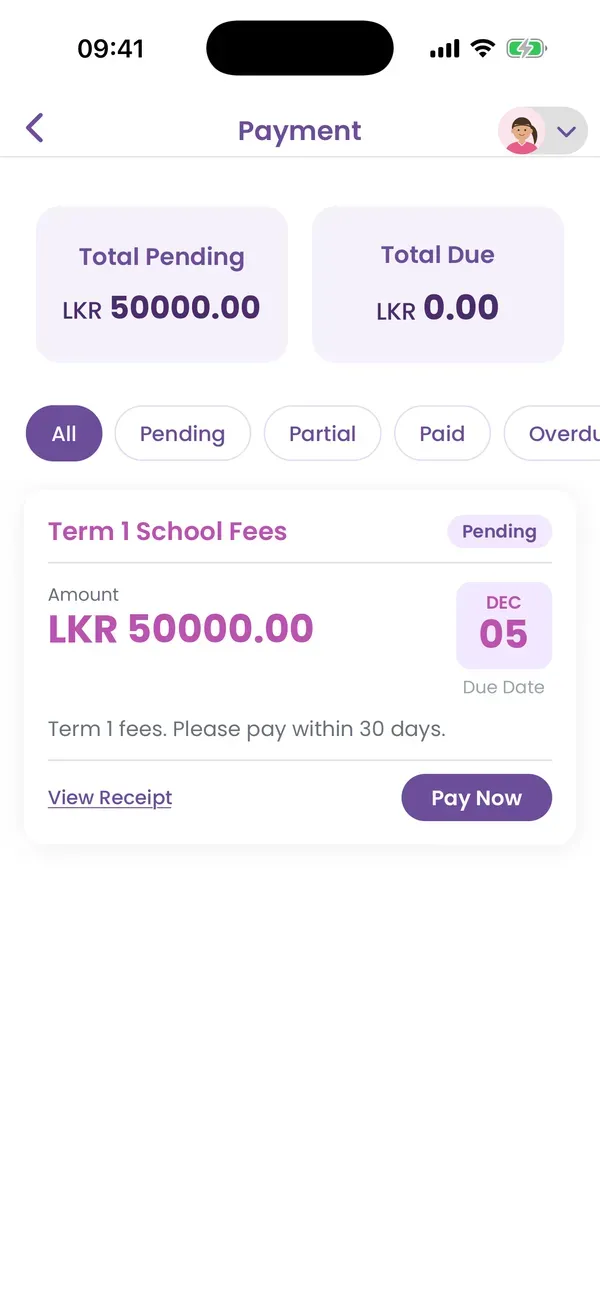
In Classveew: parents see each child’s invoices in the app, with the total pending and total due, and pay by card on a bank-hosted payment page with 3-D Secure. A card can be saved for next time. At the office, the cashier records any amount up to the balance due. Less than the balance makes the invoice Partial and shows what’s left; the exact balance marks it Paid. A payment larger than the balance is refused, so balances never go below zero. One invoice can take several payments, mixing cash and card.
4. Remind before the due date, not only after
Most late payments are not refusals. Parents forget, or the invoice was lost in a pile of papers. A reminder before the due date prevents most of them.
A good reminder schedule:
| When | Reminder |
|---|---|
| When the invoice is issued | The invoice itself, with the due date |
| 7 days before the due date | A friendly reminder |
| On the due date | “Due today” |
| While overdue | Regular reminders until paid |
In Classveew this is automatic: an email with the invoice PDF when it’s issued, an app reminder 7 days before the due date, and a daily reminder while the invoice is overdue. Each reminder opens the invoice in the app. Nobody in the office has to make a call.
5. Late fees: firm but fair
A late fee encourages on-time payment, but only if it’s fair and predictable.
- Announce it in advance, in your fee policy and on the invoice.
- Give a grace period, such as 7 days after the due date.
- Keep it reasonable: a small percentage or a fixed amount.
- Never charge families who paid on time.
In Classveew: each fee template can have a grace period and a late penalty, as a percentage or a fixed amount. It’s added automatically once an invoice is overdue past the grace period, and shown on the receipt. Families who pay in full on time are never charged.
6. Take payments at the counter, and count the cash daily
Cash at the counter is where money goes missing, usually by mistake. A simple daily routine prevents it:
- Open the day with the cash in the drawer.
- Record every payment as it happens, with a receipt.
- Close the day by counting the cash and comparing it with what was recorded.
- Explain any difference before going home.
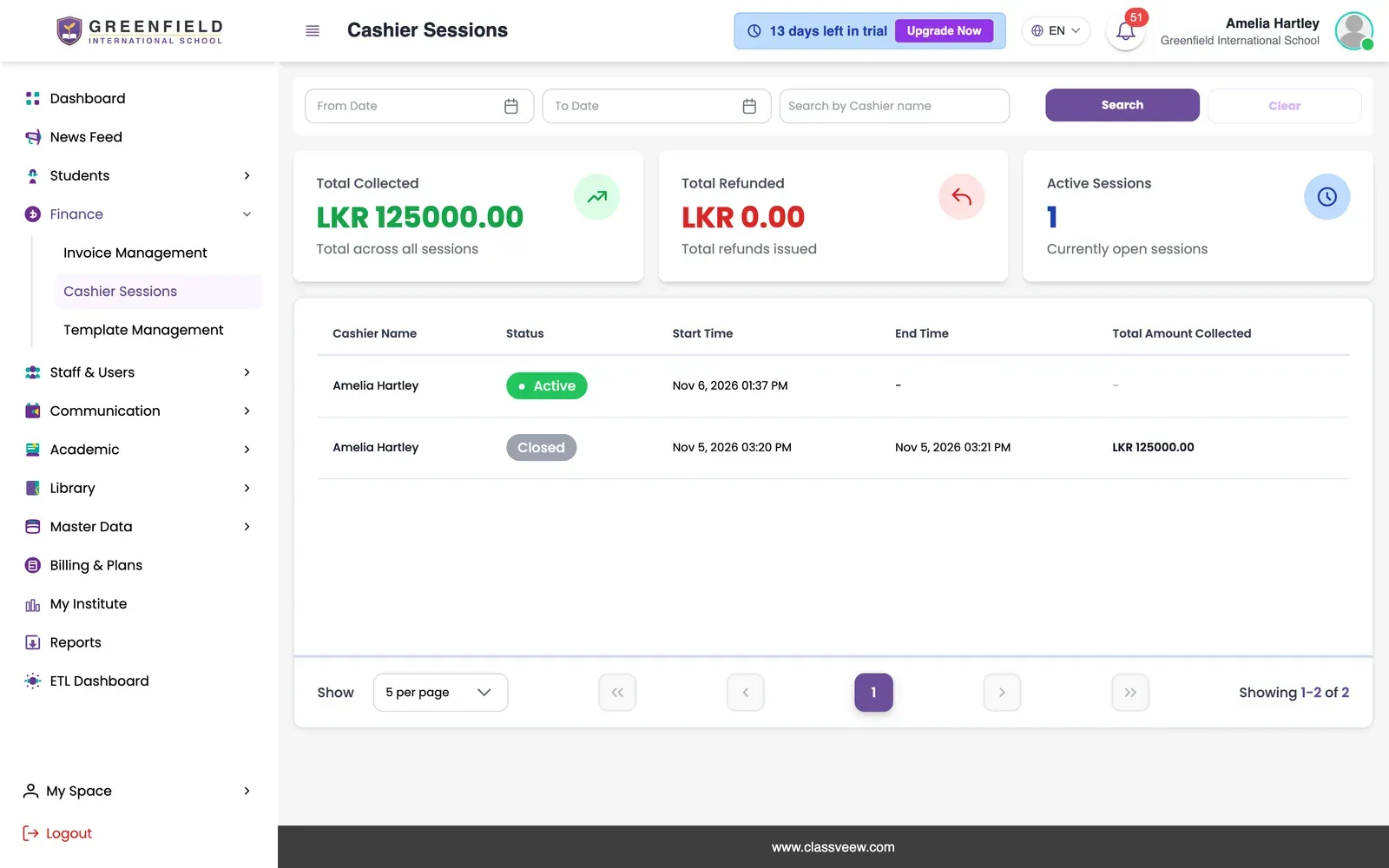
In Classveew: cash payments are recorded in a cashier session. The cashier starts the session with the opening cash balance, records each payment with a date and a reference, and ends the session with the actual cash count. Classveew shows whether it matches and how big any difference is. Past sessions are listed with the total collected and refunded. A built-in Cashier role lets you give a staff member access to fees without access to anything else.
7. Fix mistakes the right way
Mistakes happen: a payment recorded on the wrong invoice, a fee charged to a student who shouldn’t pay it. The fix must leave a record.
| Situation | What to do |
|---|---|
| A student shouldn’t be charged, but you want a record | Cancel the invoice, with a reason |
| An invoice should never have existed | Delete it, with a reason |
| A cash payment was recorded by mistake | Revoke the payment, with a note |
| Money really goes back to a parent | Refund the payment |
Never edit a total to “make it right”. Use the action that matches what happened, so anyone looking later understands it.
In Classveew: each of these is a separate action, with its own permission, and each needs a reason. A paid or part-paid invoice can’t be cancelled or deleted, so payments are never lost by accident.
8. Know your numbers
Three numbers tell you how fee collection is going:
- Collection rate: fees collected ÷ fees billed, for the term so far.
- Overdue amount: the total past its due date.
- Overdue by age: how much is 1–30 days late, 31–60 and over 60. The older a debt, the harder it is to collect.
Look at them every week, not only at the end of the term.
In Classveew: Invoice Management shows what’s been billed, paid and is still pending, filtered by date, curriculum, grade, classroom and status. The Finance Report exports invoices with student details and payment status to CSV, for up to a year at a time.
Managing fees in Excel: a layout that works
If you’re not ready for a system, a well-built spreadsheet is far better than a fee book. Use one row per invoice, not one row per student:
| Column | Example |
|---|---|
| Invoice number | INV-2026-0142 |
| Student name | [Student name] |
| Admission number | 1042 |
| Class | Grade 6 A |
| Fee | Term 1 fee |
| Amount | 45,000 |
| Discount | 4,500 |
| Amount due | =Amount − Discount |
| Due date | 31/01/2026 |
| Paid so far | 20,000 |
| Balance | =Amount due − Paid so far |
| Status | =IF(Balance=0,“Paid”,IF(Paid so far>0,“Partial”,“Pending”)) |
| Days overdue | =IF(AND(Balance>0,TODAY()>Due date),TODAY()−Due date,0) |
Keep a second sheet with one row per payment (date, invoice number, amount, method, receipt number, received by), and add up the payments into “Paid so far”. Never type over an old payment.
Even so, Excel can’t send invoices, reminders or receipts to parents, and it can’t stop two people saving different versions. When those start costing you time, it’s time for a system. See WhatsApp groups and Excel vs a school system.
A fee policy parents will respect
Write a one-page fee policy and share it at admission. Include:
- every fee, its amount and when it’s due,
- how to pay, online and at the office,
- whether part payments are accepted,
- the late fee and the grace period,
- discounts and how to apply,
- refunds, and when they’re given,
- who to contact with questions.
A clear policy, applied the same way to every family, prevents most arguments.
Paid events and trips
Trips and events are a fee too, but with an extra step: the parent has to agree first.
In Classveew: a paid event asks parents to accept or decline for each child before a deadline, and to pay the event fee in the app. If a parent declines, the event invoice is cancelled; if they accept again, it comes back. Staff see who has replied and send reminders to those who haven’t.
Fees in Classveew, at a glance
- Fee templates with items, discounts, surcharges, tax and late penalties.
- Invoices once, weekly, monthly or yearly, for whole classrooms or chosen students.
- Email with the invoice PDF, an app reminder 7 days before, and daily reminders while overdue.
- Card payment in the parent app with 3-D Secure; counter payments in cashier sessions.
- Part payments, refunds, revokes, cancellations, each with a reason and permission.
- Invoice statuses: Pending, Partial, Paid, Overdue and Overdue partial.
- Finance report to CSV.
- Sri Lankan schools bill in rupees.
See Fees and billing, or the Help Center guides Record a fee payment and Recurring invoices.