A recurring invoice sends a fee to students again and again, for example every month, without you creating it each time. How often it repeats comes from the Frequency of its fee template: Once, Weekly, Monthly or Yearly.
Before you start
Create a fee template with the right frequency and assign it to classrooms. See Create a fee template and assign classes.
Create the invoice
- Open Finance → Invoice Management and select the Invoices tab.
- Select Create Invoice.
- Choose the Template, and the Students.
- Under Billing Schedule, choose when invoices go out:
- Weekly: the Billing Day of Week
- Monthly: the Billing Day of Month (1–31)
- Yearly: the Billing Month and Billing Day of Month
- Once: the Invoice Date
- Enter the Billing Period (Days): how many days parents have to pay each invoice.
- Check the items and add a School Note if you like.
- Select Generate Invoices, then Yes, Confirm.
If the billing day is today, the first invoices go to students straight away. Otherwise they go out on the next billing date.
See what’s coming next
The Invoices tab lists each invoice with its Frequency, Billing Period, Next Billing Date, Total Amount and Status. The next billing date is when the next round of invoices will be created.
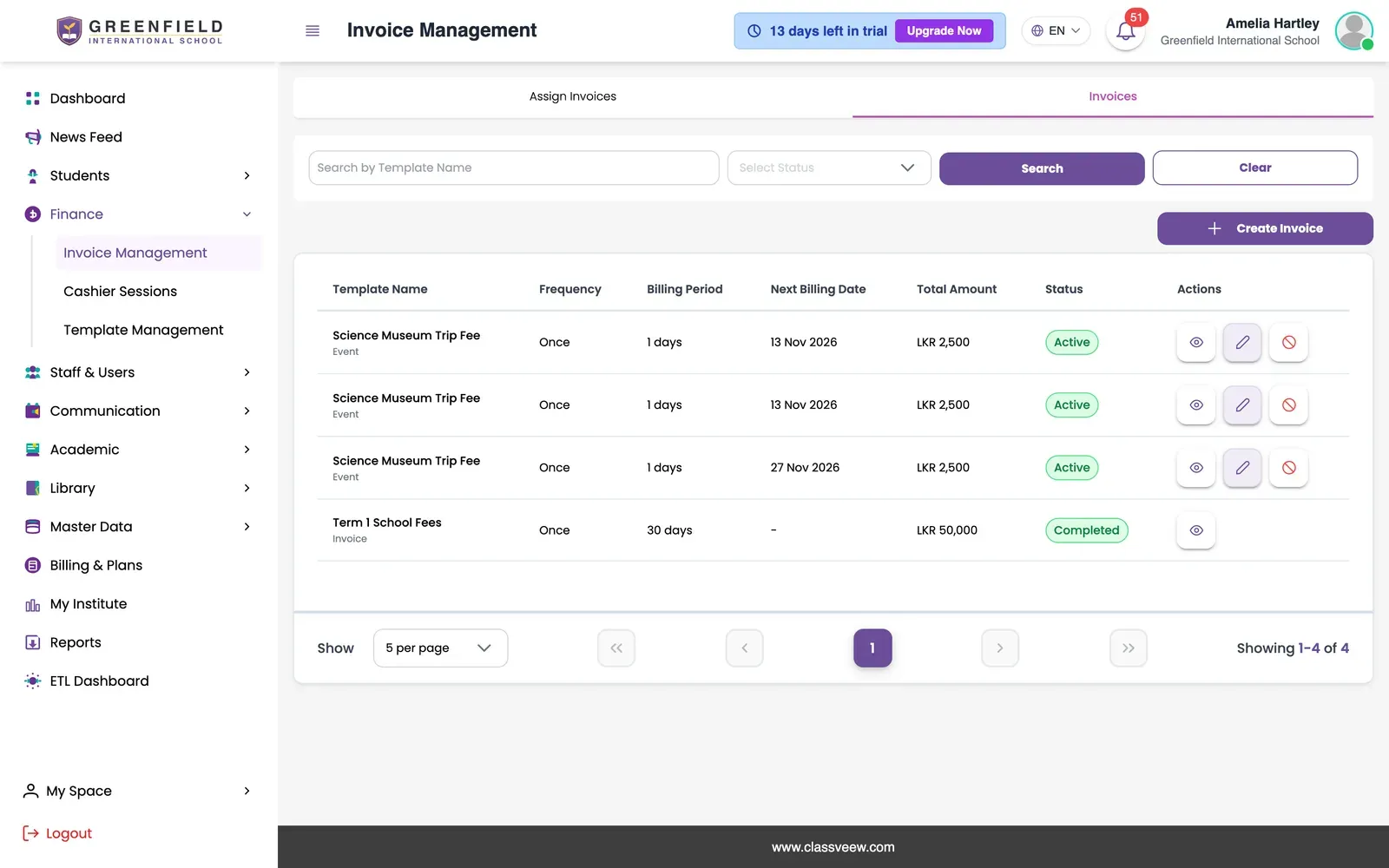
On each billing date, Classveew creates a new invoice for the students in the template’s classrooms. You find them on the Assign Invoices tab, where you record payments.
Pause, change or stop
- Pause: select Edit Invoice (the pencil) and set the Status to Paused. No new invoices are created until you set it back to Active.
- Change: in Edit Invoice, change the schedule, items or note and select Update Invoice. Changes apply to the next invoices, not to ones already sent.
- Stop for good: select Cancel Invoice on the row and give a reason. No more invoices are created, and it can’t be restarted.
Good to know: a Once invoice shows Completed after it has gone out, and can then only be viewed. Invoices already sent to students are managed on the Assign Invoices tab. See Cancel or delete an invoice.