Each teacher can lead one primary classroom and help in any number of secondary classrooms. You set both on the teacher’s profile.
Assign classrooms
- Open Staff & Users → Teacher Management and select the pencil icon on the teacher’s row.
- Select the Assign Classroom tab.
- Choose a Primary Classroom. It’s optional: leave it empty if the teacher doesn’t lead a class.
- Choose any Secondary Classrooms.
- Select Assign.
The table below lists each classroom with its Role (PRIMARY or secondary) and the date it was assigned.
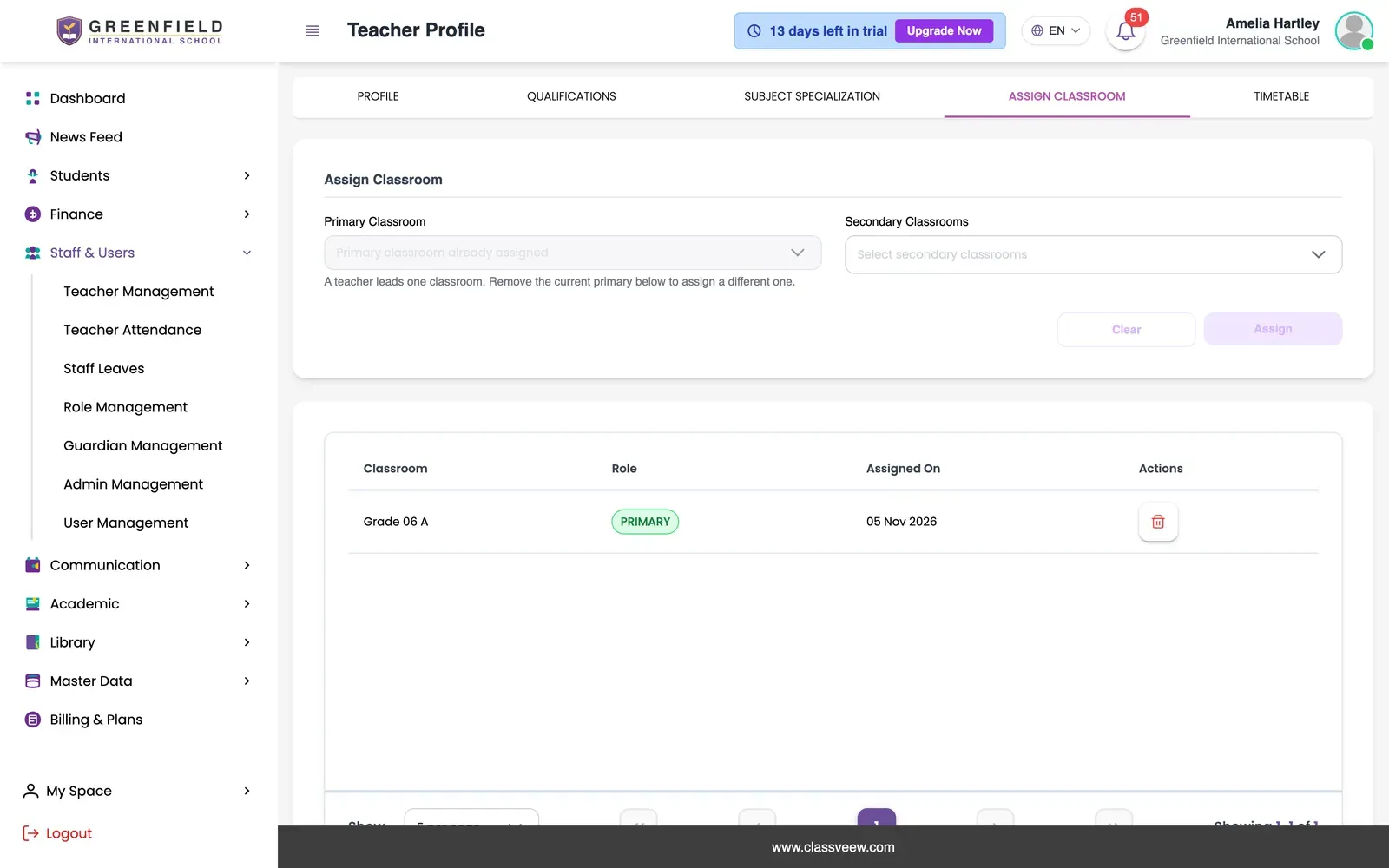
Good to know: a teacher leads only one classroom. To change it, select the bin icon next to the current primary classroom, select Yes, Remove, then choose the new one.
You can also do this from Academic → Classroom Assignment. Select New Assign, choose the teacher, the Type (Assign as Primary Teacher or Assign as Assistant Teacher), the Grade and Classroom, then select Submit.
Set the teacher’s subjects
- On the teacher profile, select the Subject Specialization tab.
- Under Primary Subject, choose a curriculum or a grade, then pick one or more subjects from Select subject. Each subject appears as a card with its grade and curriculum.
- Do the same under Secondary Subject for subjects they also teach.
- To remove a subject, select the × on its card.
- Select Save.
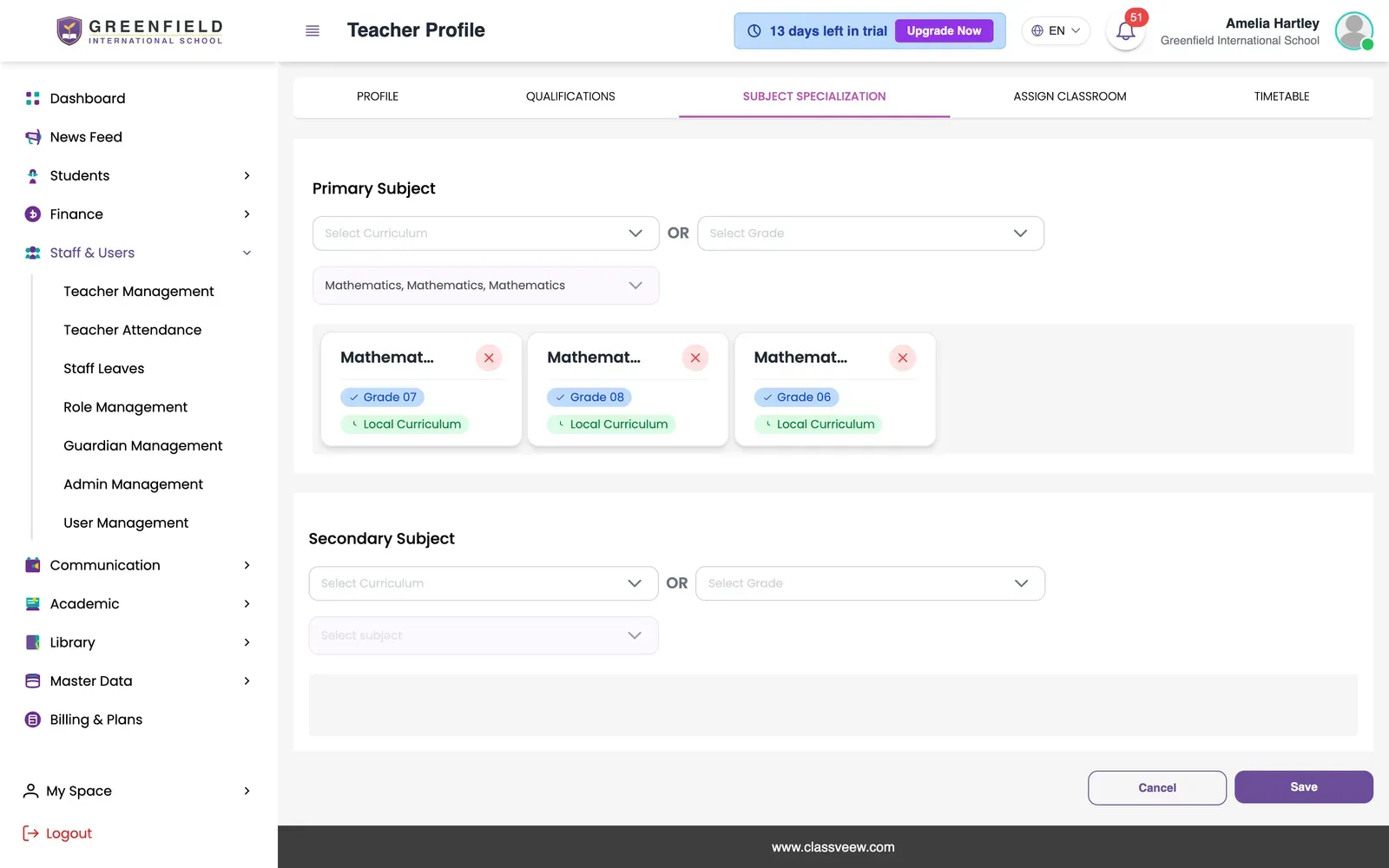
Good to know: a subject can’t be both primary and secondary for the same teacher.
To decide which teacher teaches each subject in each classroom, see Add and assign subjects.