Teachers record their own attendance in the Classveew app. Admins see everyone’s attendance on the Teacher Attendance page of the web portal, and can record it for them.
Check in and out (teacher, app)
- On the Home tab, find today’s attendance card. It tells you what to do, for example Check in before your school’s cut-off time.
- Tap Check In, then Yes, Check In. The time you confirm is recorded and can’t be changed afterwards.
- At the end of the day, tap Check Out, then Yes, Check Out.
If you are on approved leave, the card says You’re on leave today and you don’t need to check in. If you were marked absent, you can still check in to correct it.
See your own record
Open the menu and tap My Attendance. You see your attendance rate and the number of days Present, Absent and Pending for the date range, and your Recent days. Tap View full to choose another date range or filter by status.
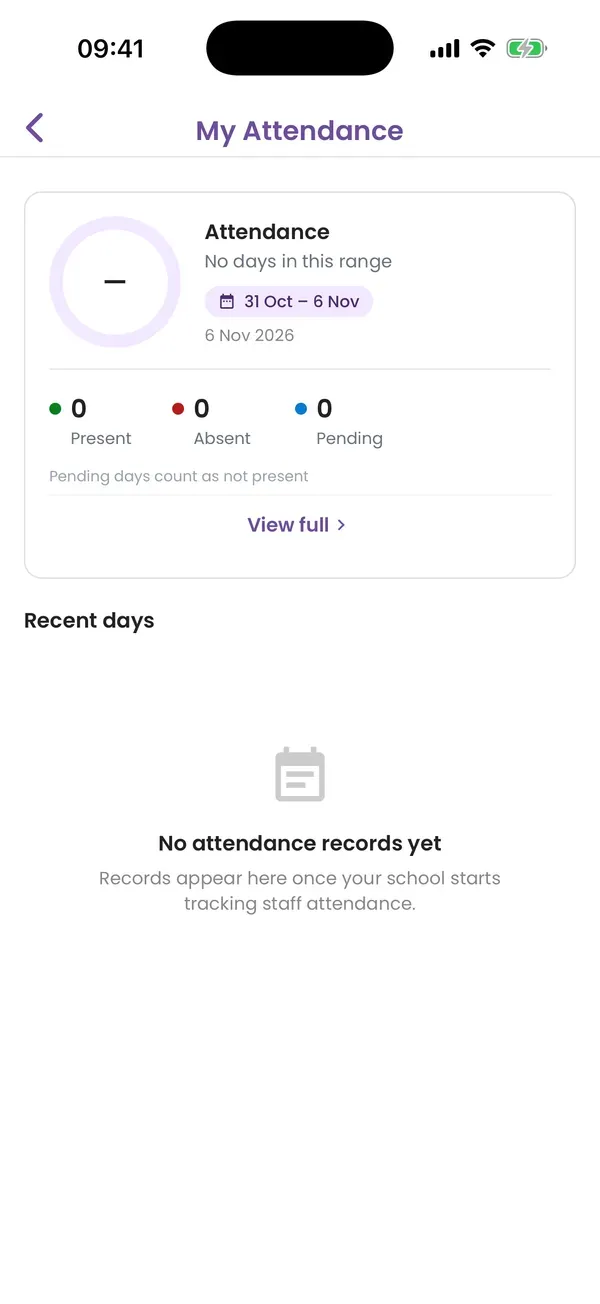
If a day is wrong, you can ask for a correction. See Correct a teacher’s attendance.
Location check
Your school can choose to require staff to be at school to check in. If it does, the app asks for your location when you check in or out, and you must be within the allowed distance of the school. If you can’t share your location, ask an admin to record your attendance.
Admins turn this on in My Institute → Configurations → Attendance Location with Require staff to be at the institute, and set the Allowed distance in metres. The school’s location must first be set on Institute Details. See Update your institute profile.
The Teacher Attendance page (admin, web portal)
- Open Staff & Users → Teacher Attendance. The Mark Attendance tab opens on today.
- Choose a date range to look at other days. The counters show how many staff are Pending, Absent, Check In, Check Out and On Leave.
- Use Filter by status or Search by staff name to find someone.
- To record attendance for staff, tick them and use the buttons on the right: Check in, Check Out, Absent, Leave or Delete Attendance.
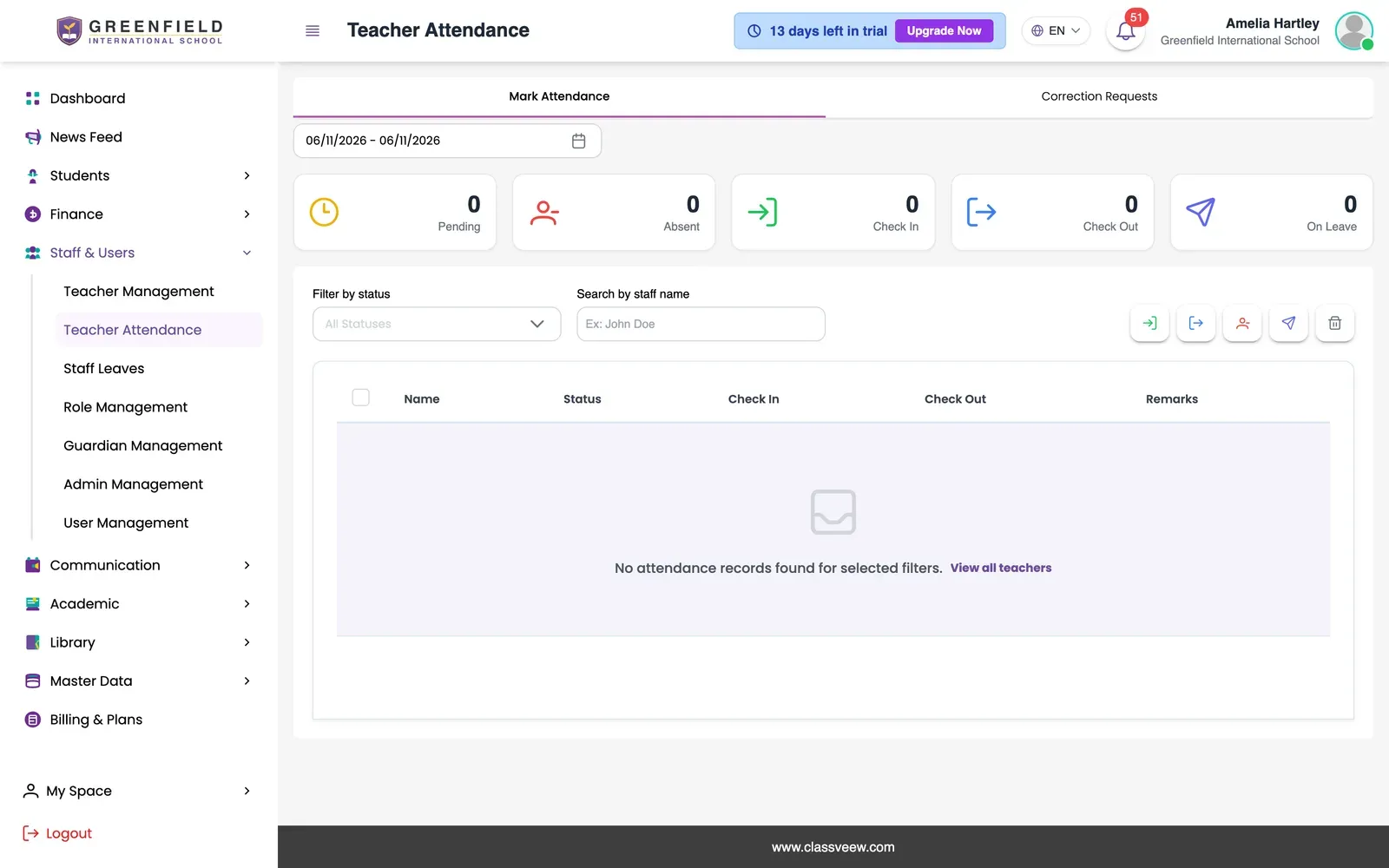
Good to know: attendance an admin records is not affected by the location check. The Correction Requests tab holds teachers’ requests to fix their attendance.