When a teacher applies for leave in the app or on the web portal, the request waits on the Staff Leaves page until an admin decides it. The teacher is notified of your decision.
Review a request
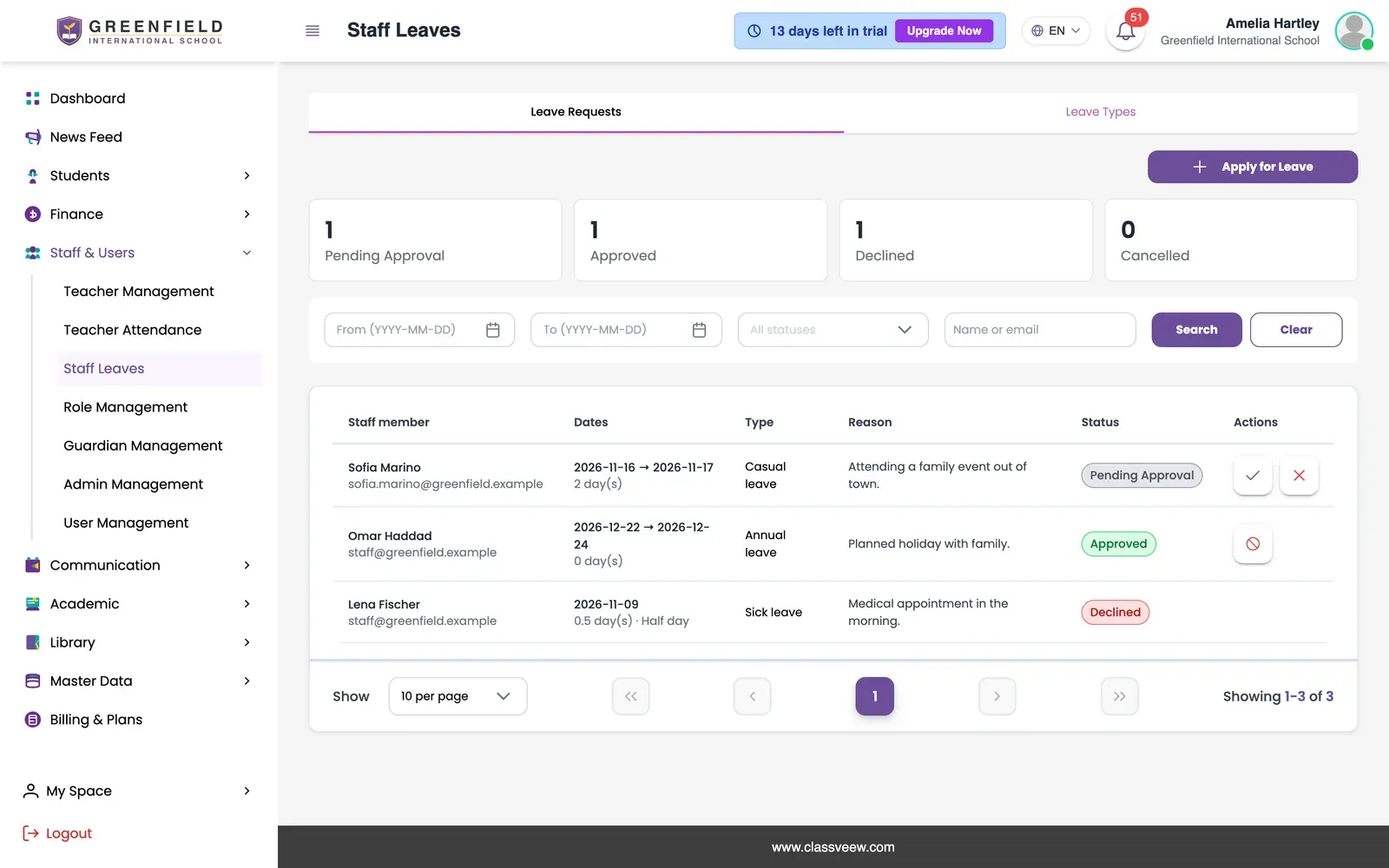
- Open Staff & Users → Staff Leaves. The Leave Requests tab shows how many requests are Pending Approval, Approved, Declined and Cancelled.
- To narrow the list, choose dates, a status, or type a Name or email, then select Search. Clear resets the filters.
- Each row shows the Staff member, the Dates (with the number of days, and Half day where it applies), the Type, the Reason and the Status. Open the Attachment if the teacher added one.
- On a pending request, select the tick (Approve) or the cross (Decline).
Approve or decline
- Approve: you can add a Note (optional). The leave days are marked as leave on the teacher attendance register; a day the teacher already checked in stays as it is.
- Decline: enter the Reason for declining. It is required, and the teacher sees it.
- To change the request before you decide, select Adjust the dates or type first. You can change the Leave type, Start date, End date and Duration, then select Edit & Approve.
To take back leave you already approved, select the cancel button on an approved row (Cancel Leave).
Good to know: you can’t approve your own leave request; another admin has to decide it. Only the school’s main admin can decide their own.
Apply on behalf of a teacher
Select Apply for Leave, choose the staff member, the leave type, dates, duration and reason, and submit. Leave filed by an admin is recorded as approved straight away.
Leave types
The Leave Types tab lists the kinds of leave teachers can choose, such as casual, annual and sick leave. Select Add Leave Type, or edit one, to set its name, the Days per year (leave blank for no limit), whether it is Paid leave, and whether it is Available to staff.
For the teacher’s side, see Apply for leave as a teacher.