My Leave shows how much leave you have left and lets you apply for more. Your school administrator reviews each request, and you are notified of the decision.
Your leave balance
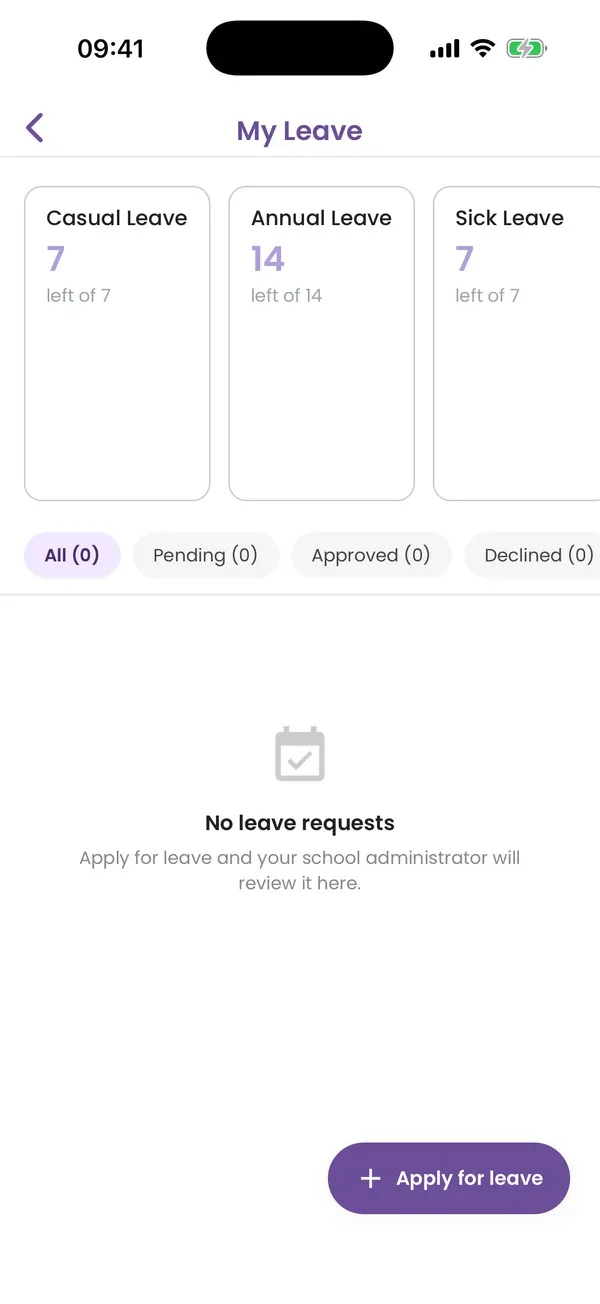
At the top of My Leave you see a card for each leave type, such as Casual leave, Annual leave and Sick leave, with the days left (for example 7 left of 7). Unpaid leave shows the days taken. The leave types and the number of days come from your school.
Apply in the app
-
Open the menu and tap My Leave.
-
Tap Apply for leave.
-
Choose the Leave type. You see how many days you have left of that type.
-
Tap Select dates and choose one day, or the first and last day.
-
Choose the Duration: Full day or Half day.
-
Write the Reason.
-
If you want, tap Add a document (optional) to attach, for example, a medical note.
-
Tap Submit request.
Apply on the web portal
- Open My Space → My Leave.
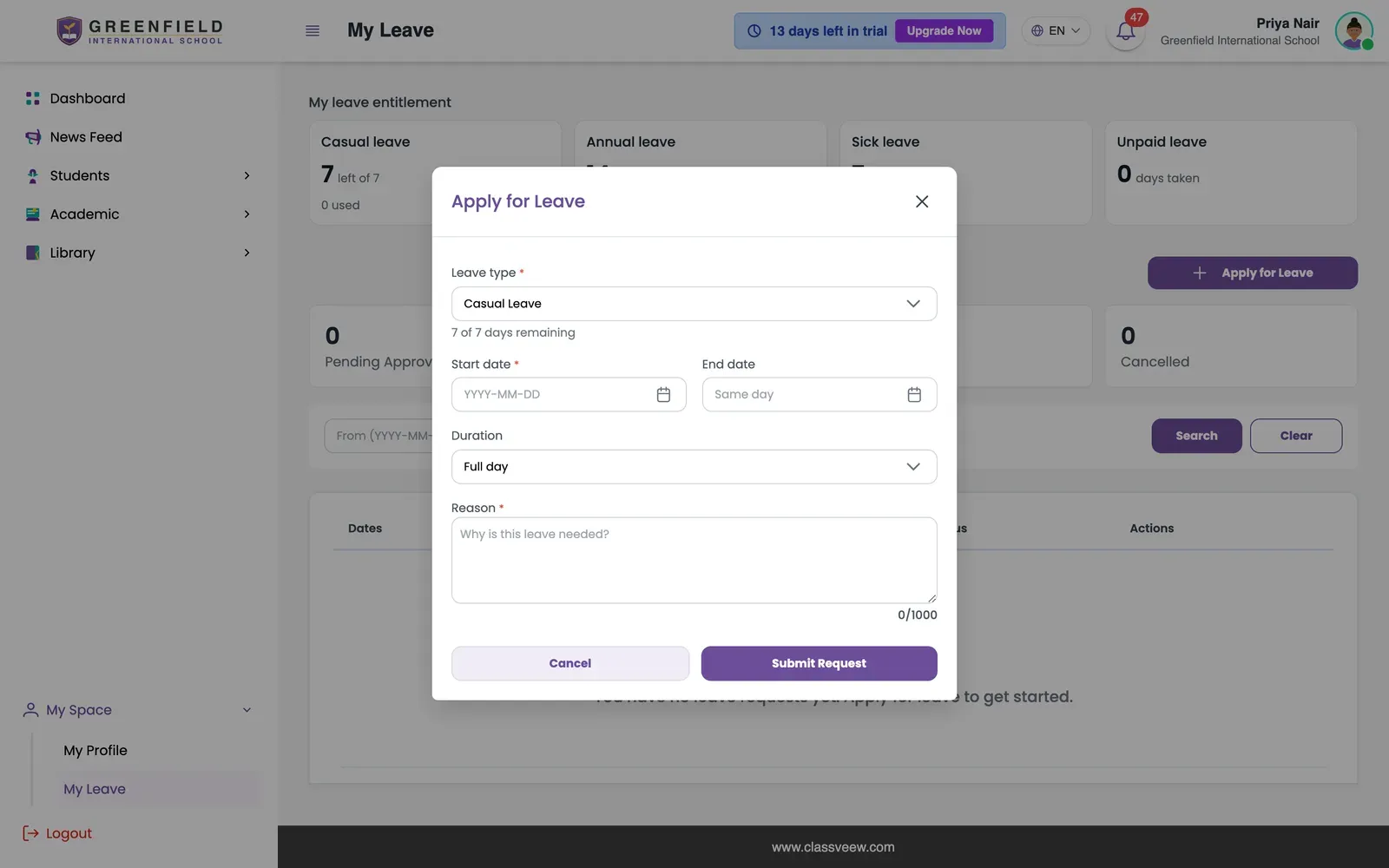
- Select Apply for Leave.
- Choose the Leave type, the Start date and, for more than one day, the End date.
- Choose the Duration, write the Reason and select Submit Request.
Follow your requests
Your requests are listed under My Leave with their status: Pending (on the web, Pending Approval), Approved, Declined or Cancelled. In the app, use the All, Pending, Approved and Declined tabs; on the web, filter by dates or status and select Search.
While a request is still pending, you can edit it or Withdraw it. Your administrator is told that you no longer need the leave. If a request is declined, you see the administrator’s reason.
Good to know: once leave is approved, those days are marked as leave on your attendance, so you don’t need to check in. To fix a day that was recorded wrongly, see Correct a teacher’s attendance.
For administrators, see Approve or decline staff leave.