My Classroom in the teacher app shows the class you are responsible for and the students in it.
Open My Classroom
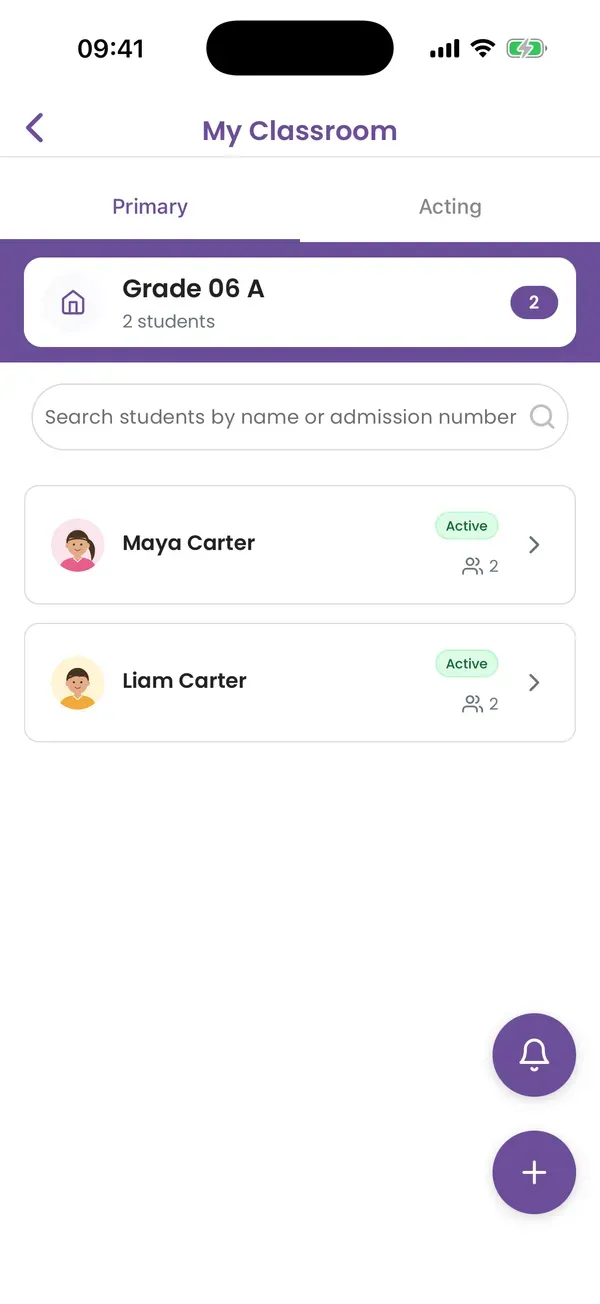
Open the menu and tap My Classroom. There are two tabs:
- Primary: the classroom where you are the primary teacher, with the number of students and the student list.
- Acting: the classrooms where you are an acting teacher. This tab lists the classrooms only.
If a tab is empty, your school administrator hasn’t assigned you to a classroom in that role yet. See Assign teachers to classrooms.
Find a student
- On the Primary tab, type in Search students by name or admission number.
- Each student card shows whether the student is Active and how many guardians are linked.
- Tap a student to open their Student Profile: gender, date of birth, admission number, classroom and their Guardians.
Pull down on the list to refresh it.
Other things you can do
- Add a student: tap the + button at the bottom right to add a student to your classroom.
- Connect a guardian: on a student’s profile, tap Connect Guardian and enter the guardian’s email. If the email isn’t registered yet, add their name and tap Create & Connect; Classveew sends them an invitation email.
- Guardian requests: tap the bell button to see parents who asked to be linked to a student in your class. Check their details, such as the date of birth they gave, and approve or reject each request. The number on the bell shows how many are waiting.
Good to know: to take the class register, use the Attendance tab instead. See Mark attendance in the teacher app.