Instead of adding records one by one, you can fill in an Excel template and upload it. Each card on the ETL Dashboard has its own template, for example for curricula, academic years and terms, operational hours, grades, classrooms, subjects, students, teachers and guardians.
Upload a file
- Open ETL Dashboard from the menu.
- On the card you need, select Bulk Upload.
- Under 2. Need a Template?, select Download Template (.xlsx).
- Fill in the template in Excel. Keep its columns as they are.
- Back in Classveew, under 1. Select Your File, select Choose File and pick your file. Only Excel files (XLSX or XLS) are accepted.
- Select Upload File.
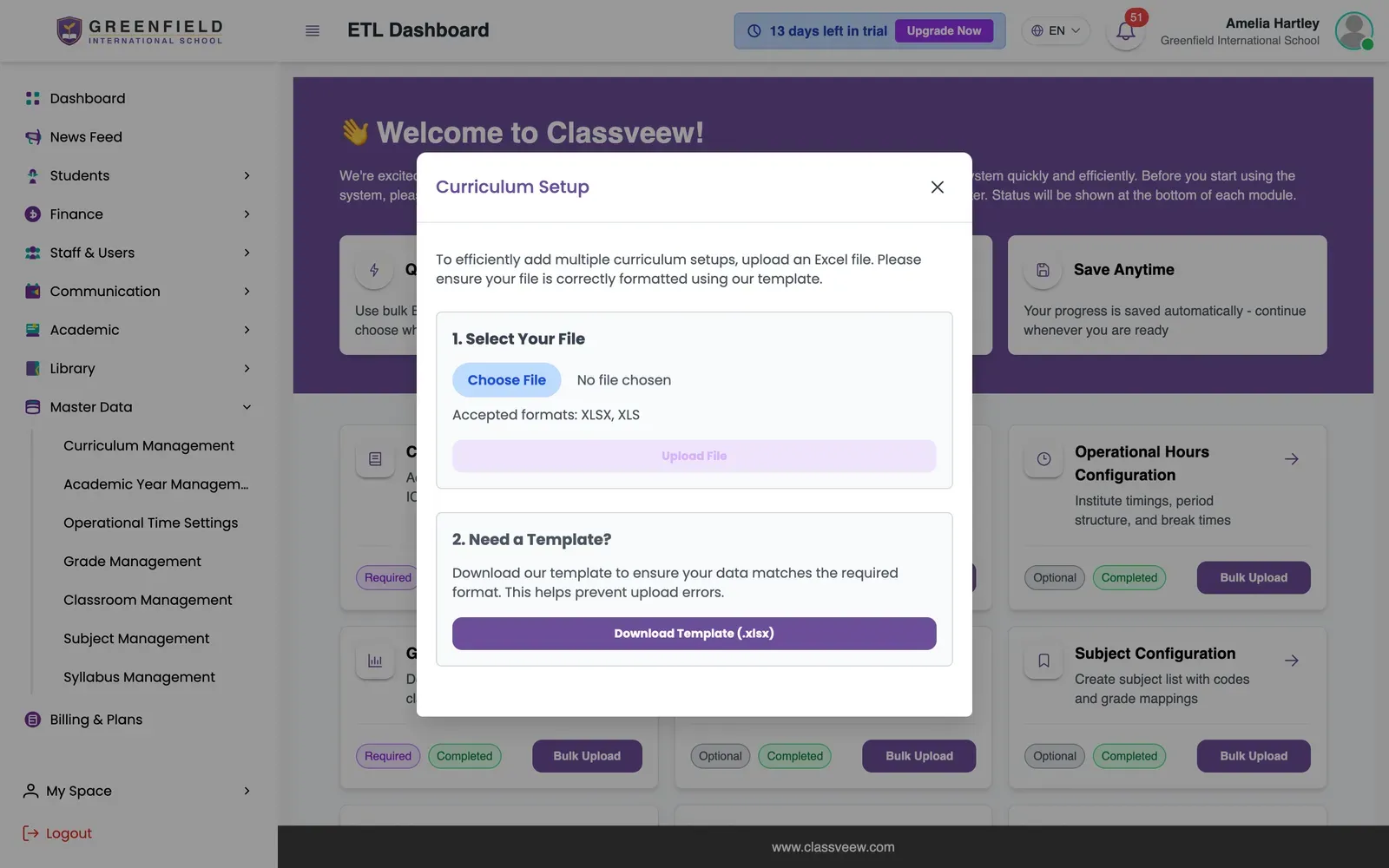
You see a message that the bulk upload has started. Classveew processes the file in the background. When records have been added, the card shows Completed.
Good to know: some cards stay locked until the card they depend on has data. For example, set up curricula before the cards that use them.
Check the result
- Select the arrow at the top right of the card. The Upload History for that card opens.
- Each upload shows its status, the date, and its progress, such as 18 / 20 (2 errors).
- Select the eye icon (View Summary) to open the Upload Summary. It shows Total Rows, Successful and Failed, and an Error Details table with the row number and what went wrong.
Fix rows that failed
- In the Upload Summary, select Download Error Report. You get a file listing each failed row and its error.
- Correct those rows in your Excel file.
- Upload a file with just the corrected rows. Rows that were added the first time are already saved.
Good to know: Download Original File gets back the exact file you uploaded.
For students in particular, see Bulk upload students.