The My Institute page holds your school’s details: name, website, contact email and phone, business registration ID, addresses and logos. You entered most of them when you registered, and you can keep them up to date here.
Edit the details
- Select My Institute in the menu. The Institute Details tab opens.
- Select Edit Details at the bottom of the page.
- Change what you need, such as the Institute Website, Contact Email, Phone Number, or the Physical Address and Mailing Address.
- Select Save.
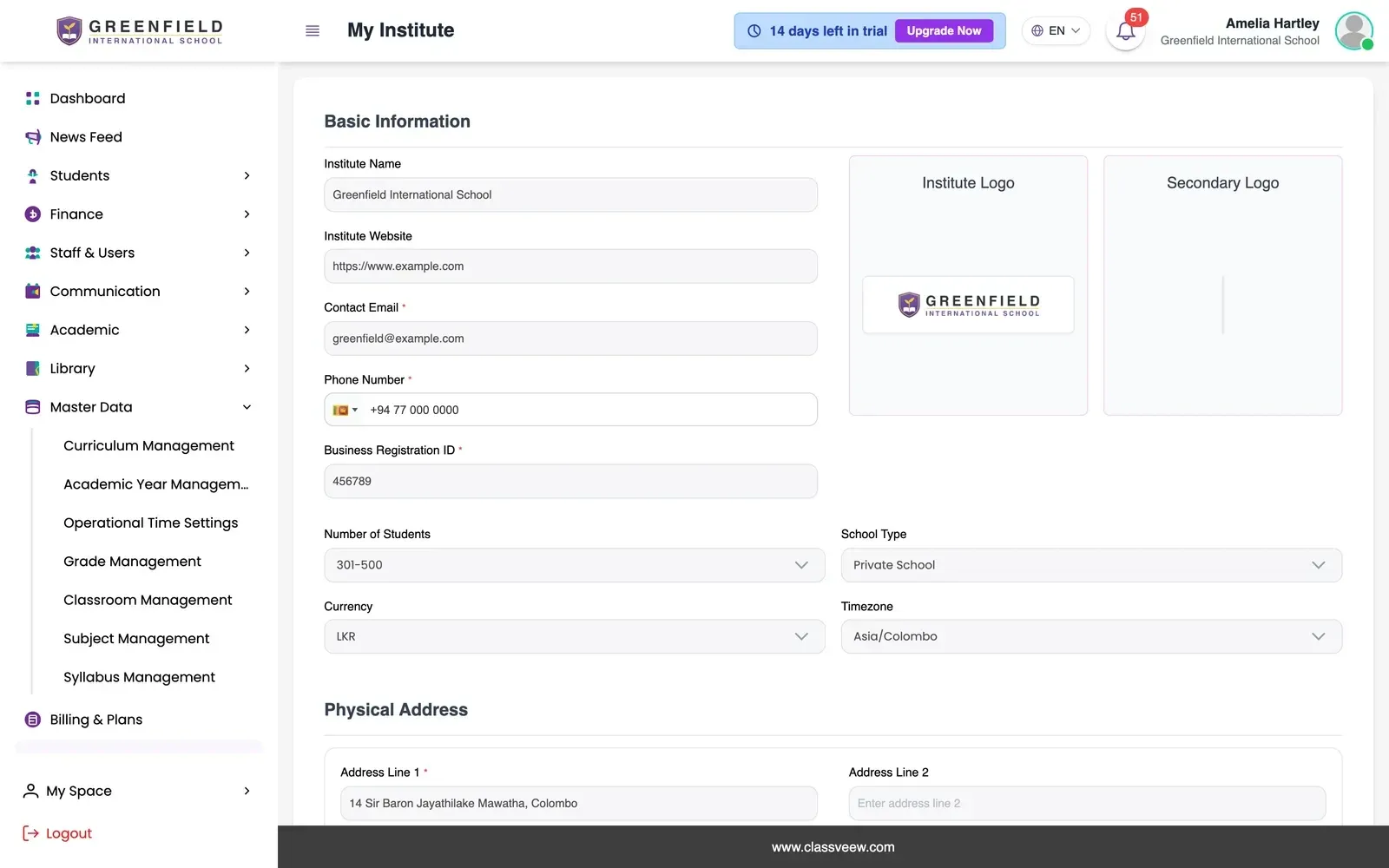
Good to know: Number of Students, School Type, Currency and Timezone can’t be changed here. To change them, contact support.
Change the logos
Your school has two logos:
- Primary Logo: a wide logo, cropped to an 8:1 shape. It appears at the top left of the web portal, as in the screenshot above.
- Secondary Logo: a square logo, cropped to a 1:1 shape. Use it for a badge or crest.
To change one:
- Select Edit Details.
- Drag your image onto the logo box, or select Browse. You can use .jpg, .png or .svg files.
- Move the crop frame to fit your logo, then select Crop & Upload.
- Select Save.
Good to know: a wide logo with little empty space around it fits the 8:1 shape best.
Configurations
If you have permission, you also see a Configurations tab. It holds school-wide settings, such as two-step verification for the web portal. See Two-step verification.