A curriculum is the programme your school follows, such as a national syllabus, Cambridge or Edexcel. It comes first: academic years, classrooms, subjects and operational hours are all set up per curriculum. If your school teaches more than one programme, add one curriculum for each.
Add a curriculum
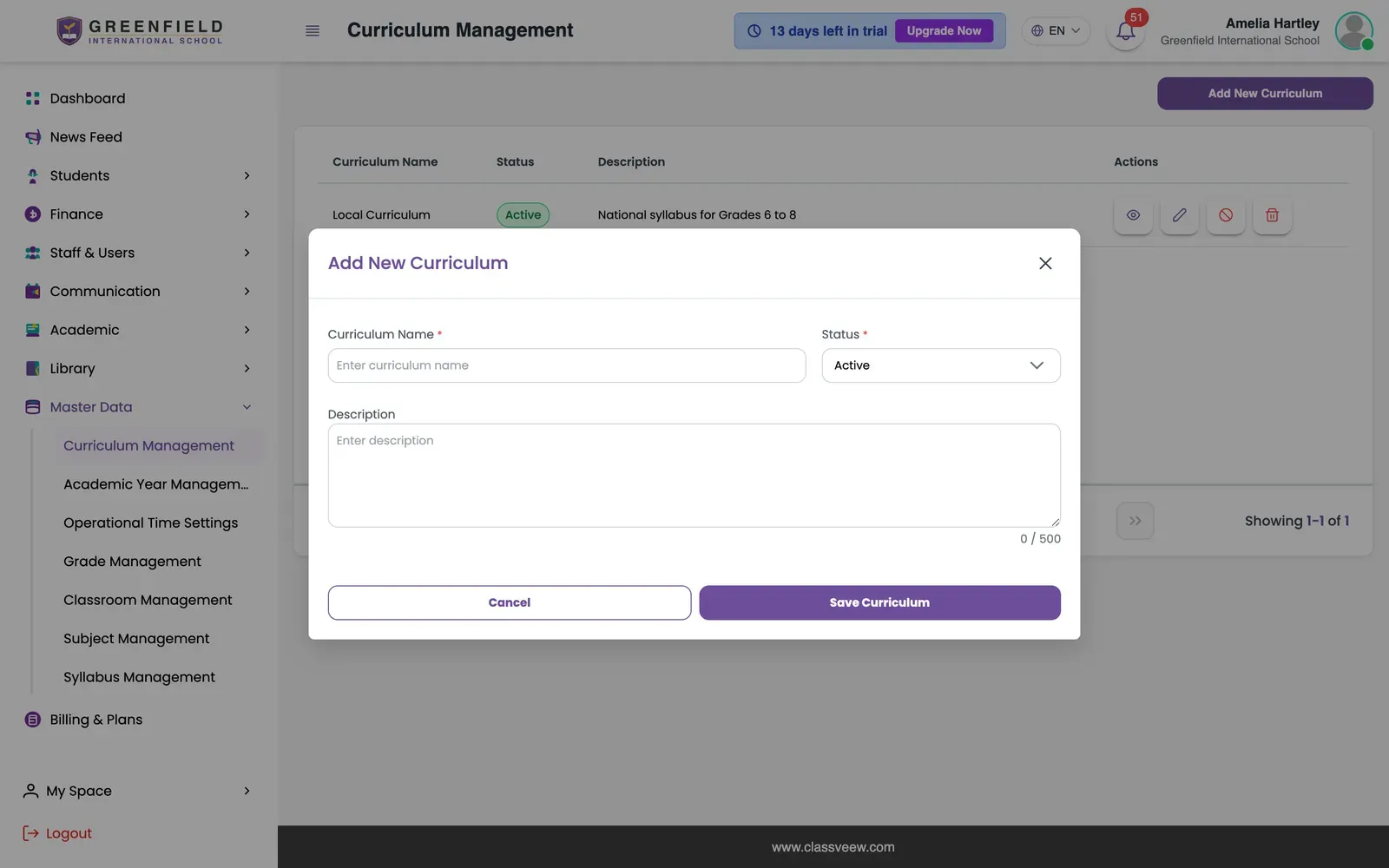
- Open Master Data → Curriculum Management and select Add New Curriculum.
- Enter the Curriculum Name.
- Leave the Status as Active, and add a Description if you like.
- Select Save Curriculum.
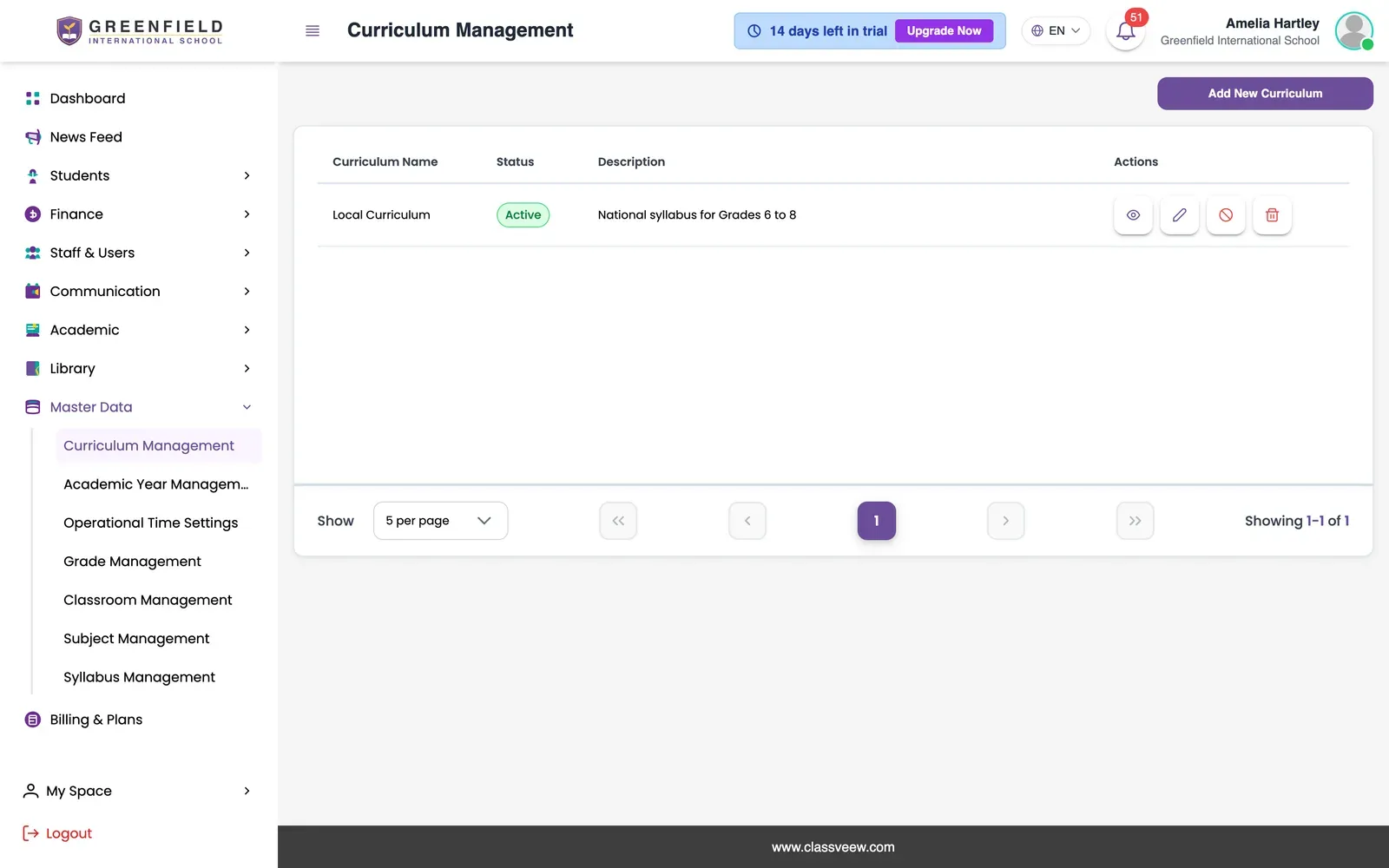
The curriculum appears in the list with its status and description.
Next, add its academic year and terms. See Set up academic years and terms.
Good to know: Quick Setup on the ETL Dashboard can create a ready-made curriculum for you, with its academic year, grades and subjects. See Set up your school with the ETL Dashboard.
Inactivate a curriculum
In Actions, select the circle icon. You can’t inactivate a curriculum while it has an Active academic year or a re-enrollment cycle in progress. Finish those first.
If classrooms still use the curriculum, Classveew tells you how many classrooms and students are affected. If you go ahead, those classrooms are inactivated too and their students are moved to the Unassigned Classroom.
Delete a curriculum
In Actions, select the bin icon. You can’t delete a curriculum while:
- any student is linked to it, or
- it has an Active academic year or a re-enrollment cycle in progress.
Otherwise, Classveew asks you to confirm. Deleting a curriculum permanently removes its classrooms, subjects, syllabi, academic years, operational times and teacher assignments. This can’t be undone.