When students have handed in their homework, the homework’s teacher (or an admin) grades it task by task and then releases the scores to parents.
What you can grade
It depends on the Homework Type chosen when the homework was created:
- Grade and Respond: a score out of 100 for each task with scoring turned on, plus optional remarks.
- Two Way: written feedback only, no score. Feedback is required.
- One Way: for reference only. Students don’t hand anything in, so there’s nothing to grade.
Grade the submissions
- Open Academic → Homework Management and select View (the eye icon) on the homework.
- Select Start Grading. Students can no longer hand in after this.
- On a task, select Grade Submissions. You see every student, the date they submitted and their status. Late means they handed in after the due date.
- Select Grade submission next to a student. Open their files, then enter the score out of 100 and any Remarks (Optional), or the Feedback for Two Way homework.
- Select Save. Use Next and Previous to move between students.
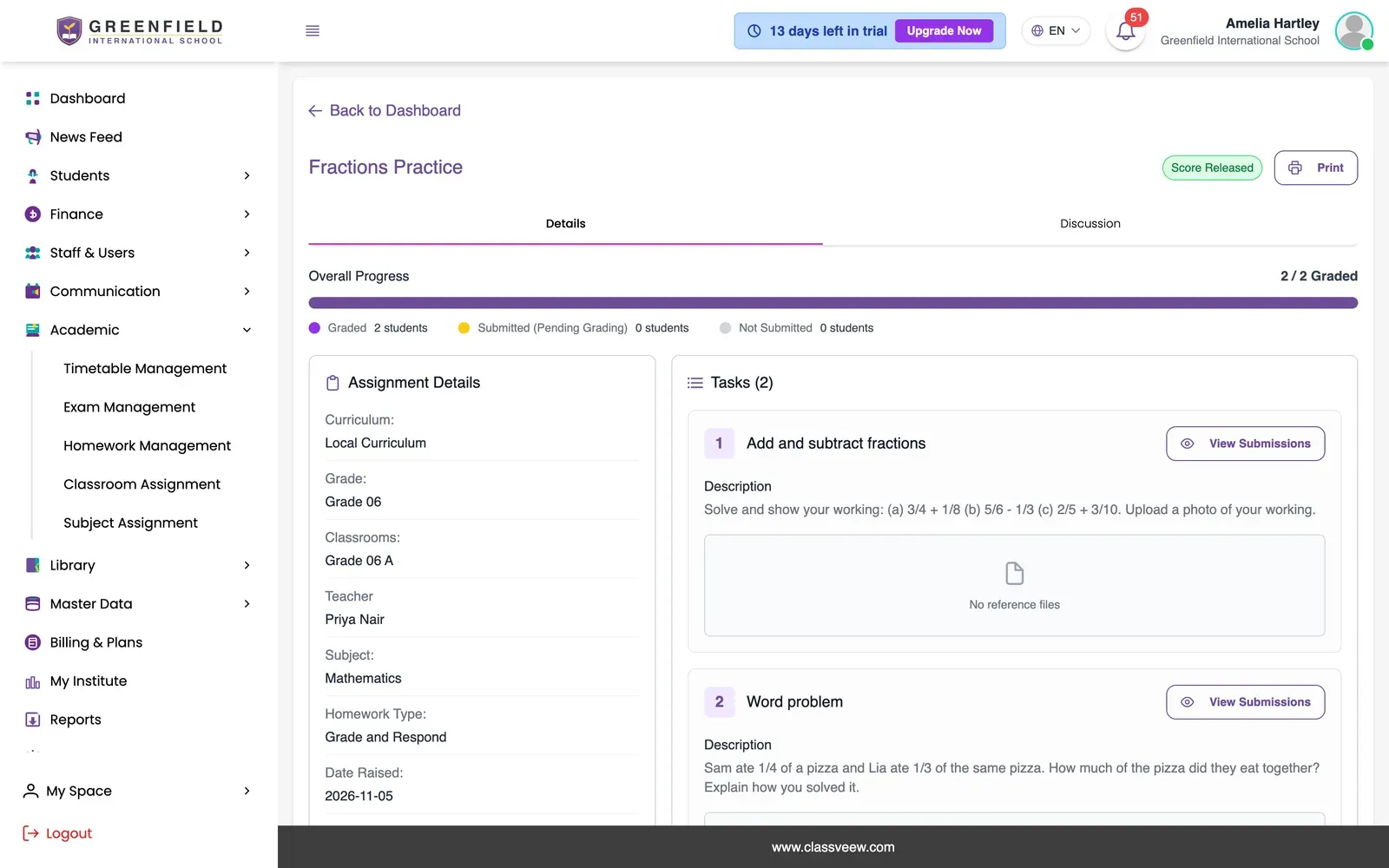
Overall Progress shows how many students are Graded, Submitted (Pending Grading) and Not Submitted.
Release the scores
- When every student on a task has a score, select Release Score on that task.
- Check the numbers and select Release to All Parents.
- Do the same for each task.
When every task is released, the homework is marked Score Released. Parents and students can then see the score and your remarks for each task. See See your child’s homework and results.
Good to know: every student needs a score before you can release, including students who didn’t hand anything in. Give them 0. Released scores can’t be changed, so check them first.
Other actions
- Print gives you a printable copy of the homework.
- The Discussion tab is for comments between the teacher and parents.
- In the homework list, Duplicate makes a draft copy you can reuse.