The teacher app has its own Homework screen. You can see your homework, set new homework, and grade and release scores without a computer.
Find your homework
- Open the menu and tap Homework.
- Choose a classroom under Classrooms. You can also choose a Subject.
- Tap a Status to filter the list.
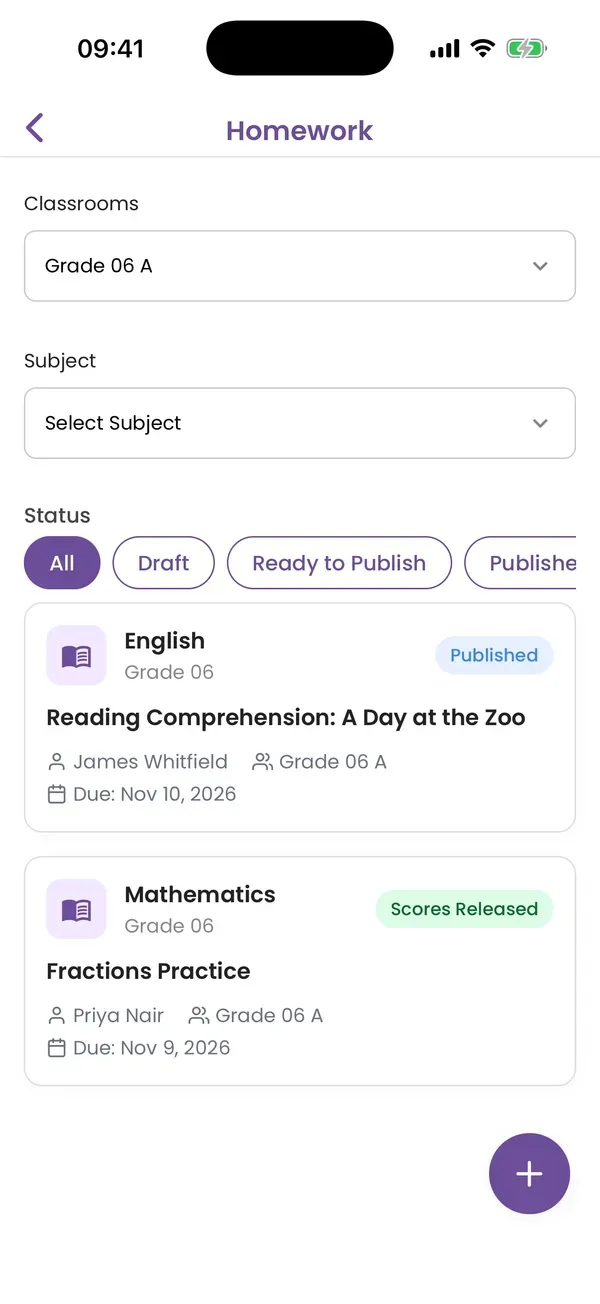
What the statuses mean
- Draft: saved but not shared. Students and parents don’t see it.
- Ready to Publish: it will be shared automatically on its Date Raised.
- Published: students and parents can see it and hand in their work.
- Grading: you’ve started grading, so hand-ins are closed.
- Released (shown on the card as Scores Released): the results are shared with parents.
Set new homework
- Tap + at the bottom right.
- Details: enter the Homework Title, then choose the Classroom, Subject, Homework Type, Date Raised and Date Due. Turn on Allow Late Submissions to accept work up to 3 days after the due date.
- Tasks: add each task with a title, a description and any files. Use Take Photo to add a picture of a worksheet. For Grade and Respond homework, turn on Enable Scoring for the tasks you want to score.
- Review: check everything and tap Publish Homework.
If the Date Raised is today, the homework is published straight away. If it’s later, it’s marked Ready to Publish until then.
Good to know: a task needs at least a title, a description or a file. To learn about the homework types, see Create homework on the web portal.
Grade and release
- Open a Published homework and tap Start Grading.
- On a task, tap Grade Submissions. Tap a student to see their files, enter a score out of 100 and Remarks (Optional), or the Feedback for Two Way homework, then tap Save.
- When every student on the task is graded, tap Release Score and Yes, Release.
Give 0 to students who didn’t hand anything in, so you can release. See Grade homework and release scores for more detail.
Other actions
Open a homework item to Edit it (before it’s published), Duplicate it or Delete This Homework (before it’s published). The Discussion tab is for comments with parents.