Homework is handed in as files: photos of written work, scans, documents or audio. Parents can hand in from the Classveew app or the web portal. Students can hand in on the web, in the student portal.
In the app (parents)
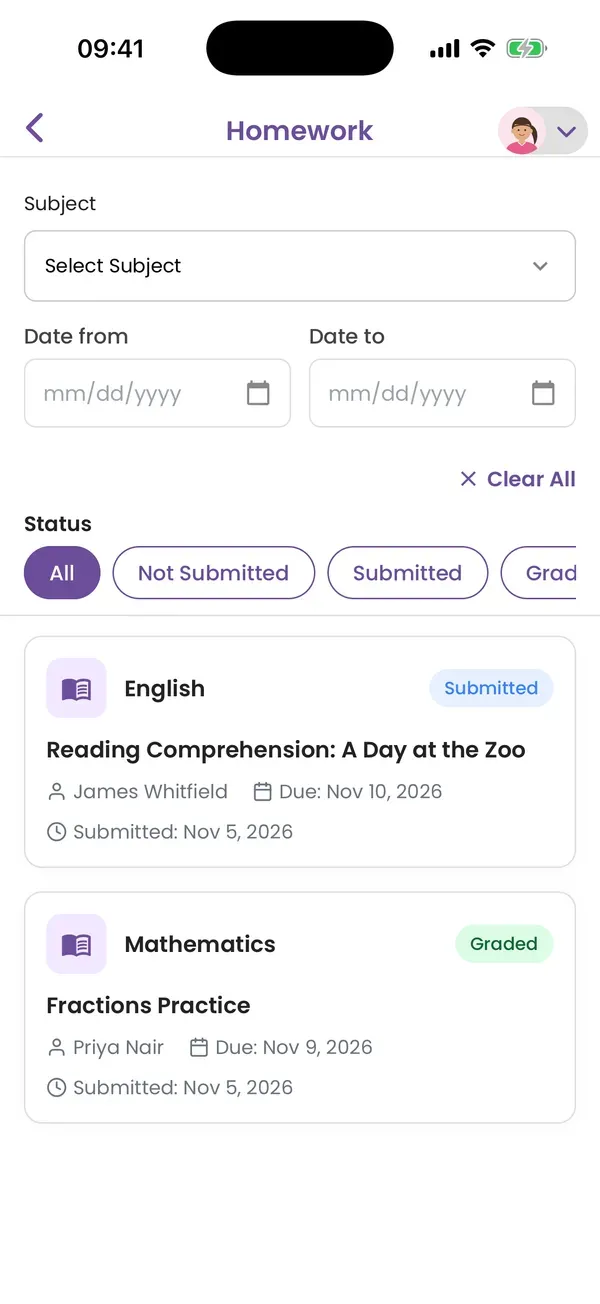
- Open the menu at the top left and tap Homework.
- Tap the homework item to open it.
- Under each task, use Upload your files:
- Take Photo to photograph your child’s work, or
- Browse files to pick a file from your phone.
- When every task has its files, tap Submit.
- Check the files and tap Yes, Submit.
On the web (parents and students)
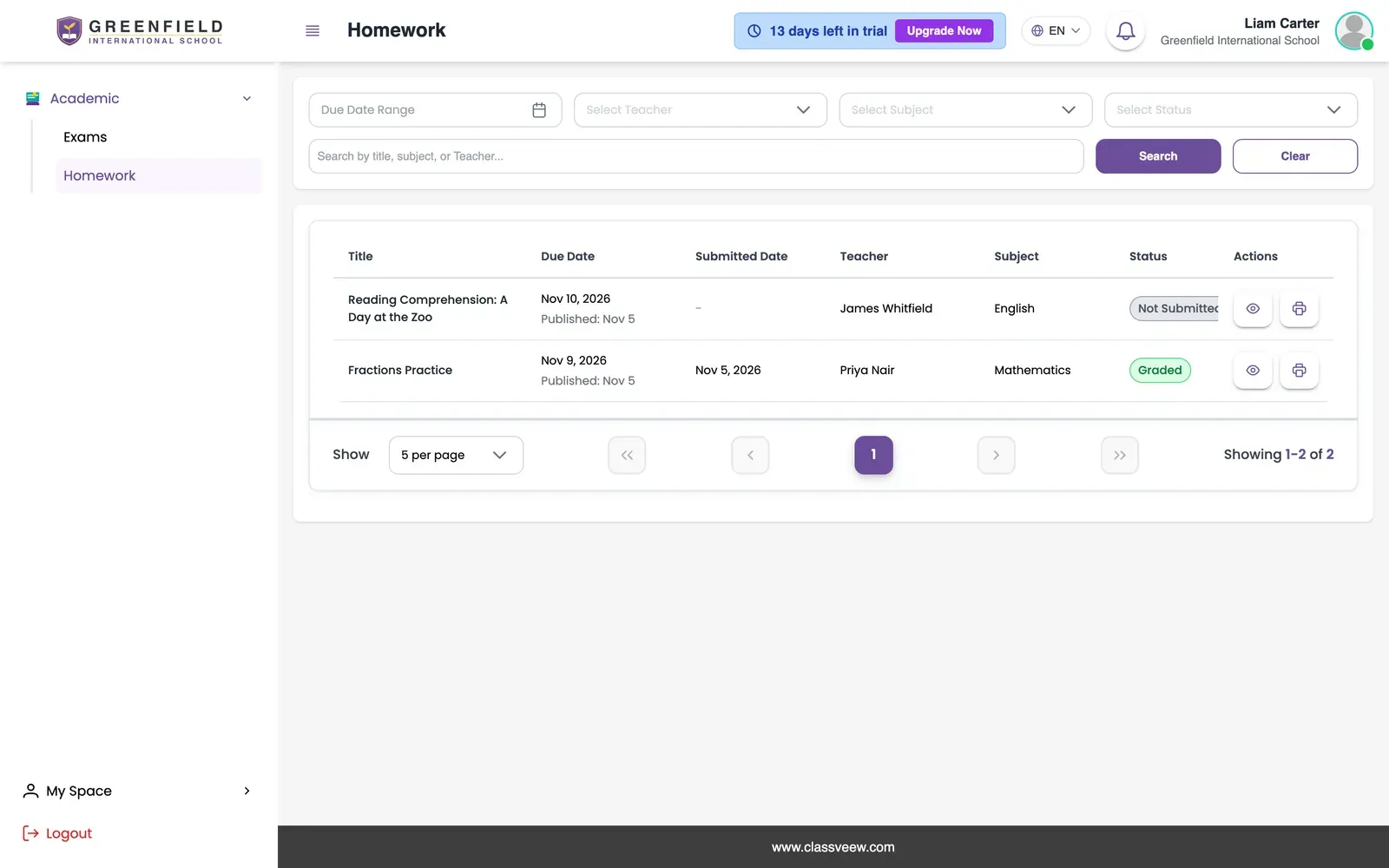
- Sign in at app.classveew.com and open Academic → Homework.
- Open the homework item.
- Under each task, add your files with Upload your work.
- Select Submit Homework, then Yes, Submit.
Rules to know
- You hand in once. After you submit, you can’t add, remove or change files. Check everything first.
- Files: PDF, JPG, PNG, Word, Excel, PowerPoint and MP3. Up to 100 MB in total for each task.
- Add at least one file before you submit.
- Due date: you can hand in until the end of the due date.
- Late hand-ins: if the teacher allowed late submissions, you can still hand in for 3 more days. The homework shows Overdue, and your work is marked Late. After that, it shows Submission Closed.
- Homework set as One Way is for reference only. There’s nothing to hand in.
- Once the teacher starts grading, the homework can’t be handed in any more.
After you hand in
The homework shows Submitted. When the teacher releases the scores, it shows Graded, with the score and remarks for each task. See See your child’s homework and results.
Good to know: the Discussion tab is where you can ask the teacher a question about the homework.