Parents use the Classveew app once your school has added them, connected them to their child and sent them an invitation.
Add the parent and connect them to a child
The quickest way is from the child’s profile:
- Open Students → Student Management and select the eye icon on the child’s row.
- Select the Guardian tab, then Connect Parent.
- Enter the parent’s email address and select Search.
- If the parent already has a Classveew account, for example from another school, choose the Relationship and select Link to (the child’s name).
- If there is no account yet, select Create Parent. Enter the First Name, Last Name, Contact Number and Relationship, then select Save & Link.
You can also add parents first in Staff & Users → Guardian Management with Add Guardian (First Name, Last Name, Email, Contact Number, Guardian Status, then Save Guardian), and connect them to children afterwards. Parents can also come in with your students in a bulk upload. See Bulk upload students.
Send the invitation
- Open Staff & Users → Guardian Management.
- Tick the parents you want to invite.
- Select Send Invitation, then Yes, Send.
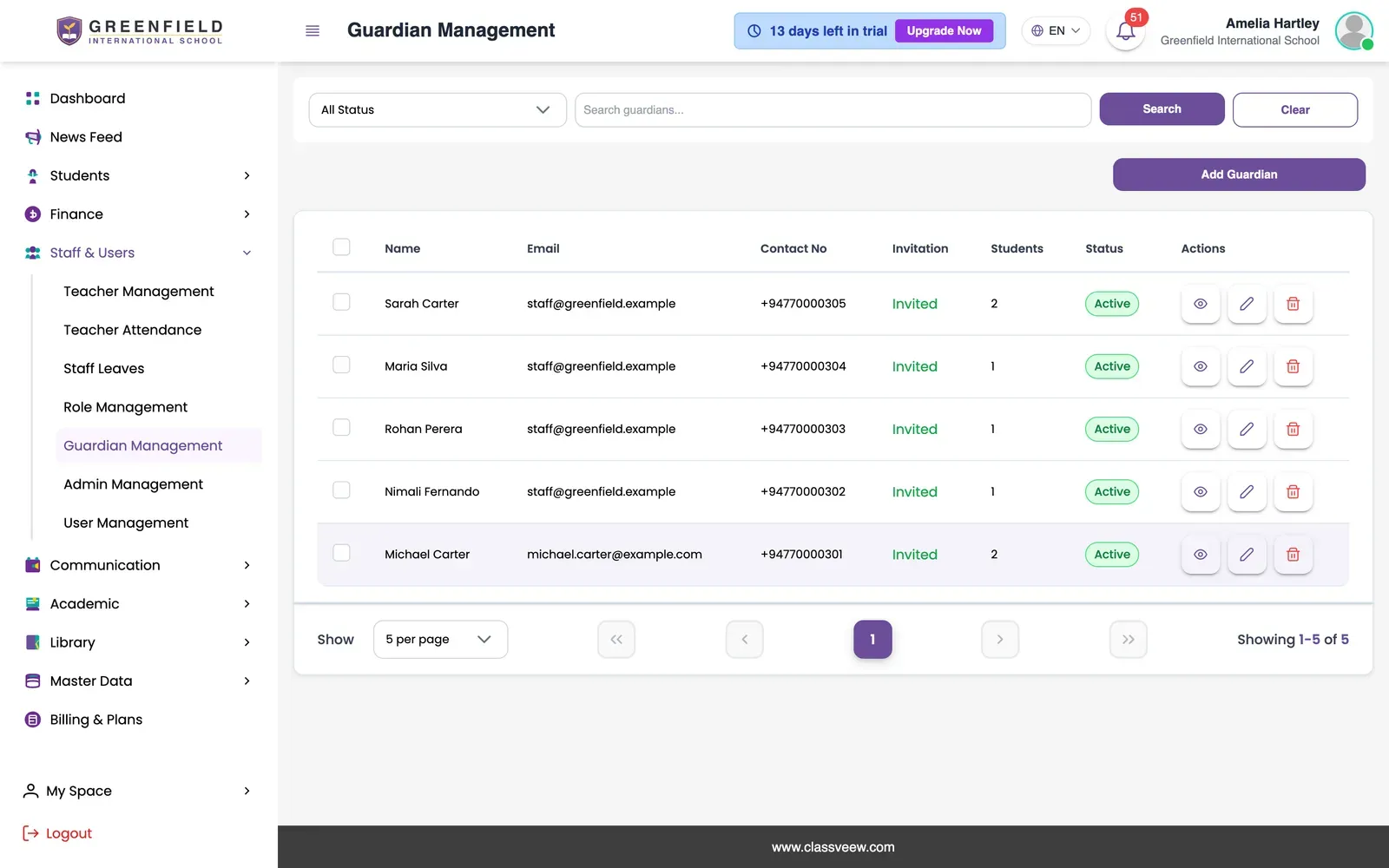
Each parent gets an email with their username (their email address) and a temporary password. The Invitation column shows Invited. It can also show Self Registered or Registered if the parent set up their own account or was added by another school.
Good to know: sending the invitation again issues a new temporary password, and the old one stops working. The temporary password also expires after a while, so ask parents to sign in soon.
What parents do next
Parents download the app and sign in with the details from the email. The first time, they choose a new password. See Getting started as a parent. If an email doesn’t arrive, see Didn’t get the invitation email?.
The Students column shows how many children each parent is connected to. To connect one parent to brothers and sisters, see Link a parent to several children.