A parent needs only one Classveew account, however many children they have. Each child is connected to the same account, and the parent switches between them in the app.
For schools: connect a parent to another child
- Open Students → Student Management and select the eye icon on the second child’s row.
- Select the Guardian tab, then Connect Parent.
- Enter the parent’s email and select Search. Because the parent already has an account, Classveew finds it.
- Choose the Relationship and select Link to (the child’s name).
The parent now appears on both children’s Guardian tabs.
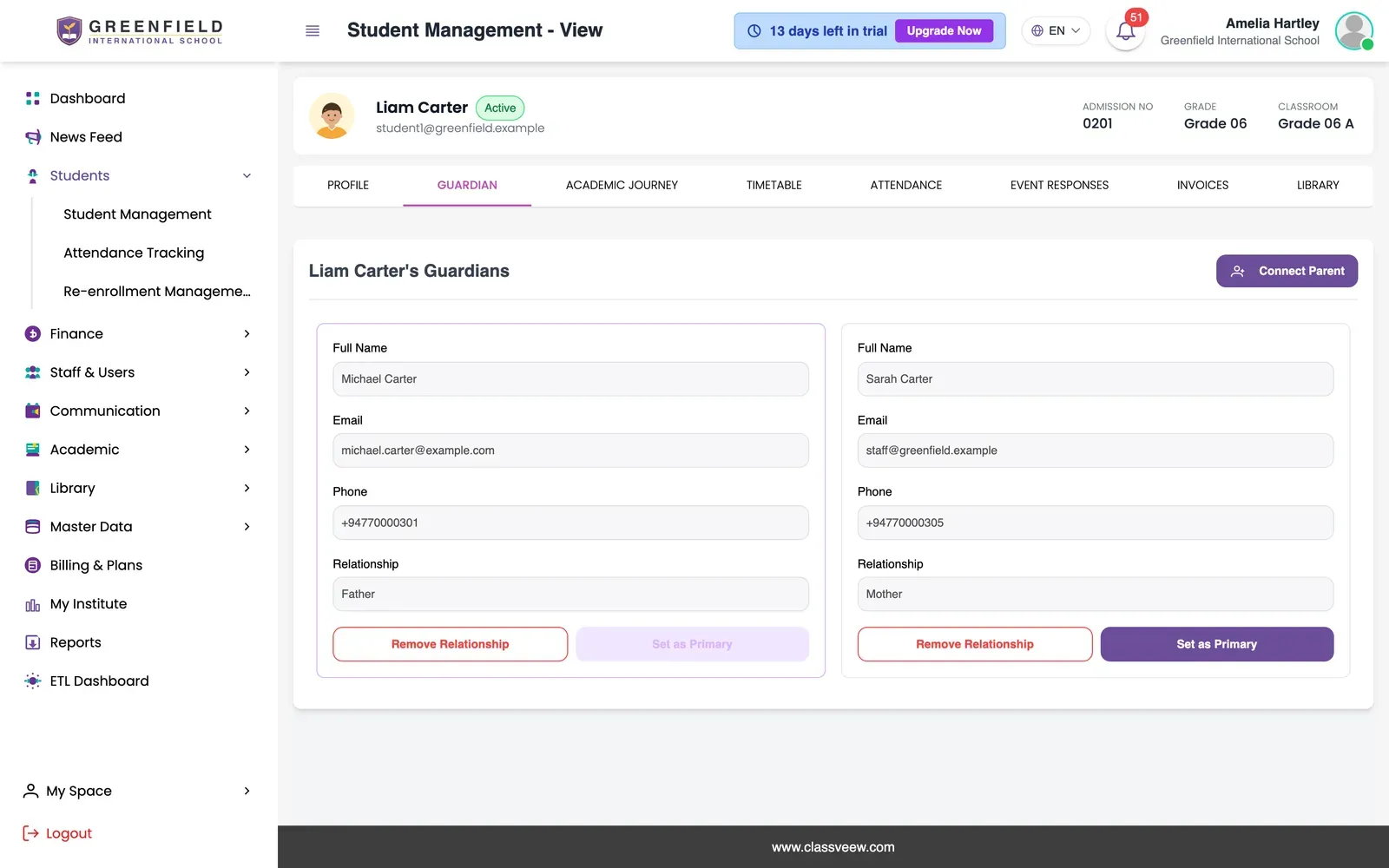
On the Guardian tab you can also:
- Select Set as Primary to make one guardian the main contact.
- Select Remove Relationship to disconnect a guardian from this child.
For parents: link another child in the app
You need your child’s Classveew ID. Your school can give it to you.
- Open the menu at the top left and tap My Children.
- Tap Link another child.
- Enter the Classveew ID and tap the search button.
- Check that the right child is shown under Is this your child?, choose your relationship and tap Yes, this is my child — Verify.
- Choose your child’s Birth Month, Birth Day and Birth Year, then tap Verify & Link Child.
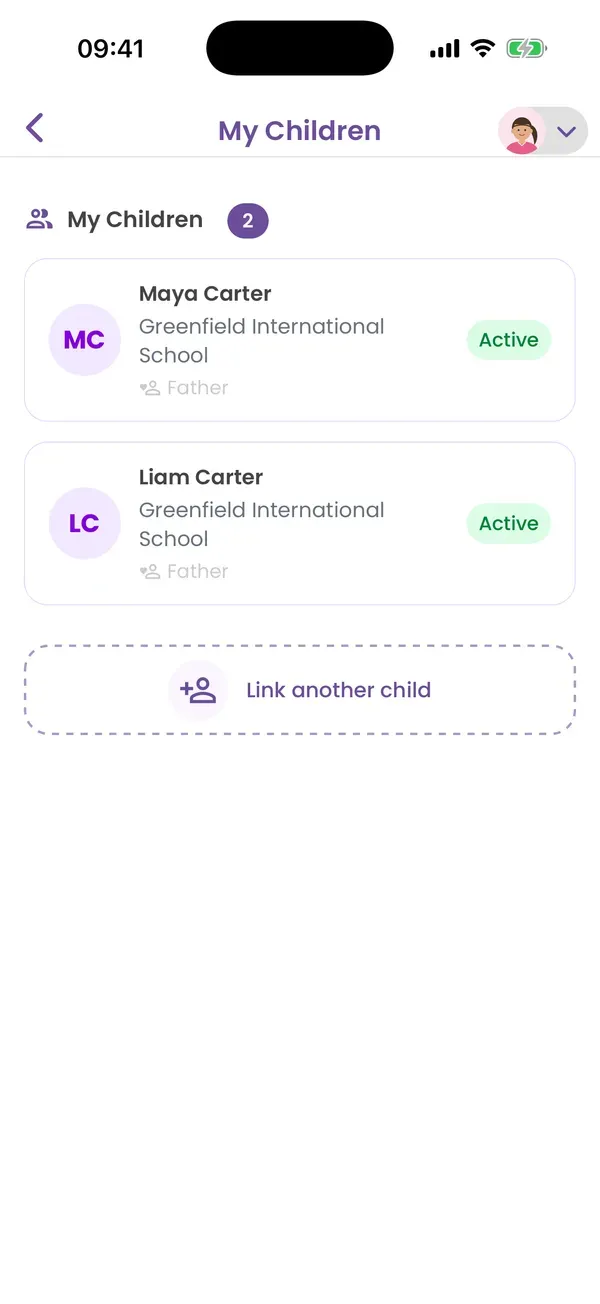
If the date of birth matches the school’s records, the child is linked. The app signs you out to finish, so sign in again.
If the date of birth doesn’t match
You see Verification Failed. Tap Try Again, or tap Ask Organization to Verify and then Confirm. The school is asked to check your request, and the child appears in My Children under Waiting for Approval until they do.
Once your children are linked, see Switch between your children.