If your children go to different schools that both use Classveew, you keep one account with one email and password. You look at one school at a time and switch when you need to.
When you sign in
If your account belongs to more than one school, Classveew asks which one to open:
- In the app, choose the school under Select Institute and tap Continue.
- On the web portal, choose the school under Select Organization.
A school that is still pending approval or is inactive is shown but can’t be chosen.
Switch school in the app
- Open the menu at the top left.
- Tap Switch Organization near the bottom. The list of your schools opens.
- Tap the school you want.
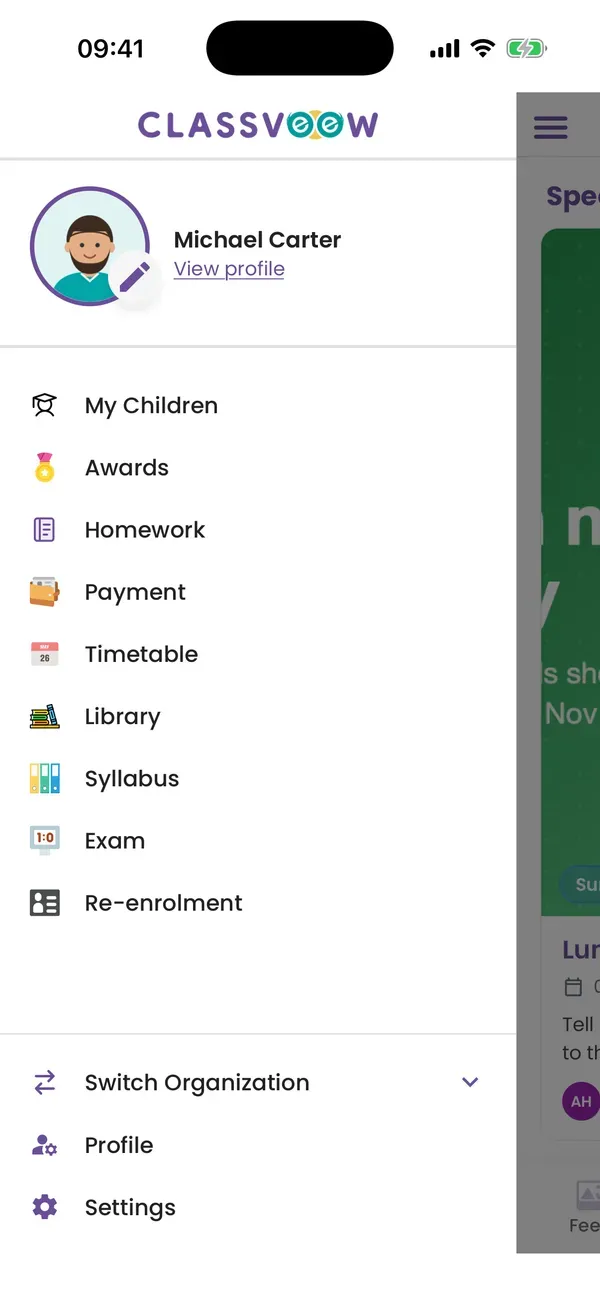
The app reloads with that school’s news, events and messages, and your child at that school is selected. If you have more than one child there, see Switch between your children.
Switch school on the web portal
On the web portal you switch school by choosing a child:
- At the bottom left, select the child under Viewing student.
- The Switch Student list groups your children by school. Select a child at the other school.
Classveew moves you to that child’s school. The school’s name is shown under the child’s name and at the top right. See Parents on the web portal.
Good to know: a child at another school appears only once they’re linked to your account. Ask that school to connect you, or link the child yourself in the app. See Link a parent to several children.