Parents follow their children in the Classveew app for iPhone and Android.
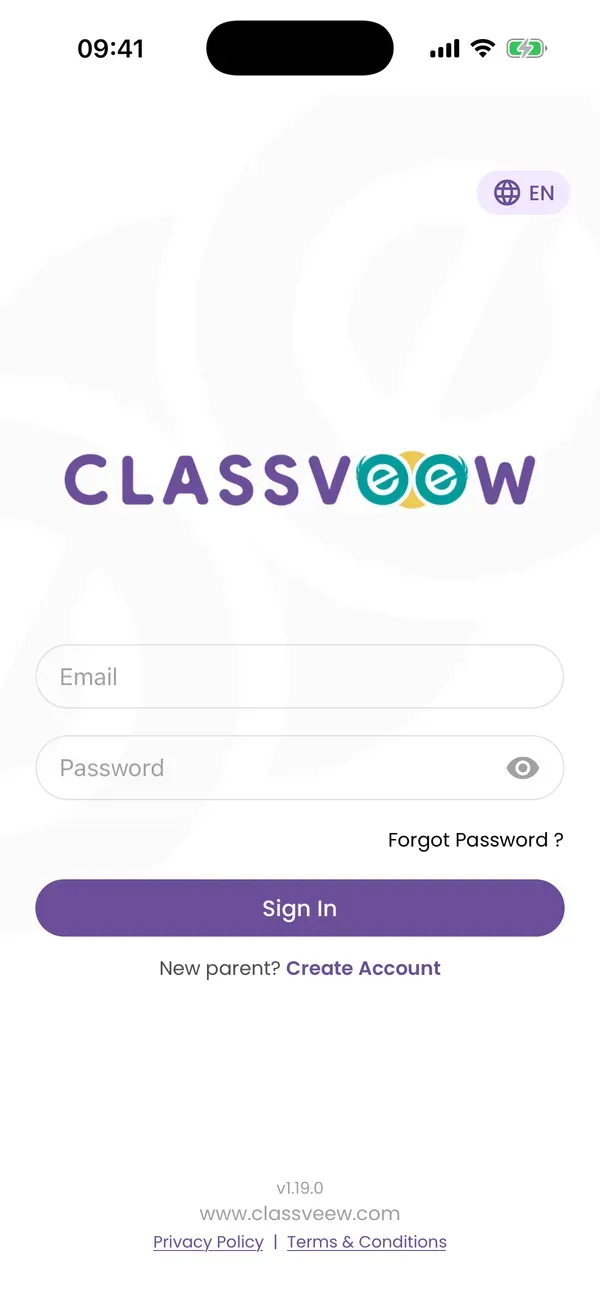
Sign in
- Download Classveew from the App Store or Google Play.
- Open the app and enter the email and password from your school, then tap Sign In.
- To change the language before you sign in, tap EN at the top right. After you sign in, open the menu → Settings → Language. See Change the language.
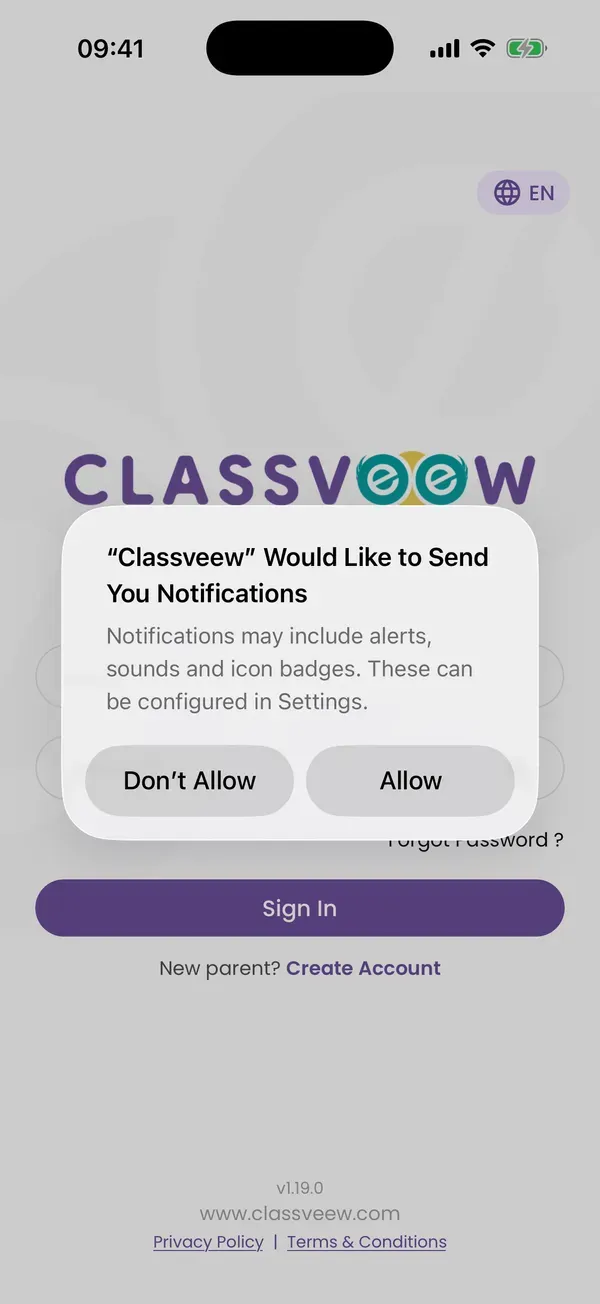
Allow notifications
The first time you open the app, your phone asks whether Classveew may send notifications. Tap Allow, so you hear about check-ins, messages, events and results straight away.
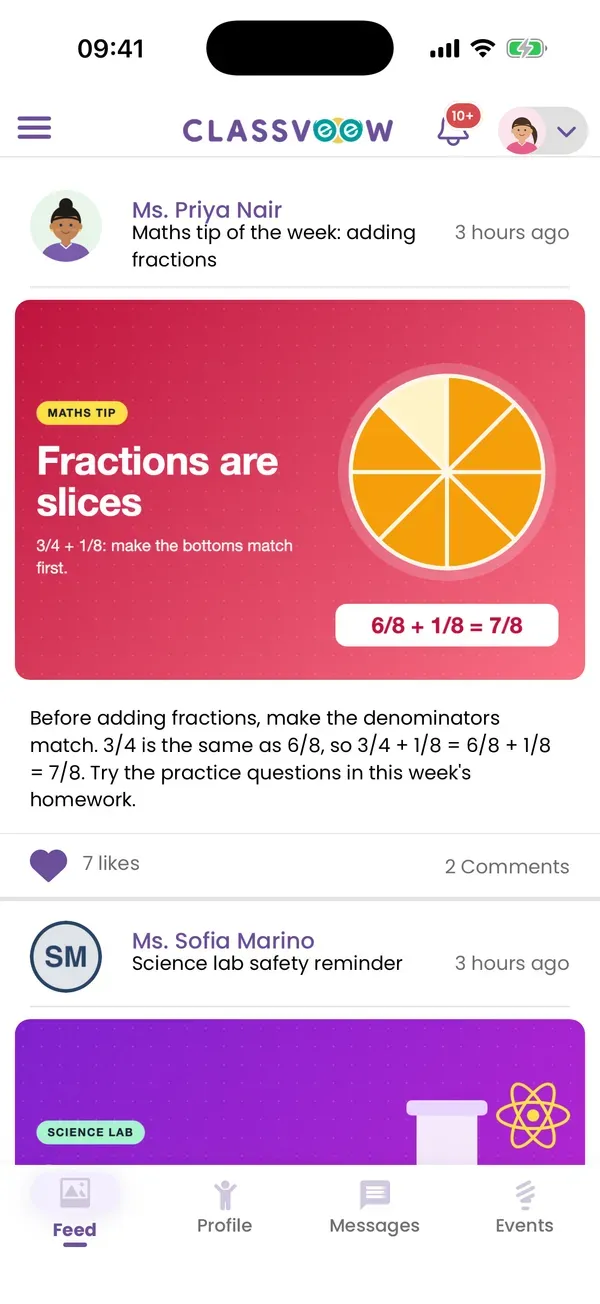
Find your way around
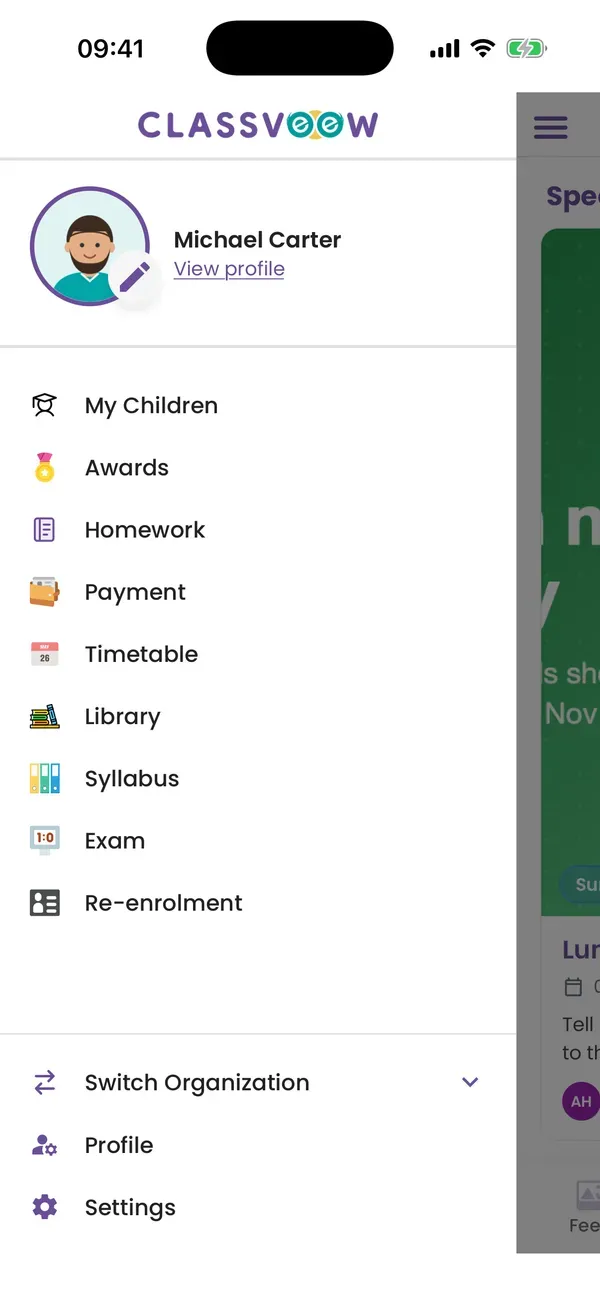
The tabs at the bottom are Feed (school and class posts), Profile (your child’s attendance and awards), Messages and Events. The menu at the top left has everything else, such as payments, homework and exam results.
Have more than one child at the school? See Switch between your children.