If a teacher’s own attendance is wrong, for example they forgot to check in, or their phone could not share its location, they can ask for a correction in the app. Nothing changes on the record until an admin approves it.
Ask for a correction (teacher, app)
- Open the menu and tap My Attendance.
- Tap View full to open Full Attendance. It shows the Last 7 days.
- Tap the day that is wrong (Request a correction for this day).
- You see what is recorded Currently. The request always asks for the day to be Present.
- If you want, set the In and Out times. Both are optional.
- Under Why?, explain what happened, for example “I was at school from 08:05 but my phone had no location access.”
- Tap Send request.
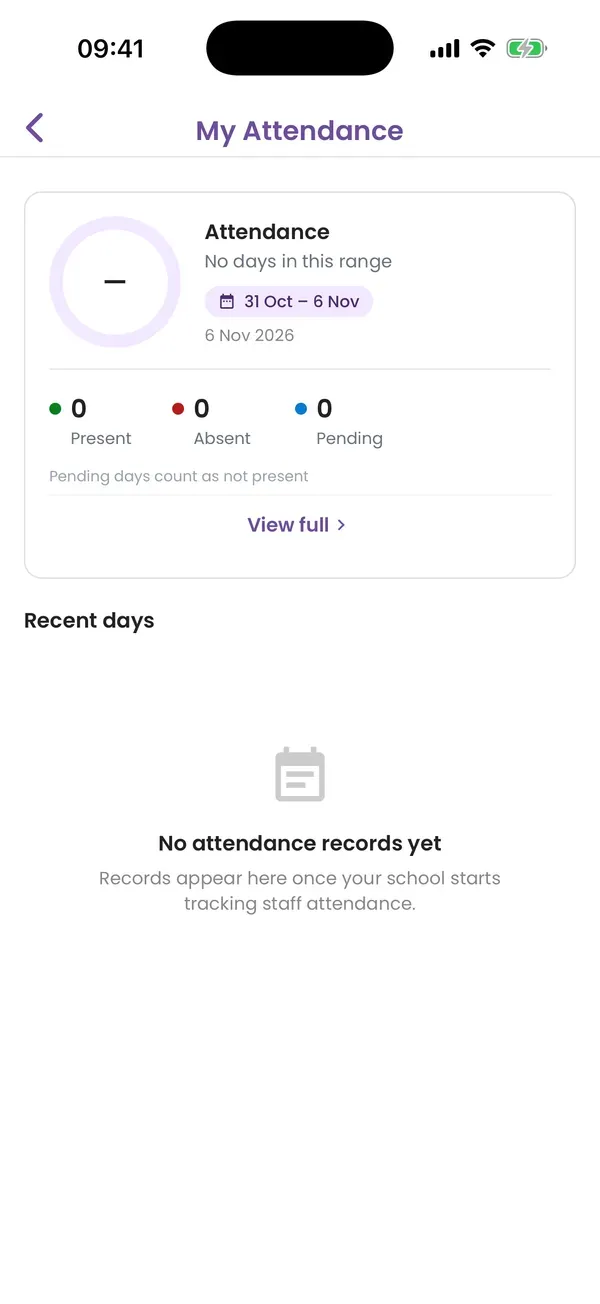
To follow your requests, tap Correction requests on the Full Attendance screen. Each one shows Awaiting approval, Approved, Declined or Withdrawn, with any note from the administrator. You can Withdraw request while it is still awaiting approval.
Good to know: you can ask for a correction for today and the six days before it, and only one request per day can wait for approval at a time. A day recorded as leave can’t be corrected here: use Open My Leave instead. See Apply for leave as a teacher.
Review requests (admin, web portal)
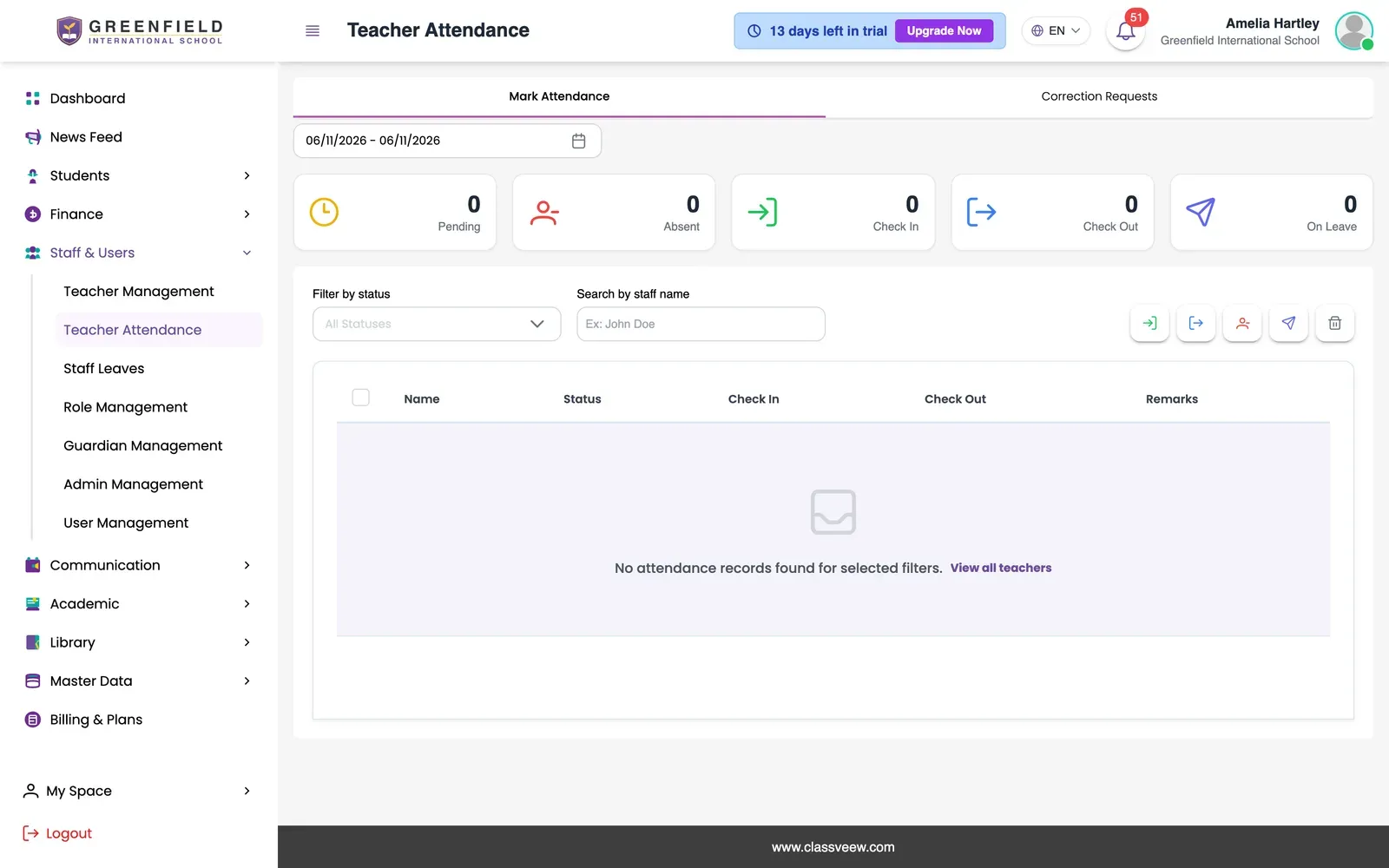
- Open Staff & Users → Teacher Attendance and select the Correction Requests tab. It opens on pending requests.
- Each row shows the Staff member, the Day, what it says Currently, what is Requested and the Reason.
- Select Approve or Decline. A window shows the day before and after side by side.
- To approve, you can add a Note (optional) and select Yes, Approve. The attendance record is updated straight away.
- To decline, write why under Why are you declining? (required) and select Yes, Decline.
Use the date and status filters, then Search, to see older or decided requests. Clear takes you back to the pending list.
Good to know: an admin can’t approve their own correction request. Another admin, or the school’s main admin, has to decide it.