If your child will miss school, send a leave request in the Classveew app. There is no approval step: the leave is recorded straight away, and your child shows as On Leave in the class register for those days.
Request leave (parent, app)
-
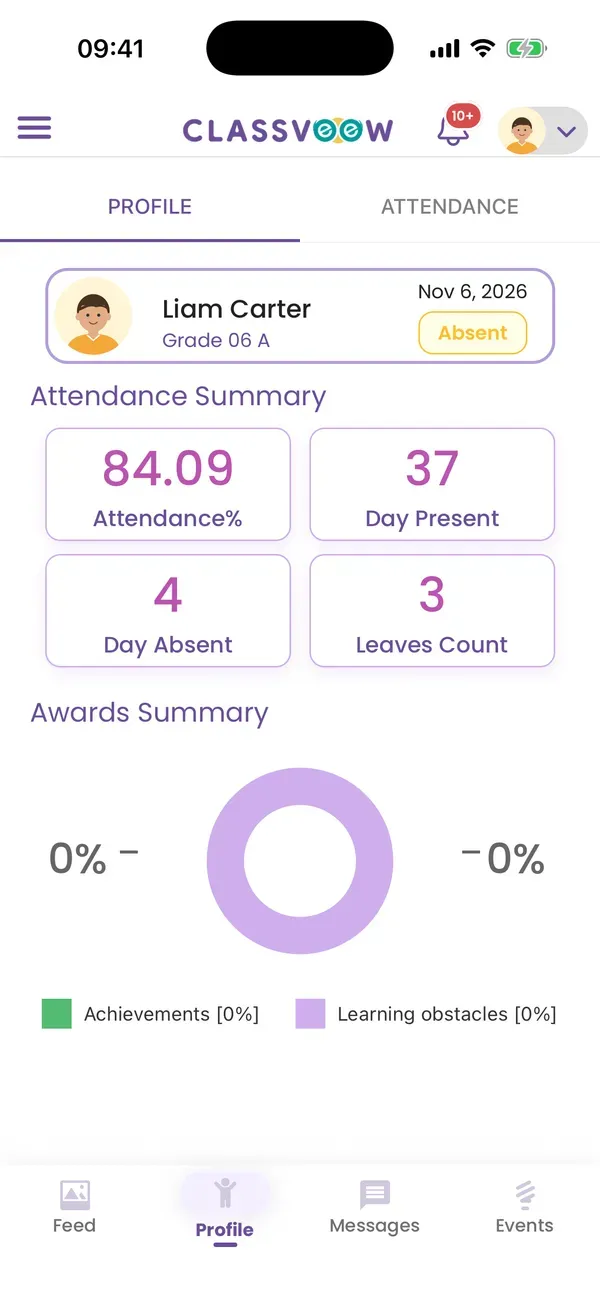
Tap Profile at the bottom of the app. If you have more than one child, choose the child at the top right first.
-
Tap the Attendance tab at the top.
-
Tap Apply For Leave.
-
Tap Select Leave Date and choose the day, or the first and last day if your child will be away for several days. You can’t choose a past date.
-
Choose the Type of Leave: Medical, Personal, Vacation or Other.
-
Write the Reason for Leave.
-
Tap Submit.
See, change or cancel a request
On the Attendance tab, tap View Leave Requests. Upcoming shows leave still to come, and Archived & Cancelled shows the rest. On an upcoming day, tap Edit to change it, or Cancel and then Yes to remove it.
Good to know: a leave request covers each day separately, and a day can only have one. For today, you can’t request leave once your child has been checked in or marked absent. You can cancel today’s leave only before your school’s attendance cut-off time, and not at all once the day has passed.
For teachers and admins
You don’t need to approve parent leave. Students on leave are counted under On Leave in the register, both in the teacher app and in Students → Attendance Tracking on the web portal. If a student on leave turns up after all, check them in as usual: the app warns you that they will be marked Present.
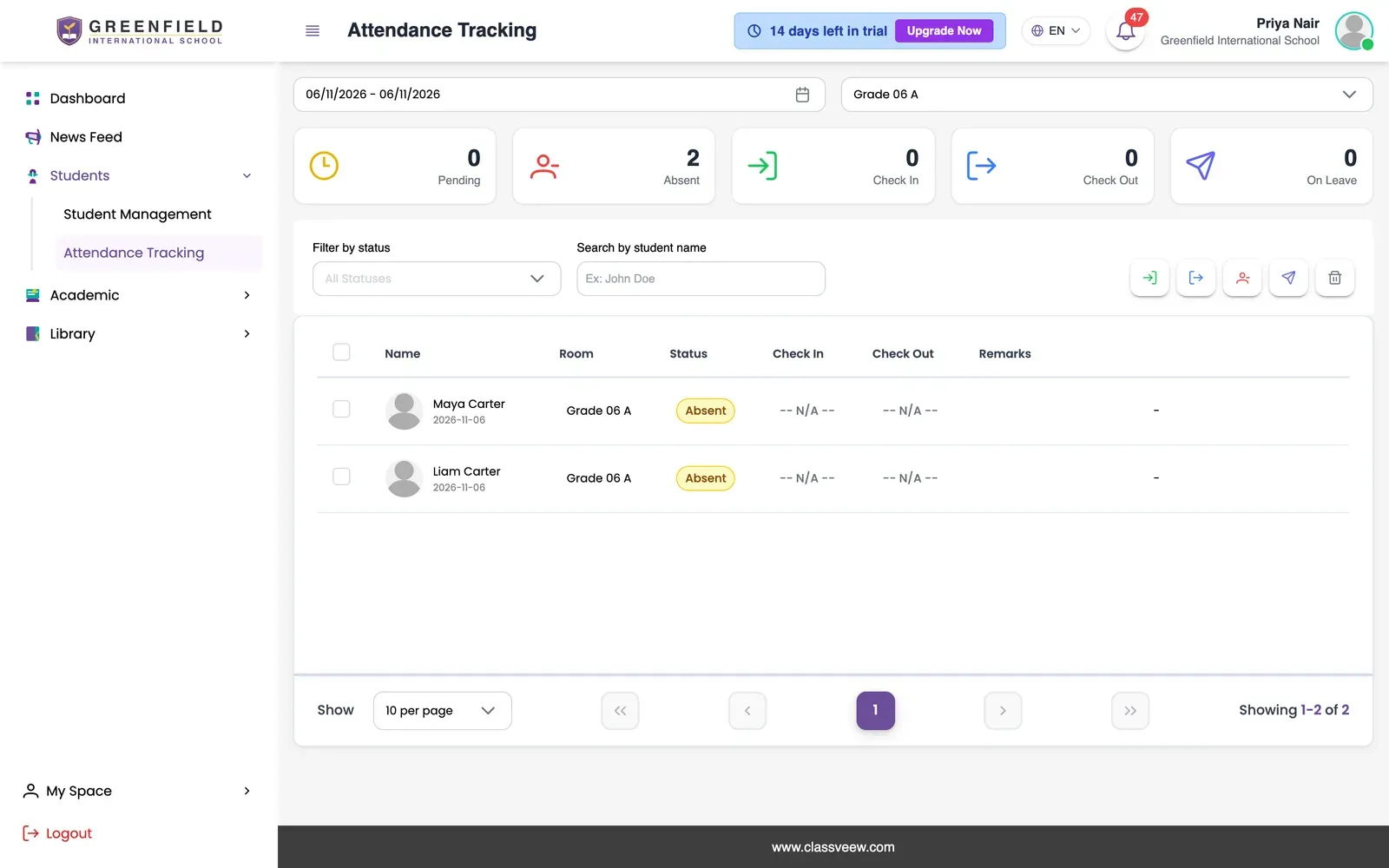
Staff can also record leave for a student, for example after a phone call. In Attendance Tracking, tick the students, select the Leave button, choose the Leave Type, enter the Reason and select Save. See Track attendance on the web portal.