Two-step verification (also called two-factor authentication, or 2FA) adds a second check when you sign in. After your password, Classveew emails you a 6-digit code, and you enter it to finish signing in. Someone who learns your password still can’t get in without your email.
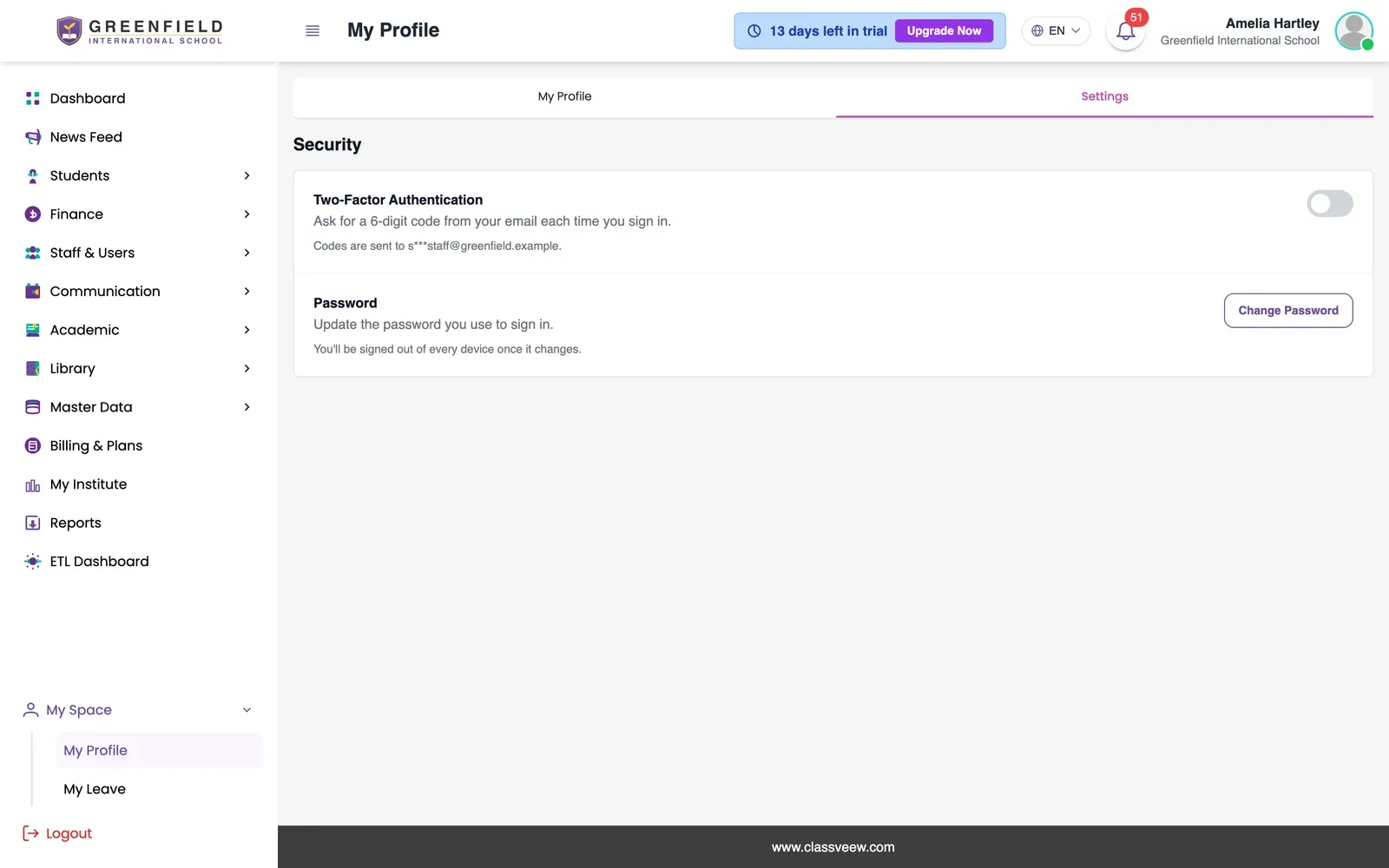
Turn it on in the web portal
- Open My Space → My Profile and select the Settings tab.
- Under Security, switch on Two-Factor Authentication.
It’s on straight away. The line under the switch shows the email address the codes go to.
Turn it on in the app
- Open the menu at the top left and tap Settings.
- Under Security, switch on Two-Factor Authentication.
Signing in with a code
- Enter your email and password as usual.
- Check your email for the 6-digit code.
- Enter the code and select Verify.
Didn’t get it? Wait for the timer, then select Resend code. See Didn’t get the sign-in code?
Turning it off
Switch off Two-Factor Authentication and confirm with Yes, Disable. Your account will be less safe: anyone with your password can then sign in.
When your school requires it
A school admin can make codes compulsory for everyone signing in to the web portal: My Institute → Configurations → Security Configuration → Enable Web Two-Factor Authentication (2FA). The app isn’t affected. If you belong to more than one school, the strictest setting applies.
When this is on, you’re asked for a code on the web portal even if your own switch is off. Your own switch still controls the app.
Good to know: codes need a real email address that you have signed in with. Students who sign in with their Classveew ID don’t use two-step verification, so the switch is greyed out for them.