Your profile shows the details your school holds for you. You can change your password at any time.
See your profile on the web portal
Open My Space → My Profile. The My Profile tab shows your Name, Email, Role and Institute.
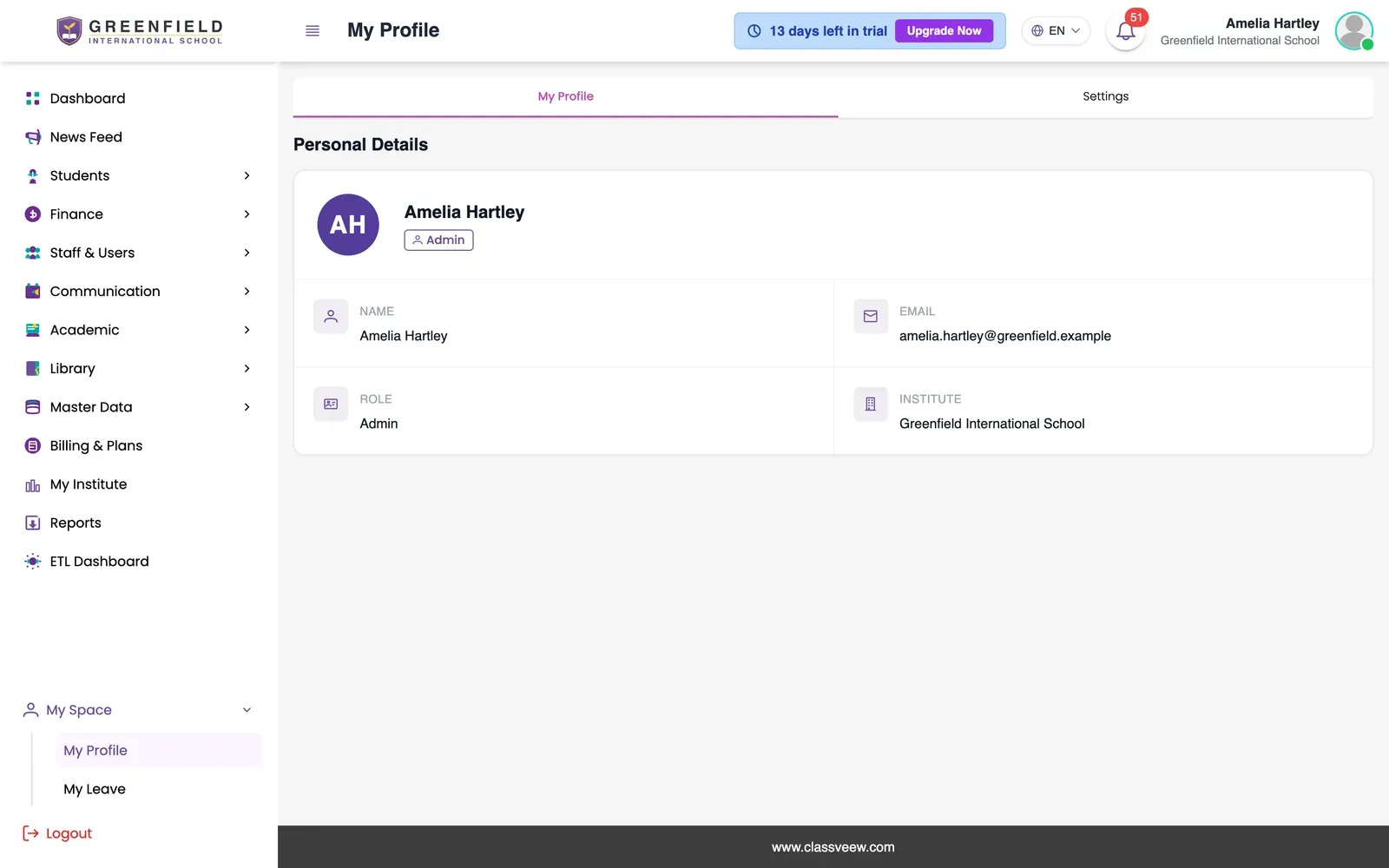
These details come from your school’s records. If your name or email is wrong, ask your school admin to correct it.
Update your phone number (parents)
- In the app, open the menu at the top left and tap Profile.
- Tap Edit.
- Change your Phone Number and tap Save Changes.
Teachers can see their details under Profile in the app, but changes are made by the school.
Change your password on the web portal
- Open My Space → My Profile and select the Settings tab.
- Next to Password, select Change Password.
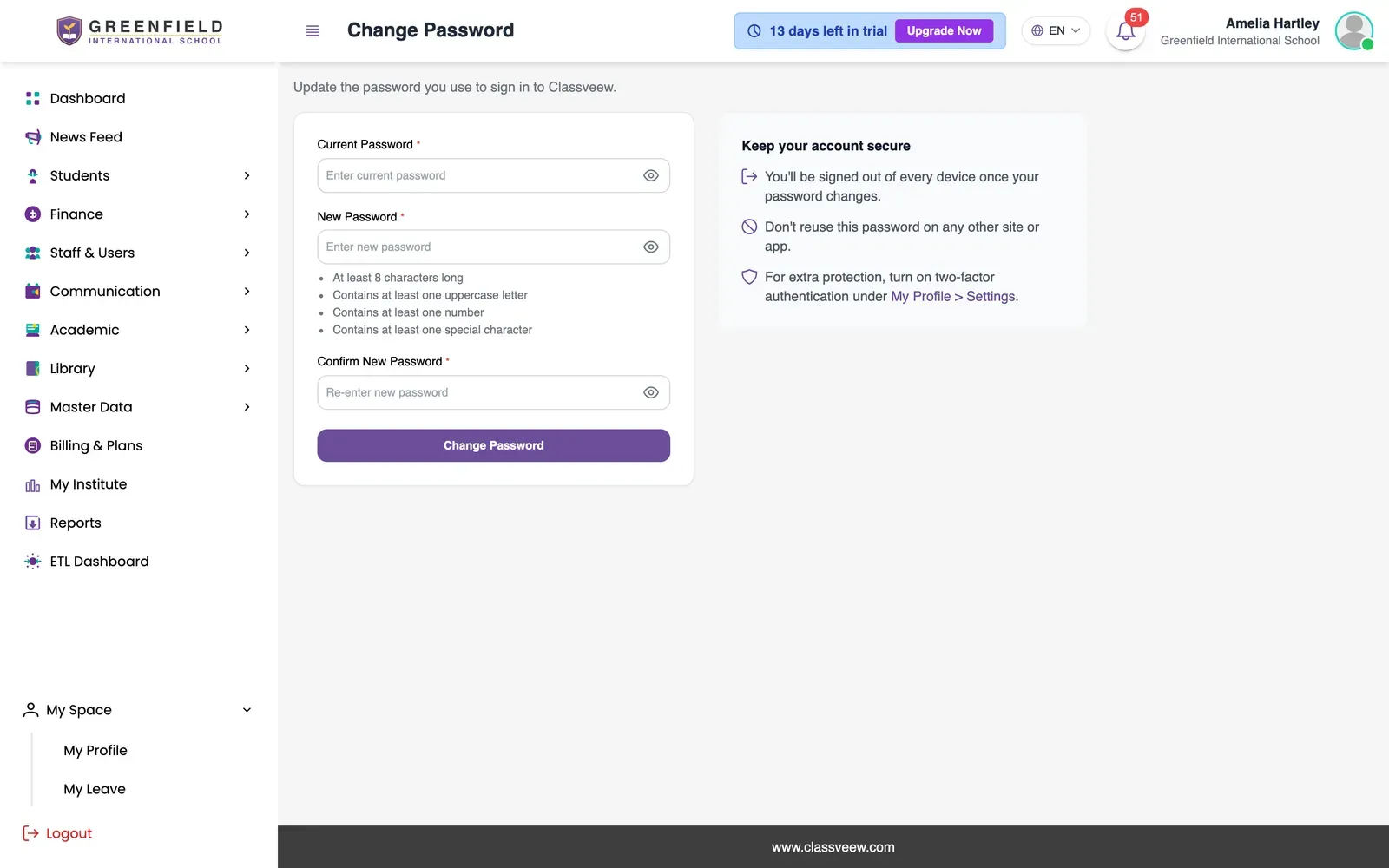
- Enter your Current Password, then your New Password twice.
- Select Change Password.
Change your password in the app
- Open the menu and tap Settings.
- Under Security, tap Change Password.
- Enter your Old Password, your New Password and Confirm Password, then tap Change Password.
- Tap Log In Again and sign in with your new password.
Password rules
Your new password needs at least 8 characters, with an uppercase letter, a lowercase letter, a number and a special character.
Good to know: when your password changes, you’re signed out of every device and need to sign in again with the new one. Forgot your password? See Reset your password. To add a sign-in code as well, see Turn on two-step verification.