Each exam subject has a marking teacher. That teacher, or an admin, enters the marks. Marking happens subject by subject, in three stages: Start Marking, enter and save scores, then Complete Marking.
On the web portal
- Open Academic → Exam Management.
- On the exam, select Grade Exam (the book icon). If the exam has several subjects, select Grade on the subject’s card.
- On Mark Exam Subject, select Start Marking and confirm. You can start once the exam has started.
- Select the icon next to a student to Enter score. Type a Score (out of 100) and, if you like, Remarks (up to 250 characters). Use Next and Previous to move between students, then Done.
- Select Update Marks to save your work. You can come back and carry on later.
- When every score is in, select Complete Marking and confirm.
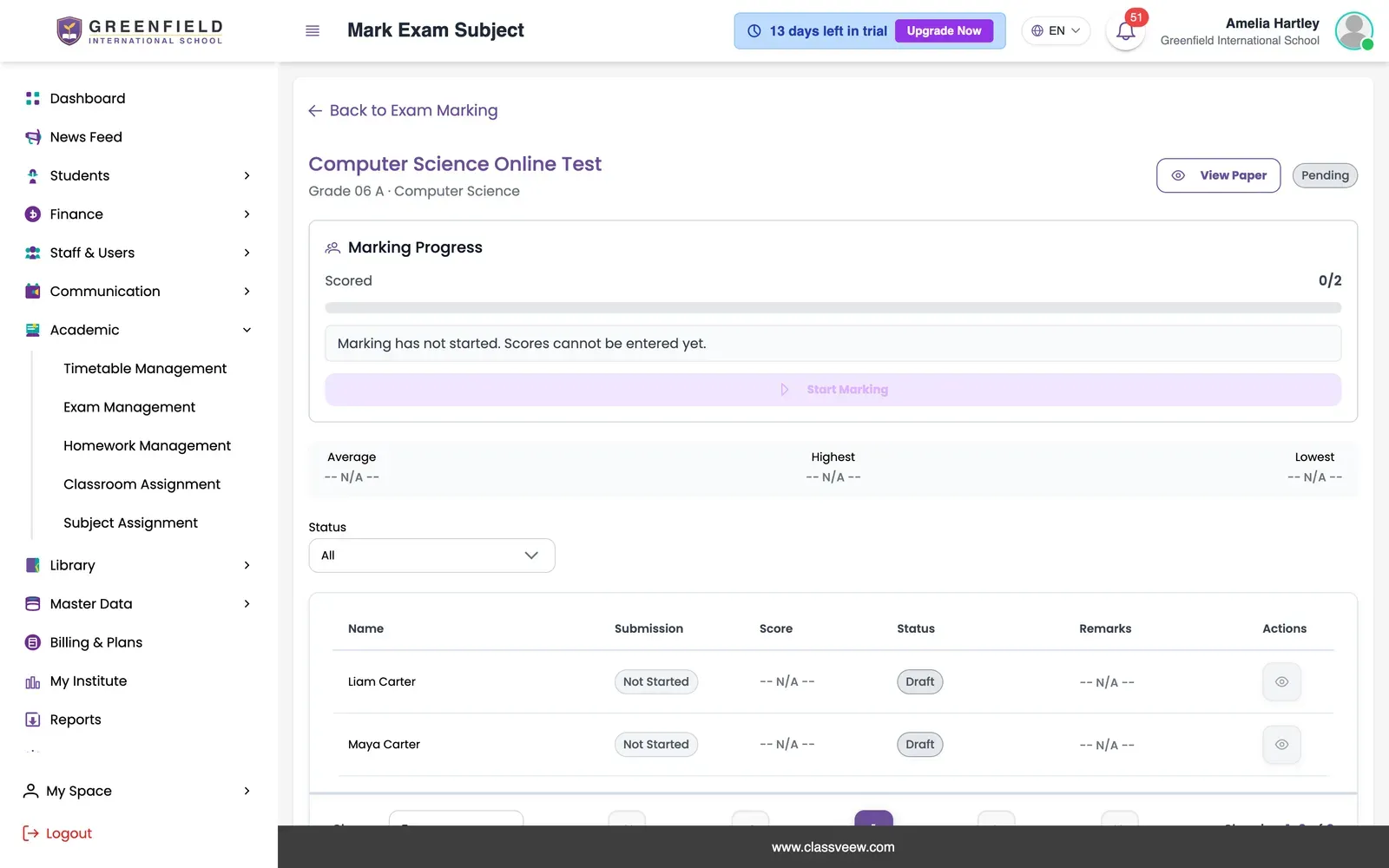
Marking Progress shows how many students are scored, with the average, highest and lowest marks. Use the Status filter to show Scored, Not scored or Absent students.
Online exams
For an online exam, the Submission column shows each student’s attempt. Select the icon next to a student to open their answers. Multiple choice answers are already scored. Score each other answer, select Save Draft, then Release Score for that student. Release every submitted student’s score before you select Complete Marking.
Good to know: starting marking submits any online attempts that are still open.
In the teacher app
- Open the menu and tap Exam.
- On the Pending tab, find the subject marked Ready to Mark. Use the classroom list at the top to filter.
- Tap the subject, then Start Marking.
- Enter each student’s score and remarks, then tap Update Marking to save.
- Tap Complete Marking when you’ve finished.
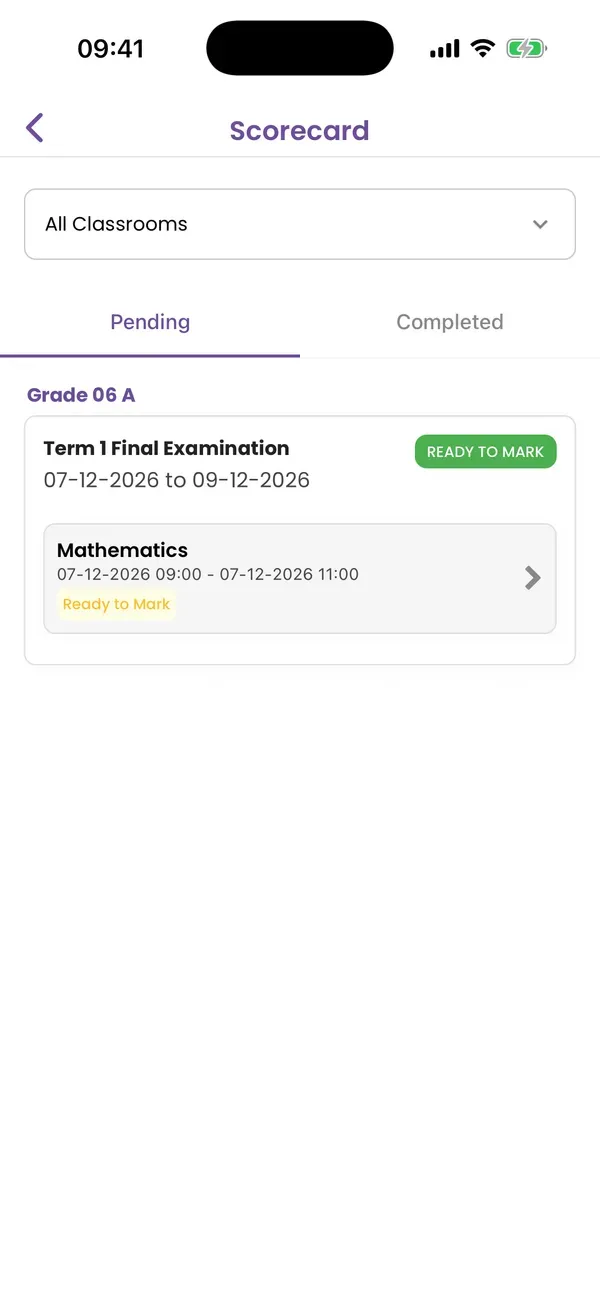
Mark online exams on the web portal, where you can see each student’s answers.
Statuses
- Ready to Mark: the exam is published and marking can start.
- Marking Started: scores can be entered and changed.
- Marking Completed: the scores are final.
Good to know: a student with no score when you complete marking is recorded as Absent. Once marking is completed, it can’t be reopened, so check the scores first. Parents see the marks only after an admin selects Release Score. See Publish an exam and release scores.