Online exams are taken on the web, in the student portal at app.classveew.com. Use a computer or tablet with a good internet connection.
Find your exam
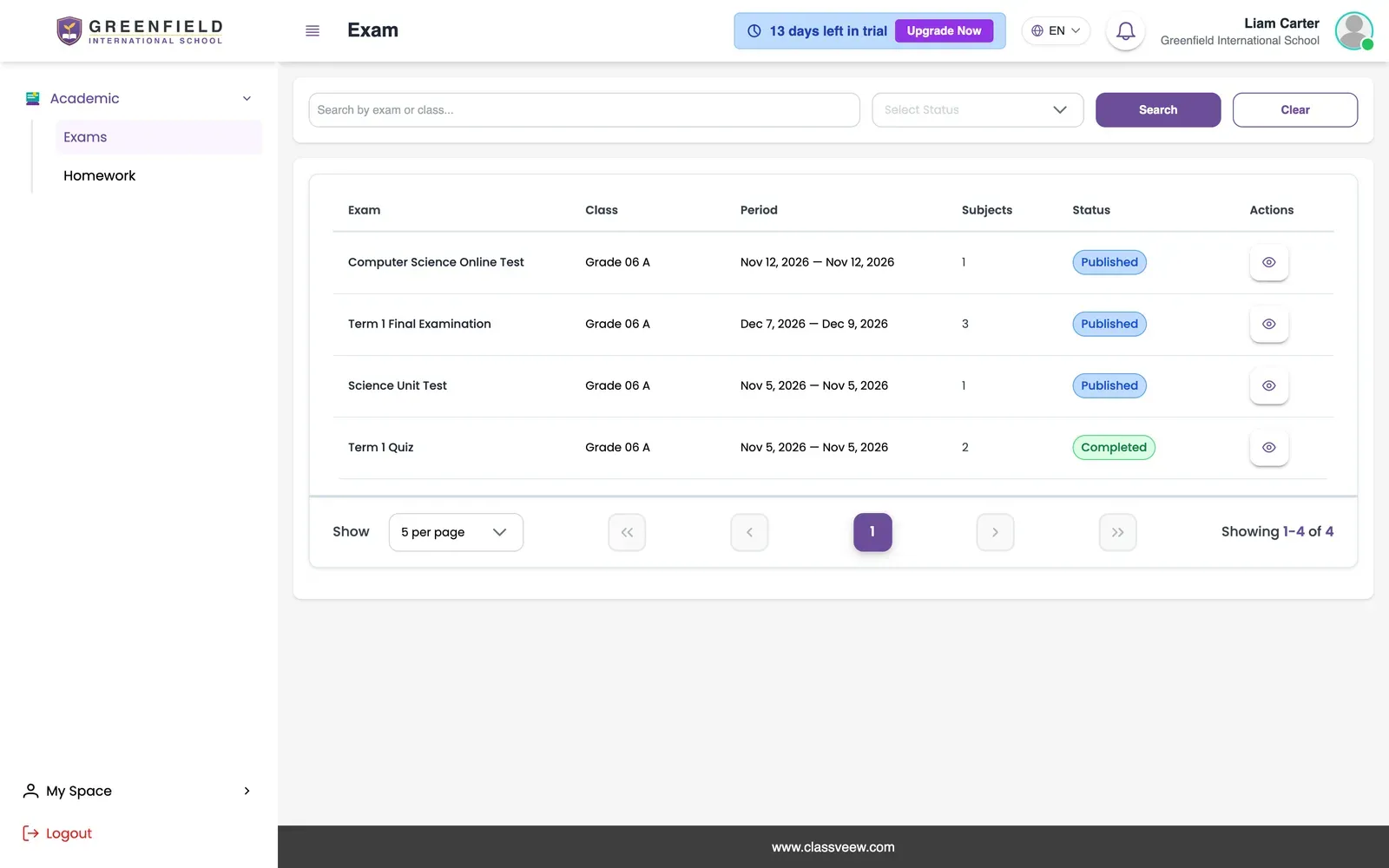
- Sign in and open Academic → Exams. You see your exams with their dates and status.
- Select the eye icon (View Exam) on the exam.
The exam page lists each subject with its date and time. An online subject has a Join button. It switches on at the subject’s start time.
Take the exam
- At the start time, select Join.
- Answer the questions. The Time Remaining is shown at the top. Your answers are saved as you go: look for Saved.
- Select Review Answers to see which questions you haven’t answered yet. Select Back to Exam to carry on.
- Select Submit Examination, then Yes, Submit.
You see a Thank You! message when your paper has reached your teacher.
If something goes wrong
- You closed the page by mistake: go back to the exam and select Continue. Your saved answers are still there, and the timer keeps running.
- Time ran out: your answers are submitted automatically at the end time.
- The button says “Review Submitted”: you’ve already submitted. You can look at your answers but not change them.
Good to know: once you submit, you can’t change your answers. You can’t join after the exam’s end time. If your teacher starts marking before you submit, your answers are submitted for you.
Your results
Your score shows on the exam page once the school releases the results. Until then it says Not released. Then select Report Card to see your report card. A parent signed in on the web portal can also open the exam for their child.