Classveew makes a report card for each student for each exam. It’s ready once the exam’s scores are released, and staff, parents and students all see the same report card.
What’s on a report card
- The school’s name and logo, the student’s ID, grade and class, and the class teacher
- The examination period
- The total marks, average, highest and lowest marks
- Each subject’s marks, grade and the teacher’s remarks
Grades follow the scale A from 75, B from 65, C from 55, S from 35 and F below 35.
For staff: open and download a report card
- Open Academic → Exam Management and select View Exam (the eye icon) on a Completed exam.
- Under Exam Reports & Acknowledgements, find the student. Use Search by name if the class is large.
- Select the document icon to View Report Card.
- Select Download Report to save it as a PDF.
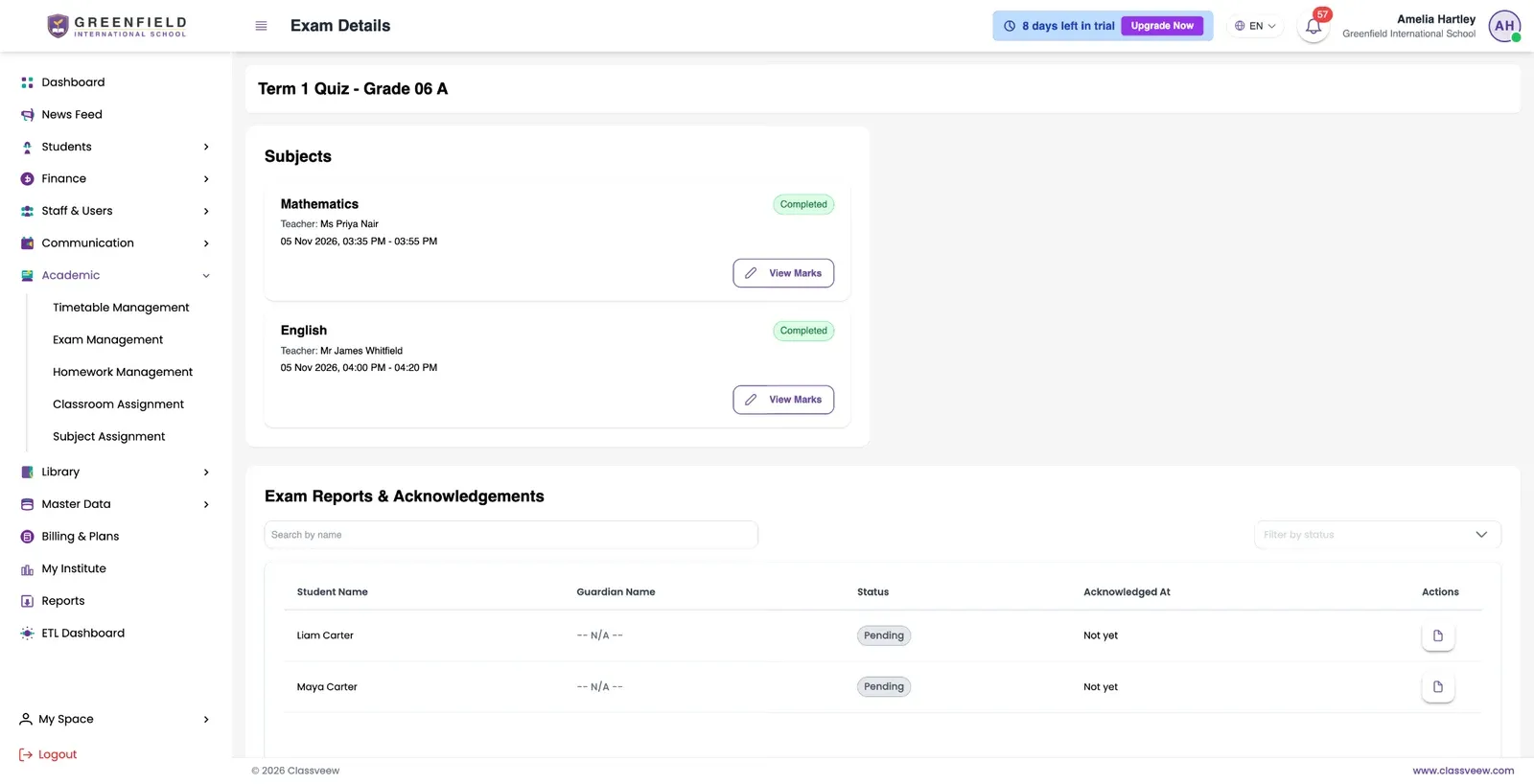
The same table shows whether each student’s parent has Acknowledged the results, and when. Use Filter by status to see who hasn’t yet.
Good to know: the report card stays locked until you release the scores. See Publish an exam and release scores.
For parents: in the Classveew app
- Open the menu and tap Exam.
- On the Completed tab, tap the exam.
- Tap View Report Card. Tap Download Report Card to save a copy.
- Back on the results, tap Acknowledge Scorecard to let the school know you’ve seen them.
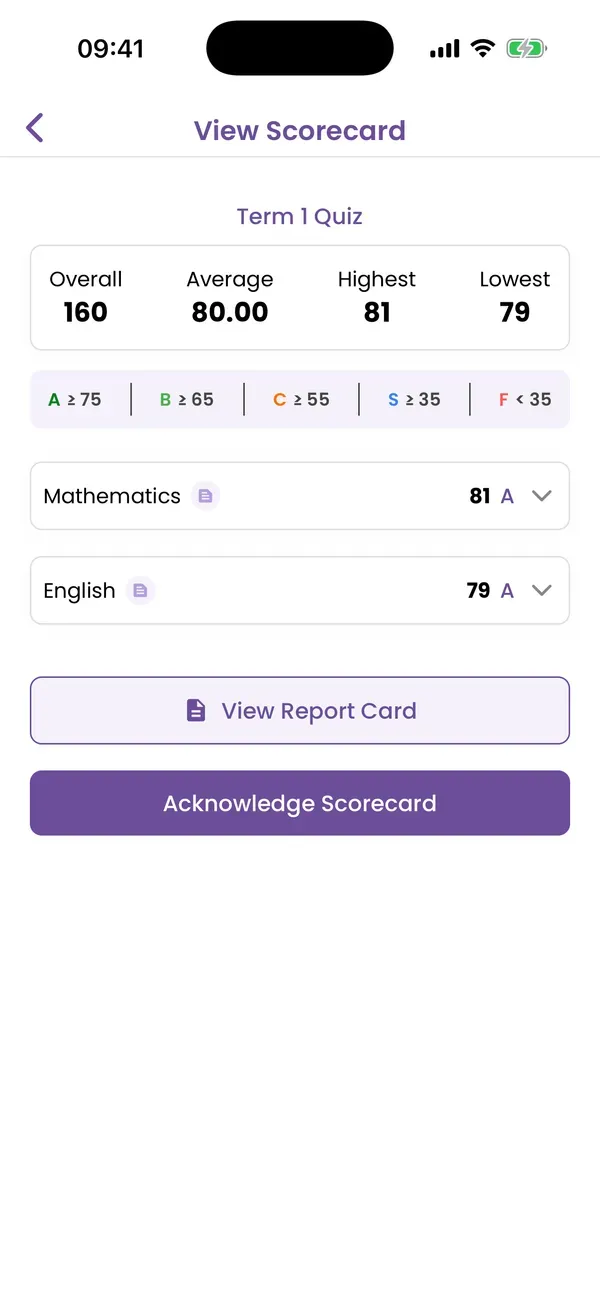
Parents get a notification when the scores are released, and a reminder until they acknowledge.
For parents and students: on the web
Open Academic → Exams, select the eye icon on a completed exam, then Report Card. Select Download Report for a PDF.
Good to know: acknowledging is done in the Classveew app.