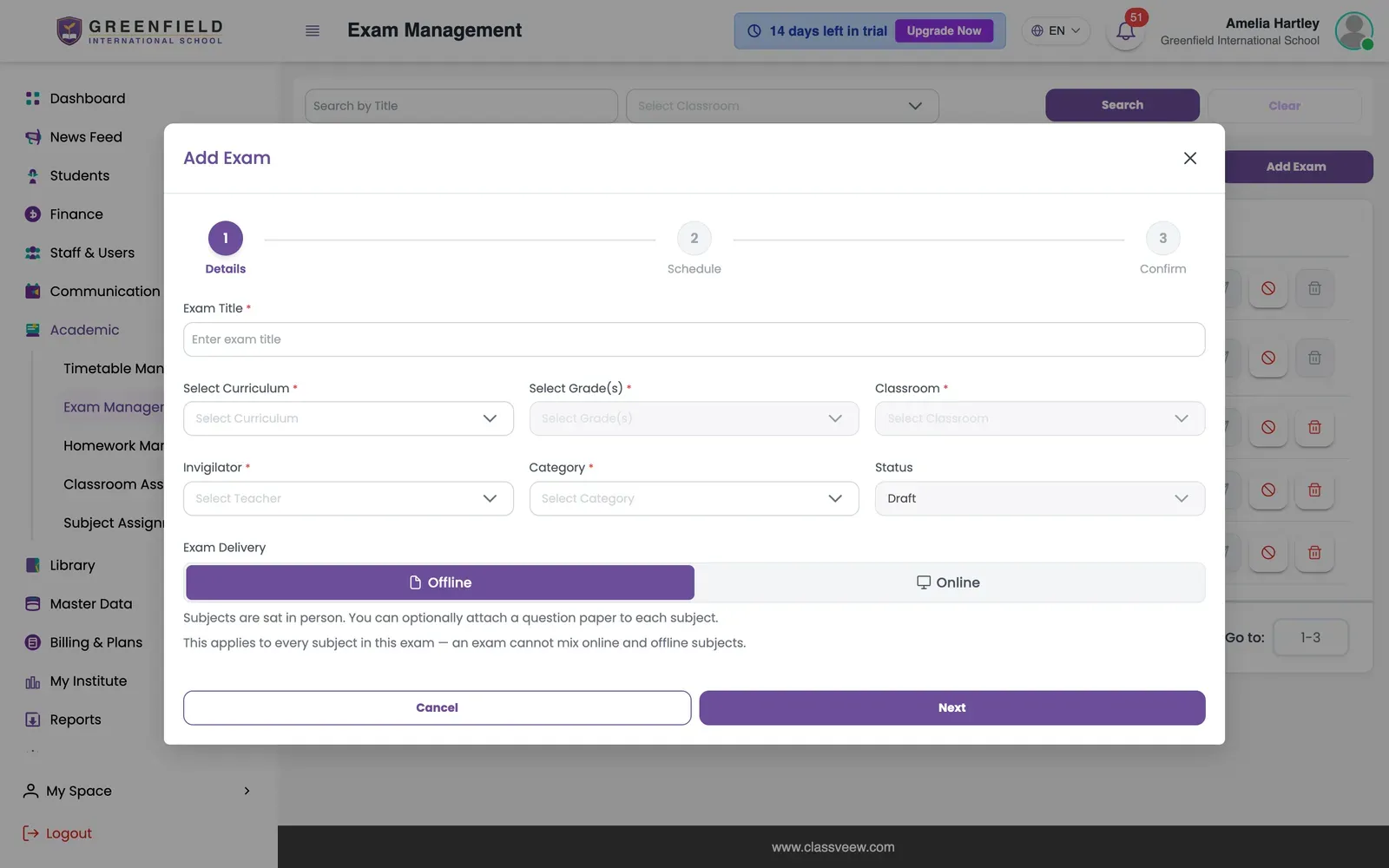
When you create an exam, you choose its Exam Delivery: Offline or Online. The choice applies to every subject in that exam. One exam can’t mix online and offline subjects.
Offline exams
Students sit an offline exam in person, on paper.
- A question paper is optional. You can build one for any subject if you want to keep it in Classveew or print it.
- After the exam, the marking teacher enters one score out of 100 for each student. See Enter exam marks.
Online exams
Students take an online exam on the web, in the student portal.
- Every subject needs a question paper before you can save the exam. See Build an online exam paper.
- Students can open the paper only between the subject’s start and end time. When time runs out, their answers are submitted automatically.
- Multiple choice questions are marked automatically. The teacher marks the other answers, and the student’s total is turned into a score out of 100.
See Take an online exam for what students see.
Print a question paper
- Open Academic → Exam Management and select View Exam (the eye icon) on the exam.
- On the subject’s card, select the eye icon to View Paper.
- Select Print Exam Paper. You get a PDF to print.
The answer keys are hidden on the printed paper, so it’s safe to hand out to students.
Changing the delivery later
You can switch an exam between Online and Offline when you edit it:
- Switching to Online: every subject needs a question paper before you can save.
- Switching to Offline: papers you’ve already built are kept, but are no longer required.
Good to know: once a subject has started, been completed or been cancelled, its question paper can’t be changed.