An exam goes through these stages: Draft → Published → Completed. Two actions on the exam list move it forward: Publish Exam and Release Score.
Publish Exam: show the exam
Publishing makes the exam visible to students and parents, and lets marking start.
- Open Academic → Exam Management.
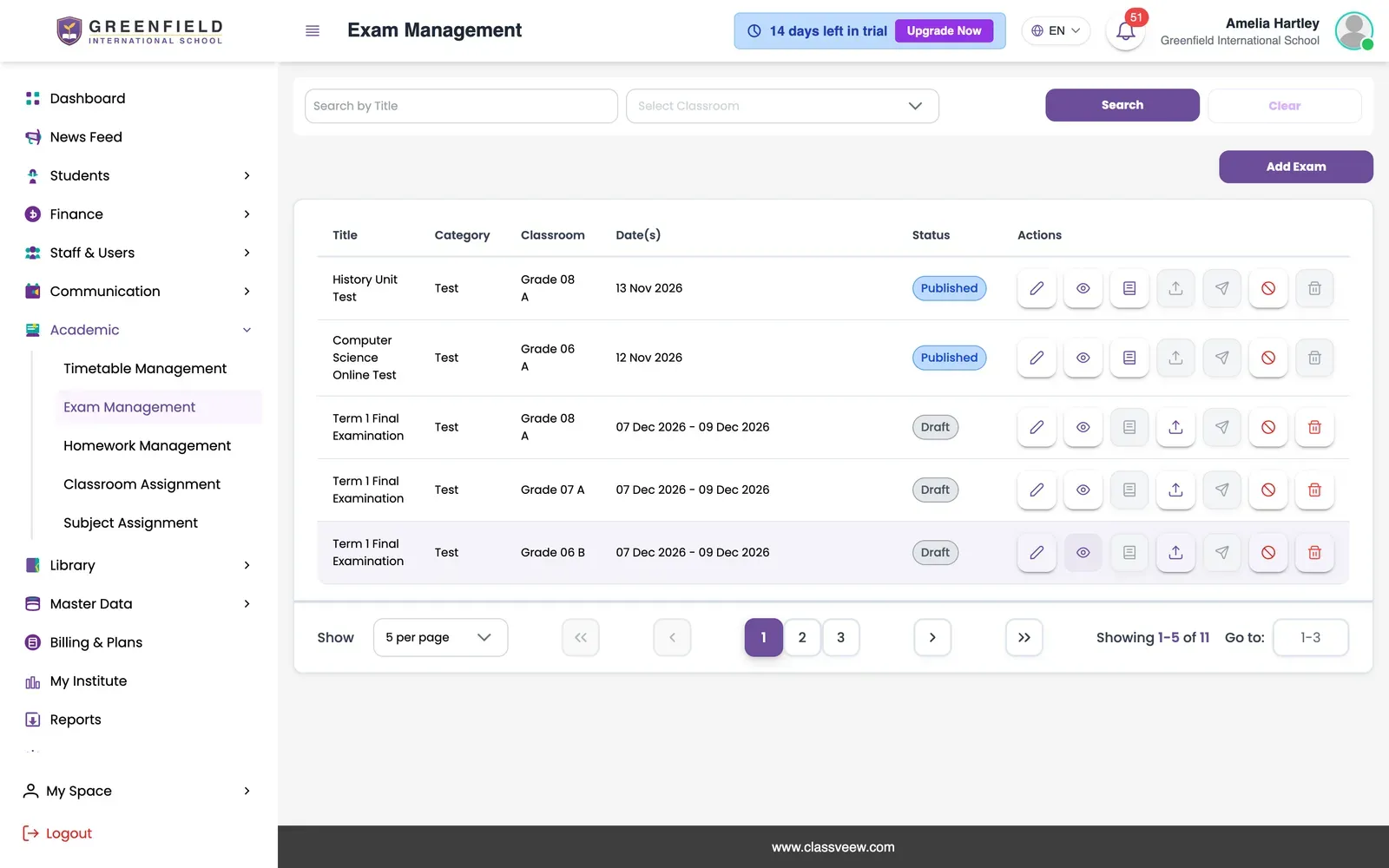
- On a Draft exam, select Publish Exam (the upload icon) and then Yes, Publish.
You often don’t need to do this yourself. Classveew publishes a draft exam automatically at 6:00 in the morning on the day of its first subject. An exam with a subject today is published as soon as you save it.
Release Score: share the results
When the marking teacher has completed marking for every subject, release the scores.
- On the Published exam, select Release Score (the paper plane icon).
- Select Yes, Release.
The exam becomes Completed. Parents get a notification, and they and the students can see the marks and the report card. See Report cards.
If Release Score is greyed out, point at it to see which subjects still need marking.
The other actions
| Action | What it does |
|---|---|
| Edit Exam (pencil) | Change the exam. Not possible once a subject has started or the exam is completed or cancelled. |
| View Exam (eye) | See the subjects, and the parents who have acknowledged the results. |
| Grade Exam (book) | Open marking. See Enter exam marks. |
| Cancel Exam | Cancel a draft or published exam. |
| Delete Exam (bin) | Remove a draft, cancelled or completed exam, with its marks. This can’t be undone. Published exams can’t be deleted. |
What parents see, and when
- Draft: nothing.
- Published: the exam, its subjects and dates. Scores show as not released yet.
- Completed: marks, grades and the report card. In the app, parents can acknowledge the results. See See exam results and report cards.
Good to know: a class teacher who also teaches one of the exam’s subjects can use these actions on that exam too. Other teachers can only view the exam and mark the subjects they’re the marking teacher for.