See your fees
- Open the menu at the top left and tap Payment.
- The top of the screen shows the total pending and total due.
- Filter the invoices by All, Pending, Partial, Paid or Overdue.
Each invoice shows the amount, due date and status.
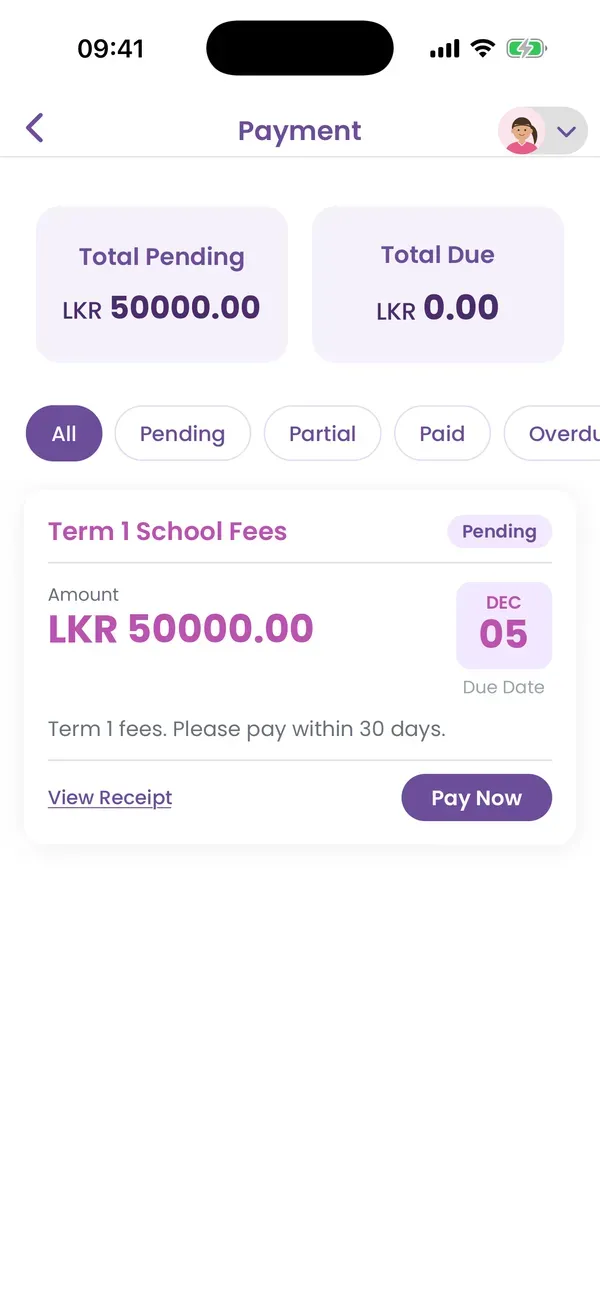
Pay a fee
On an invoice that isn’t paid yet, tap Pay Now and follow the steps on the secure payment page.
Receipts
Paid invoices show Paid. Tap View Receipt to see the receipt.
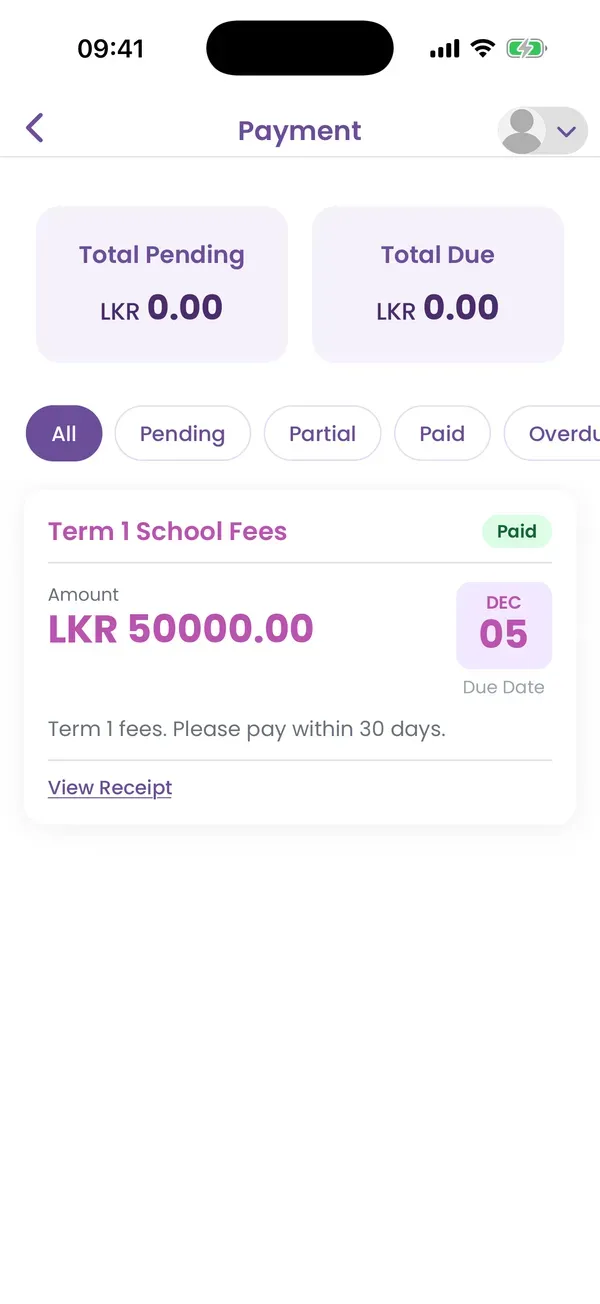
Good to know: the fees shown are for the child selected at the top right. See Switch between your children.