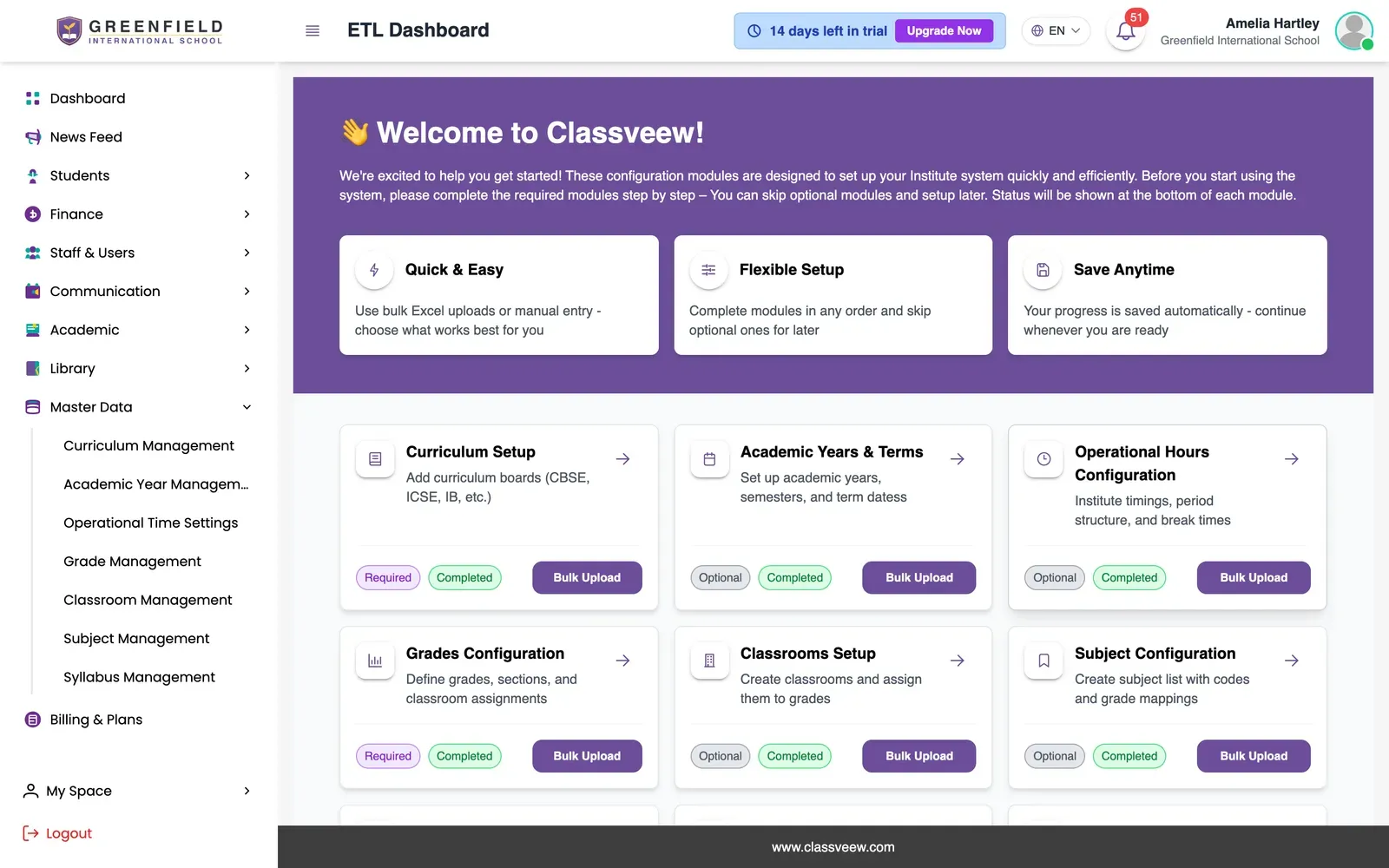
The first time you sign in, Classveew opens the ETL Dashboard. It is your setup checklist: a set of cards, one for each part of your school, such as curricula, academic years, grades, classrooms and subjects. Until you finish it, the other pages bring you back here.
Read the cards
Each card shows two labels:
- Required or Optional. Curriculum Setup and Grades Configuration are required. You can skip the optional cards and come back to them later.
- Pending or Completed. A card turns Completed once that part of your school has data.
Some cards stay locked until the card they depend on is done. You can work through the rest in any order, and your progress is saved as you go.
Option 1: Quick Setup
Quick Setup fills in your school from a ready-made curriculum template, with its academic year, terms, grades and subjects. You can change everything later.
- On the ETL Dashboard, select Start Quick Setup.
- Choose a template: Local Syllabus, Cambridge, Edexcel or American Curriculum. Select Select on its card, then Next.
- Check the summary on the You’re All Set page, then select Accept and Continue.
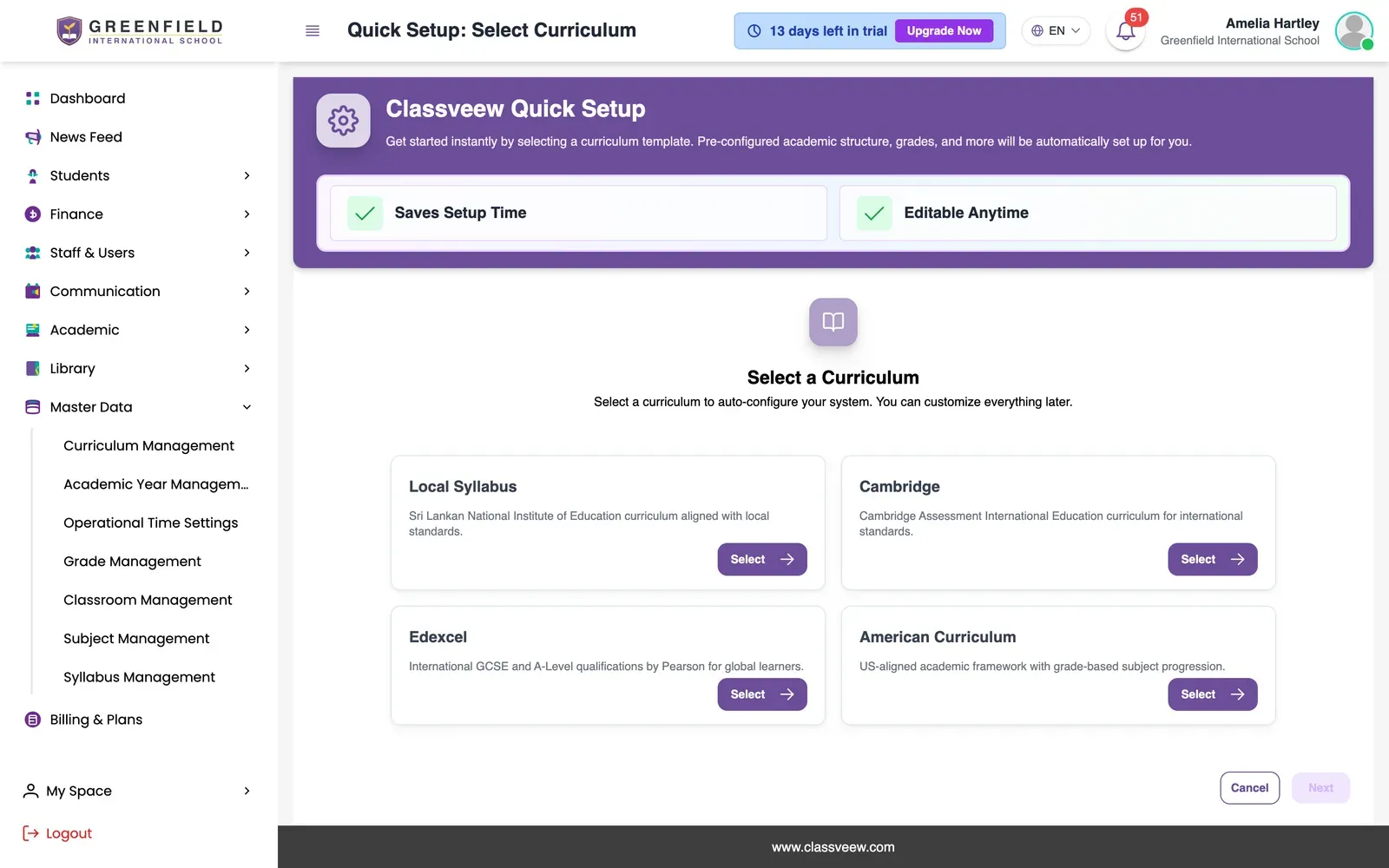
Classveew sets up your curriculum, finishes the setup and opens your dashboard.
Good to know: a template you have already used shows (Already Initialized).
Option 2: Fill in each card
- On each card, select Bulk Upload, download the template, fill it in and upload it. See Bulk upload from Excel.
- When all the required cards show Completed, tick I acknowledge that the provided setup details are correct and adequate for initial use.
- Select Accept and Continue, then Yes, Complete Setup.
Classveew opens your dashboard. Your free trial starts now. See Your free trial.
After setup
The ETL Dashboard stays in the menu, so you can bulk upload more data at any time. You can also add and change things one by one under Master Data. See Set up academic years and terms and Create grades and classrooms.