You can fix invoices from the action buttons on each row of Finance → Invoice Management. Which buttons you see depends on the invoice’s status and on your role’s permissions.
Which action to use
| You want to… | Use | Allowed when the invoice is |
|---|---|---|
| Stop a student being charged, but keep a record | Cancel Invoice | Pending or Overdue |
| Remove an invoice that shouldn’t exist | Delete Invoice | Pending or Cancelled |
| Take back a cash payment you recorded by mistake | Revoke Manual Payment | Paid or Partial |
| Give money back to a parent | Refund Payment | Paid or Partial. See Refund a fee payment |
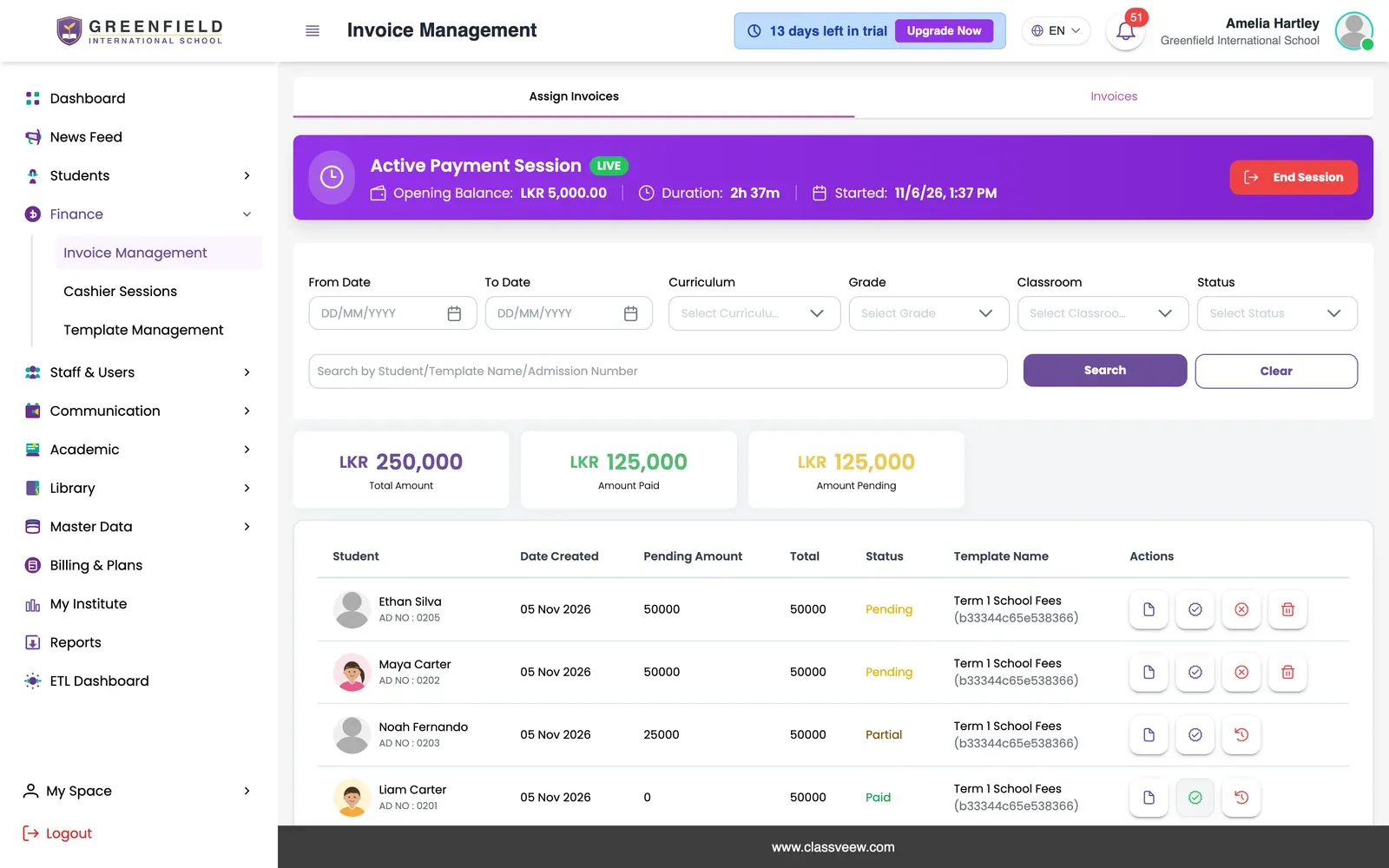
Cancel an invoice
- Select Cancel Invoice (the red cross) on the invoice’s row.
- Enter the reason for cancelling.
- Select Yes, Cancel Invoice.
The invoice stays in the list as Cancelled and no longer counts towards the amounts owed. This can’t be undone.
Delete an invoice
- Select Delete Invoice (the bin) on the invoice’s row.
- Enter the reason for deleting it (5 to 150 characters).
- Select Yes, Delete Invoice.
The invoice is removed from the list and from the totals. This can’t be undone.
Revoke a payment
- Make sure your cashier session is open. See Record a fee payment.
- Select Revoke Manual Payment on the invoice’s row.
- Enter the reason (up to 150 characters) and select Yes, Revoke Payment.
The most recent cash payment on that invoice is taken back, and the invoice’s status is worked out again from the payments that remain.
Rules to know
- A paid or part-paid invoice can’t be cancelled or deleted.
- Only payments recorded at the office can be revoked. Payments parents made in the app can’t.
- An overdue invoice that is part paid can only take more payments or have a payment revoked.
Stop a repeating invoice
To stop future invoices from a repeating invoice, open the Invoices tab and select Cancel Invoice on its row. Invoices already sent to students don’t change. See Recurring invoices.
Good to know: if you don’t see one of these buttons, your role may not have that permission. Ask your school admin. See Roles and permissions.