If a parent paid a fee at the school office and you give the money back, record it as a refund in Invoice Management. Refunds are recorded in your cashier session, like payments.
Before you start
- Open a cashier session. See Record a fee payment.
- The invoice must be Paid or Partial, and paid at the office.
- Your role needs permission to refund payments.
Refund a payment
- Open Finance → Invoice Management.
- Find the invoice on the Assign Invoices tab.
- Select Refund Payment on the invoice’s row.
- Check the Amount Paid and the Refundable amount.
- Enter the Refund Amount. It must be the full refundable amount.
- Choose the Refund Date. It can’t be in the future.
- Add a Reference / Note if you like, such as why you refunded.
- Select Process Refund, then Yes, Confirm Refund.
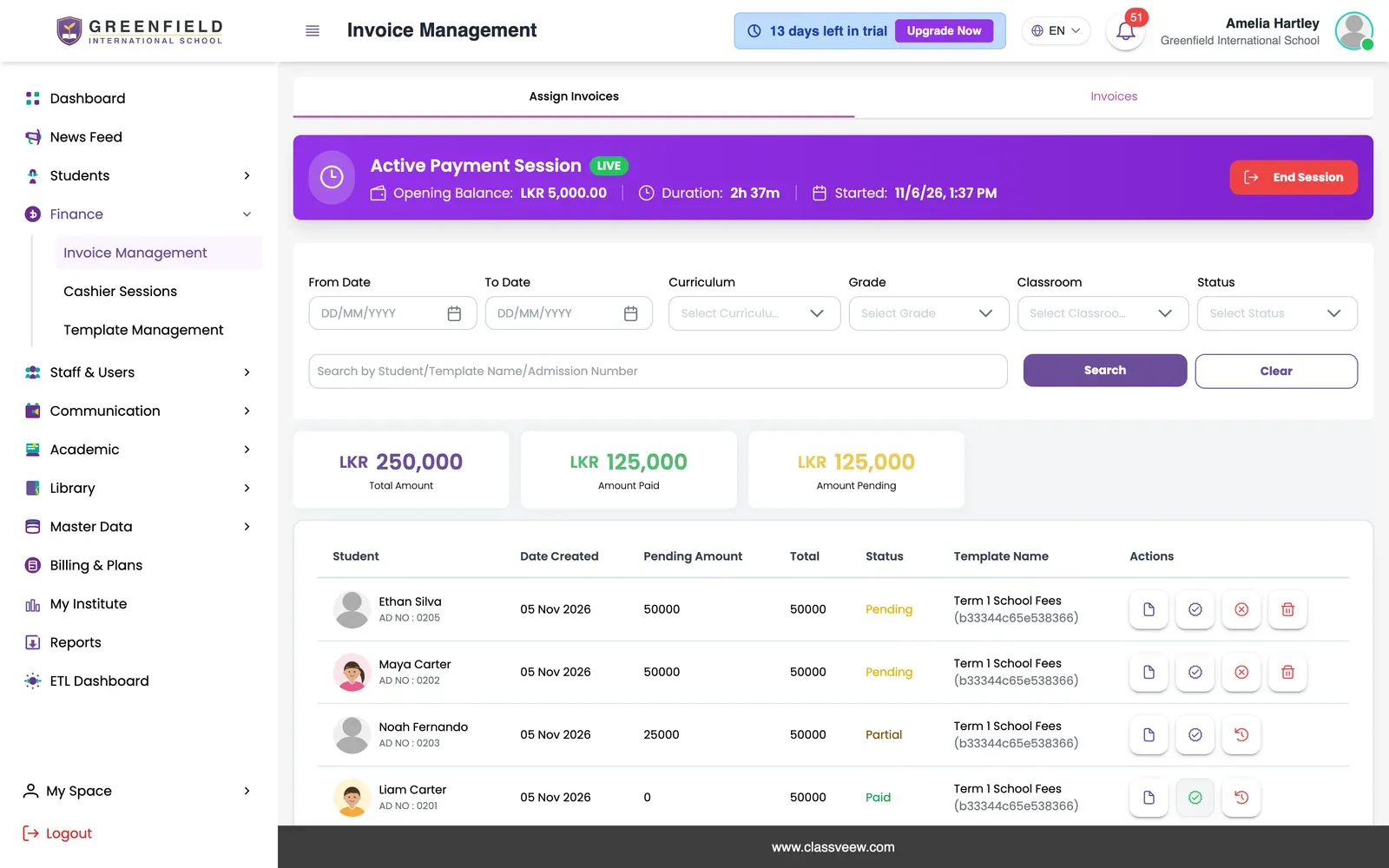
The invoice goes back to Pending, as nothing is paid on it any more. You can then cancel or delete it if the student shouldn’t pay it. See Cancel or delete an invoice.
Where refunds show
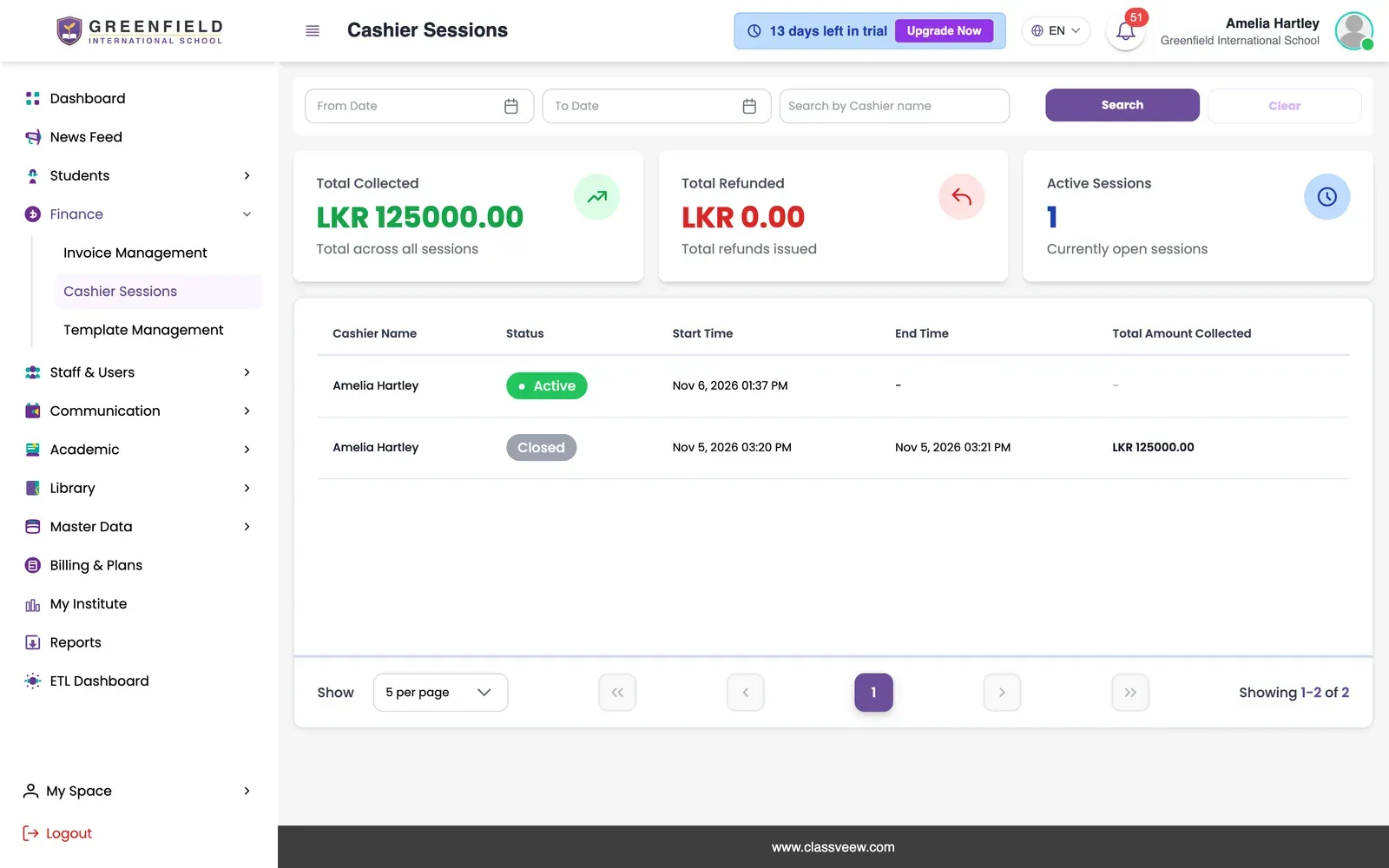
When you end your session, the summary shows the Cash Refunded next to the cash collected. Finance → Cashier Sessions shows the Total Refunded across all sessions.
Refund or revoke?
- Refund when money really goes back to the parent.
- Revoke when a payment was recorded by mistake and no money changed hands. Revoking takes back the last recorded payment without counting it as a refund.
Good to know: payments parents made in the app can’t be refunded from Invoice Management.