Classveew handles discounts and surcharges as adjustments. A negative adjustment takes money off and a positive one adds to it. You can set them as a percentage (%) or a fixed amount (Flat).
Adjust one item
In a fee template, each invoice item has an Adjustment (+/-) box next to its Gross amount.
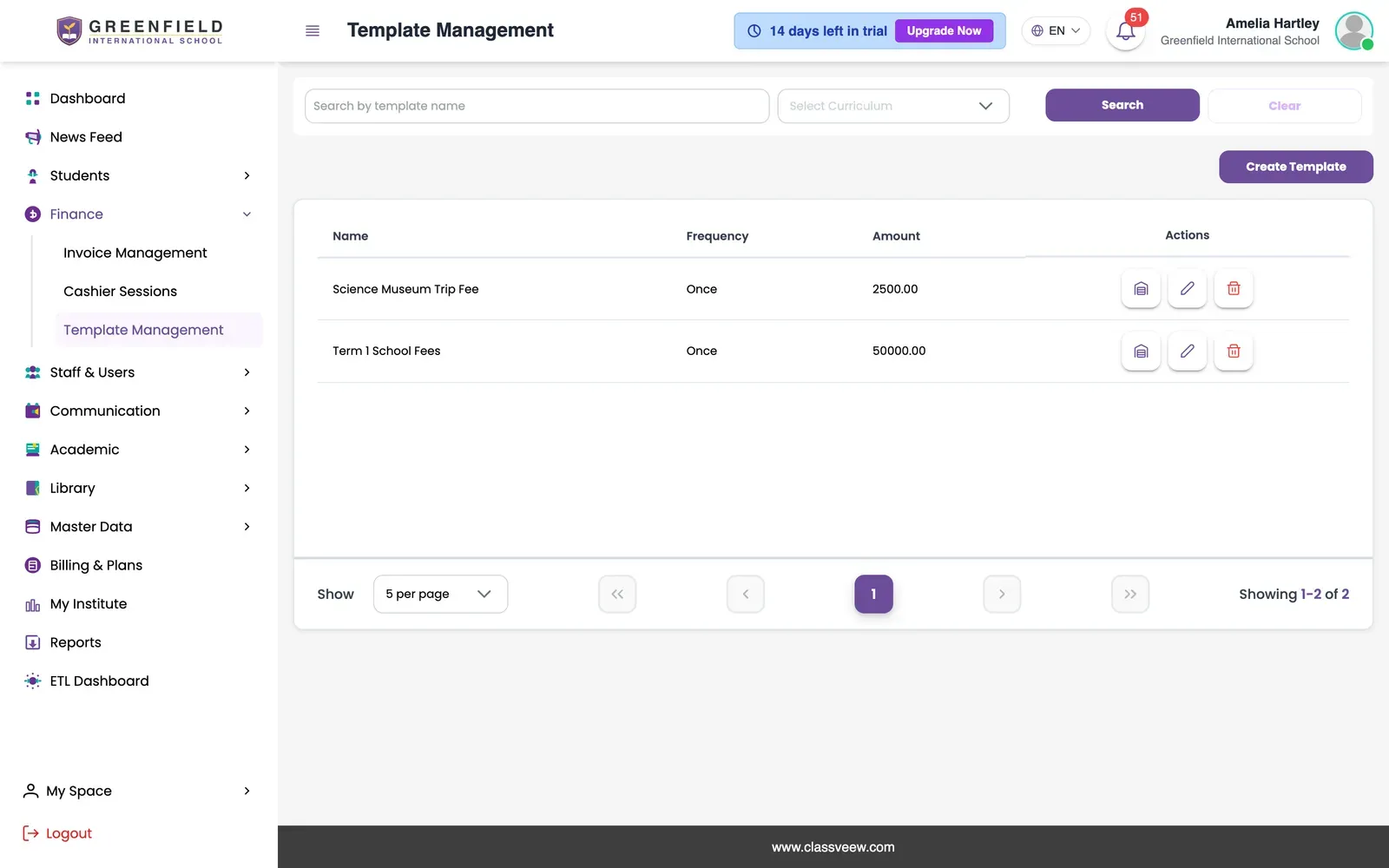
- Open Finance → Template Management and create or edit a template.
- On the item, type the adjustment: for example -10 for a discount or 10 for a surcharge.
- Choose % or Flat next to it.
The Line Net shows the item’s price after the adjustment.
Adjust the whole fee
- In the same template, tick Global Adj. under the items.
- Enter the amount (negative for a discount) and choose % or Flat.
- Check the FINAL TOTAL, then select Save Template.
The global adjustment applies to the sub total of all items, before tax.
Adjust a single invoice
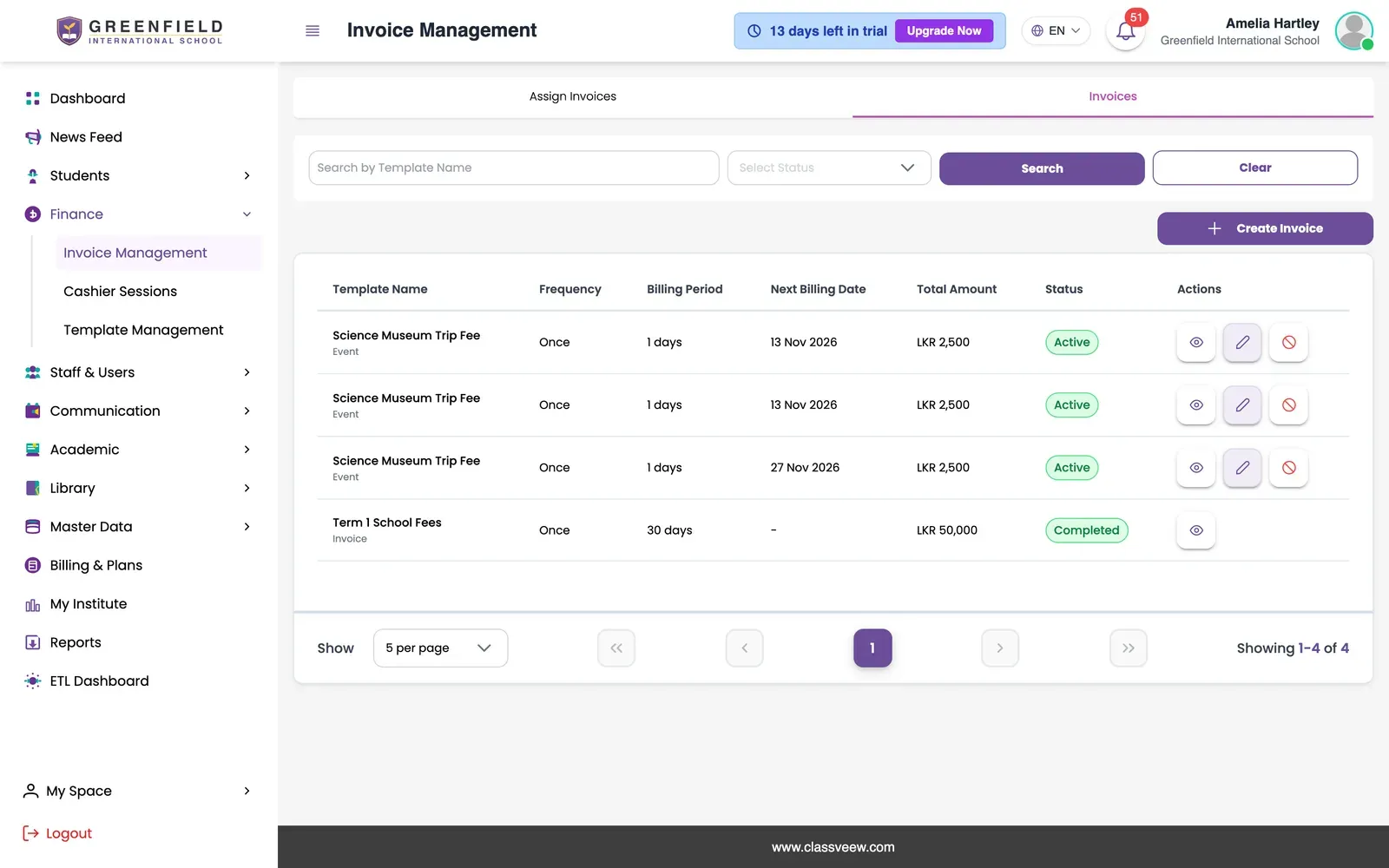
When you create an invoice from a template (Finance → Invoice Management → Invoices → Create Invoice), the template’s items are copied in. You can change each item’s Adjustment (+/-) for that invoice only, and choose the Students it’s for. The template’s global adjustment and tax are shown but can’t be changed there.
Good to know
- Changing a template later doesn’t change invoices that were already created from it.
- For a repeating invoice, you can edit the adjustments with Edit Invoice. The change applies to the next invoices, not to ones already sent. See Recurring invoices.
- To set up templates from scratch, see Create a fee template and assign classes.